
Flutter Desktop Tutorial: Build and Ship Apps for Windows and macOS
Step-by-step Flutter desktop tutorial for Windows and macOS: setup, coding patterns, plugins, packaging, signing, and CI tips to ship production apps.
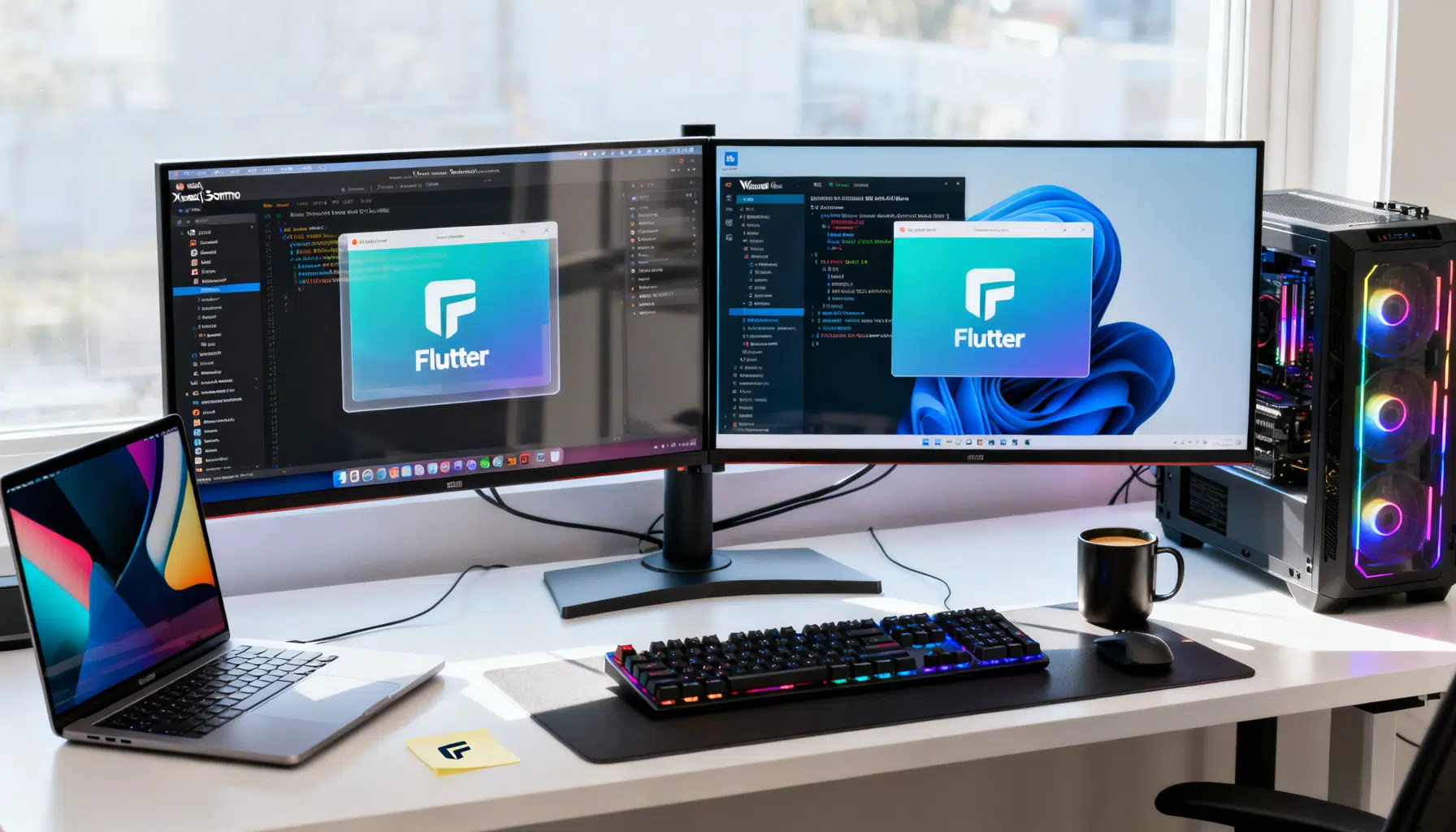
Image used for representation purposes only.
Overview
Flutter’s desktop targets let you ship the same Dart codebase as native executables for Windows and macOS with hardware‑accelerated rendering, first‑class text input, accessibility, and plugins that reach platform APIs. This tutorial walks you from clean setup to a production build, with pragmatic tips for window management, platform adaptation, packaging, and CI.
What you’ll build
- A starter Flutter app that runs on Windows and macOS
- Desktop niceties: custom window size, system tray menu, platform‑specific UI polish
- Release builds you can ship to users
Prerequisites
Before you start, ensure the following are installed.
Common
- Flutter SDK (stable channel)
- Git
- An editor (VS Code or Android Studio) with Flutter/Dart extensions
Windows
- Windows 10/11 64‑bit
- Visual Studio 2022 with the “Desktop development with C++” workload (includes MSVC, CMake, and Windows SDK)
macOS
- macOS on Apple Silicon or Intel
- Xcode with Command Line Tools
- CocoaPods (e.g., gem install cocoapods) if you plan to use plugins that rely on it
Verify your environment:
flutter doctor -v
Enable desktop support (run what you need):
flutter config --enable-windows-desktop
flutter config --enable-macos-desktop
flutter devices
Create the project
Create a fresh app and open it in your editor:
flutter create hello_desktop
cd hello_desktop
The template includes platform folders: windows/ and macos/. Each contains a native runner (C++ for Windows, Swift/Objective‑C for macOS) that hosts Flutter’s engine and your Dart code.
Run on desktop:
# Windows
aflutter run -d windows
# macOS
aflutter run -d macos
If you see the counter app, you’re set.
Desktop‑first polish
Mobile defaults are fine, but desktop users expect resizable windows, menus, keyboard shortcuts, and system integrations.
Manage the window
Add the window_manager package for controlling size, position, and full‑screen.
pubspec.yaml (excerpt):
dependencies:
  flutter:
    sdk: flutter
  window_manager: any
Initialize before runApp:
import 'package:flutter/material.dart';
import 'package:window_manager/window_manager.dart';

Future<void> main() async {
  WidgetsFlutterBinding.ensureInitialized();
  await windowManager.ensureInitialized();

  const windowOptions = WindowOptions(
    size: Size(1100, 720),
    center: true,
    minimumSize: Size(800, 500),
    titleBarStyle: TitleBarStyle.normal,
  );
  windowManager.waitUntilReadyToShow(windowOptions, () async {
    await windowManager.show();
    await windowManager.focus();
  });

  runApp(const MyApp());
}
Adapt the UI by platform
Use the platform to adjust styling or behavior subtly.
import 'dart:io' show Platform;

ThemeData platformTheme() {
  if (Platform.isMacOS) {
    return ThemeData(
      colorSchemeSeed: const Color(0xFF0A84FF),
      visualDensity: VisualDensity.compact,
      typography: Typography.material2021(),
    );
  }
  if (Platform.isWindows) {
    return ThemeData(
      colorSchemeSeed: const Color(0xFF0067C0),
      visualDensity: VisualDensity.standard,
    );
  }
  return ThemeData(useMaterial3: true);
}
For deeper native look‑and‑feel:
- macOS: use packages like macos_ui for native‑styled controls.
- Windows: use fluent_ui for Fluent Design widgets.
Add a system tray
Provide quick actions without opening the main window.
pubspec.yaml (excerpt):
dependencies:
  system_tray: any
import 'package:system_tray/system_tray.dart';

class TrayController {
  final _tray = SystemTray();
  Future<void> init(VoidCallback onQuit, VoidCallback onShow) async {
    await _tray.initSystemTray(
      title: "Hello Desktop",
      toolTip: "Hello Desktop running",
      iconPath: Platform.isWindows ? 'assets/app_icon.ico' : 'assets/app_icon.png',
    );

    final menu = Menu();
    await menu.buildFrom([
      MenuItemLabel(label: 'Show', onClicked: (_) => onShow()),
      MenuItemLabel(label: 'Quit', onClicked: (_) => onQuit()),
    ]);
    await _tray.setContextMenu(menu);
  }
}
Note: Include the appropriate tray icon assets and register them in pubspec.yaml under assets.
Keyboard shortcuts and menus
- Use Shortcuts and Actions for cross‑platform key mappings.
- On macOS, add a proper application menu using native‑menu packages or platform plugins if you need system‑level menu integration.
Files, dialogs, and persistence
Desktop apps frequently open/save files and use well‑known directories.
- file_picker: standard OS file dialogs
- path_provider: Documents, temp, application support directories
- shared_preferences or hive: lightweight persistence; consider sqlite for structured data
Example: open a text file and show its first line.
import 'package:file_picker/file_picker.dart';
import 'dart:io';

Future<String?> pickFirstLine() async {
  final res = await FilePicker.platform.pickFiles(
    type: FileType.custom,
    allowedExtensions: ['txt', 'md', 'log'],
  );
  if (res == null || res.files.single.path == null) return null;
  final f = File(res.files.single.path!);
  return (await f.readAsLines()).firstOrNull;
}
Talking to native code
When you need OS‑specific features not covered by a plugin, you have two primary options:
- Platform channels: call native code in the desktop runner (C++ on Windows, Swift/Obj‑C on macOS)
- FFI: call C APIs directly from Dart (great for existing libraries)
Platform channel sketch (Dart side):
import 'package:flutter/services.dart';

class SystemInfo {
  static const _ch = MethodChannel('app.system');
  static Future<String> osBuild() async {
    return await _ch.invokeMethod('osBuild');
  }
}
You then implement osBuild on each platform’s native side and wire the channel in the runner. Prefer FFI for performance‑critical paths or when targeting the same C API across platforms.
Build a release
Always test release builds; debug runs use different flags.
Windows (x64 default):
flutter build windows --release
Artifacts end up under build/windows/x64/runner/Release. This produces a folder containing your .exe, required DLLs, and resources. You can zip this for a “portable” distribution, or package it as described below.
macOS:
flutter build macos --release
The app bundle appears at build/macos/Build/Products/Release/YourApp.app.
Code signing and packaging
macOS
- Sign your .app with your Developer ID certificate (Keychain) using Xcode project settings or codesign.
- Notarize with Apple to avoid Gatekeeper warnings.
- Wrap the app in a .dmg or .pkg for distribution. Tools like create-dmg (shell) or appdmg (Node) automate DMG creation.
Windows
- Option 1: ship a zipped folder; users run the .exe (fastest, not auto‑updating)
- Option 2: MSIX packaging for modern installation, updates, and signature. Community tools and packages (e.g., an MSIX helper package) can generate an MSIX from your Flutter build.
- Option 3: traditional installers (Inno Setup, WiX) if your organization prefers them
Signing your binaries (Authenticode) reduces SmartScreen warnings and builds trust.
Performance checklist
- Use release/profile builds when measuring performance
- Prefer const constructors and avoid rebuilding large subtrees
- Offload heavy work to isolates (compute or Isolate.run)
- Debounce window resize events to avoid excessive relayout
- Use efficient text rendering for huge documents (ListView.builder, SliverList)
Error reporting and telemetry
- Add crash/error reporting (e.g., Sentry or Firebase Crashlytics desktop support via community packages)
- Log versions and environment info (package_info_plus) to assist support
Continuous integration (optional but recommended)
Set up CI to produce signed artifacts on every tag.
- GitHub Actions runners: windows-latest and macos-latest
- Cache Flutter SDK and pub packages for faster builds
- Inject signing secrets securely (macOS keychain import; Windows PFX certificate)
- Steps outline:
- Checkout + Flutter setup (stable)
- flutter pub get
- flutter test
- flutter build windows/macos –release
- Package + sign + upload release artifacts
Troubleshooting
- CMake not found (Windows): ensure Visual Studio C++ workload is installed; restart the terminal so PATH updates apply.
- CocoaPods errors (macOS): run pod repo update inside macos/; ensure Xcode command line tools are selected: xcode-select –install.
- “Cannot open because the developer cannot be verified” (macOS): sign and notarize the app; during development, allow via System Settings > Privacy & Security.
- Missing assets or icons: verify pubspec.yaml asset paths and rebuild; on Windows include .ico for the tray/app icon.
- DPI/Scaling issues: test at multiple scale factors (125%, 150%+) and ensure your UIs are responsive and not hard‑coded in pixels.
Extending the app
- Auto‑update: integrate a platform‑appropriate updater (MSIX/App Installer on Windows, a notarized update framework on macOS) or a cross‑platform updater package
- App menus and shortcuts: provide standard entries (About, Preferences, Quit) and platform‑specific accelerators
- Deep links and file associations: register your protocol/file types in the platform projects so your app opens when users click links or files
Full example: desktop‑aware scaffold
import 'dart:io' show Platform;
import 'package:flutter/material.dart';
import 'package:window_manager/window_manager.dart';

void main() async {
  WidgetsFlutterBinding.ensureInitialized();
  await windowManager.ensureInitialized();
  await windowManager.waitUntilReadyToShow(
    const WindowOptions(size: Size(1100, 720), center: true, minimumSize: Size(800, 500)),
    () async { await windowManager.show(); await windowManager.focus(); },
  );
  runApp(const MyApp());
}

class MyApp extends StatelessWidget {
  const MyApp({super.key});
  @override
  Widget build(BuildContext context) {
    return MaterialApp(
      title: 'Hello Desktop',
      theme: _themeForPlatform(),
      home: const HomePage(),
      debugShowCheckedModeBanner: false,
    );
  }
}

ThemeData _themeForPlatform() {
  final seed = Platform.isMacOS ? const Color(0xFF0A84FF) : const Color(0xFF0067C0);
  return ThemeData(useMaterial3: true, colorSchemeSeed: seed);
}

class HomePage extends StatefulWidget {
  const HomePage({super.key});
  @override
  State<HomePage> createState() => _HomePageState();
}

class _HomePageState extends State<HomePage> {
  int _count = 0;
  @override
  Widget build(BuildContext context) {
    return Scaffold(
      appBar: AppBar(
        title: Text(Platform.isMacOS ? 'Hello Desktop (macOS)' : 'Hello Desktop (Windows)'),
      ),
      body: Center(
        child: Column(
          mainAxisSize: MainAxisSize.min,
          children: [
            const Text('Clicks'),
            Text('$_count', style: Theme.of(context).textTheme.displayMedium),
            const SizedBox(height: 24),
            FilledButton.icon(
              icon: const Icon(Icons.open_in_new),
              onPressed: () {/* open file, show tray, etc. */},
              label: const Text('Do desktop thing'),
            ),
          ],
        ),
      ),
      floatingActionButton: FloatingActionButton(
        onPressed: () => setState(() => _count++),
        child: const Icon(Icons.add),
      ),
    );
  }
}
Wrap‑up
You now have a Flutter desktop application that runs natively on Windows and macOS, respects desktop conventions, and produces signed release builds. From here, invest in platform‑appropriate menus and shortcuts, integrate auto‑updates, and set up CI to ship confidently on every release tag. Flutter’s single codebase, plugin ecosystem, and mature desktop runners make it practical to build polished, production‑ready desktop apps without duplicating work across platforms.
Related Posts
Flutter GetX Tutorial: State, Routing, and Dependency Injection in One Lightweight Package
Step-by-step Flutter GetX tutorial covering state, routing, DI, bindings, workers, theming, and i18n with practical code snippets.

Mastering Flutter AnimationController: Advanced Techniques, Patterns, and Performance
Advanced Flutter AnimationController techniques: staging, physics, scroll/gesture-driven motion, lifecycle, performance, and testing with code.

Flutter go_router Navigation Guide: From Basics to Advanced Patterns
A practical guide to Flutter’s go_router: setup, parameters, guards, nested tabs, deep links, transitions, and testing with concise, production-ready code.