
Flutter Local Notifications: A Complete Scheduling Guide (Android 13/14+ ready)
A practical Flutter guide to scheduling reliable local notifications on Android and iOS, updated for Android 13/14 exact-alarm and permission changes.
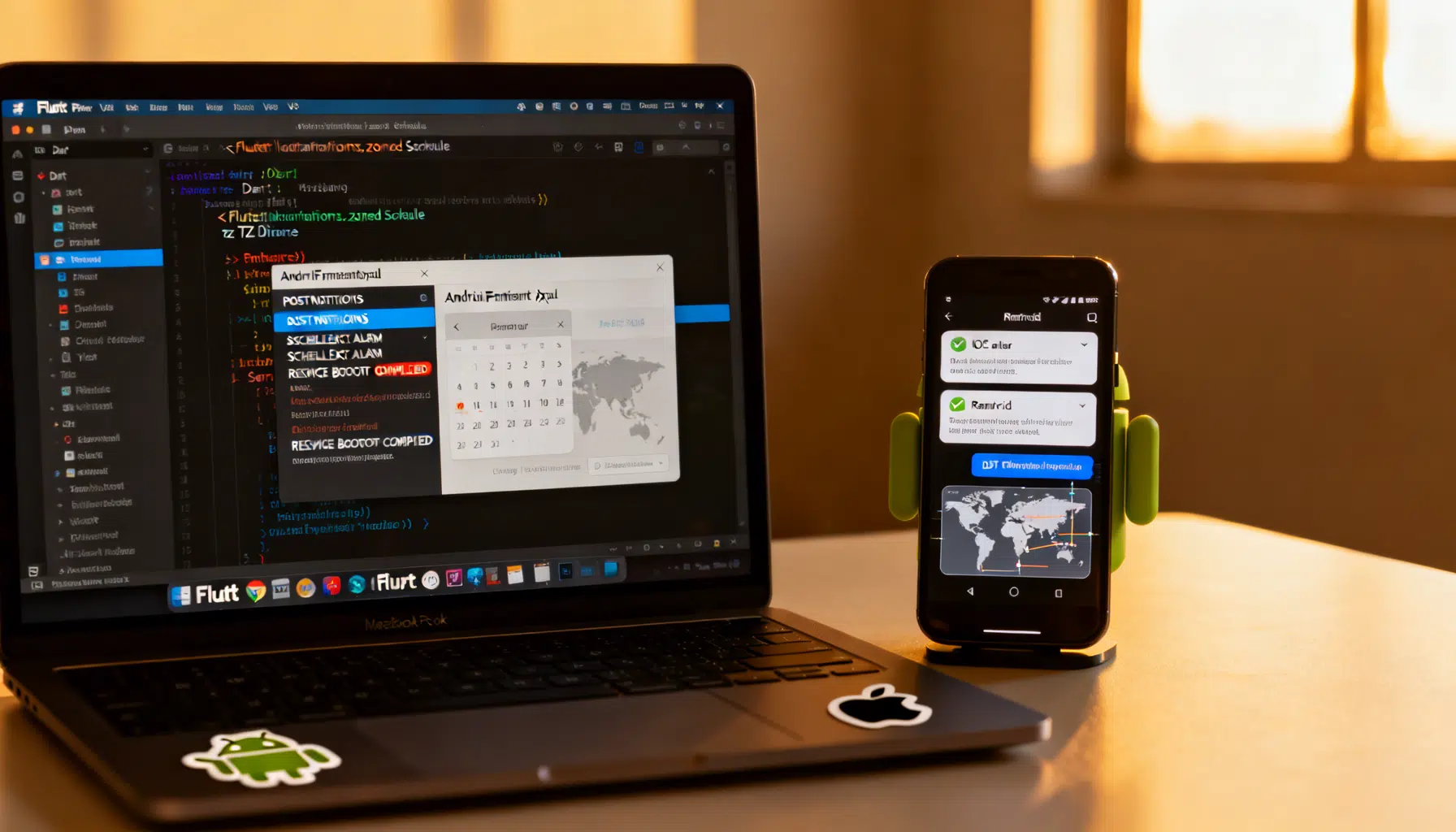
Image used for representation purposes only.
Overview
Local notifications are a core UX primitive for reminders, alerts, and time‑based nudges. In Flutter, the de‑facto approach for precise client‑side scheduling is the flutter_local_notifications plugin, which supports one‑shot, repeating, and calendar‑based schedules across Android and iOS. This guide walks you through a production‑ready setup, explains Android 13/14+ permission changes, and shows reliable scheduling patterns with code you can paste into your app. (pub.dev )
Before you start: choose one plugin
Use one notifications plugin per app. If you consider Awesome Notifications as an alternative, don’t install it alongside flutter_local_notifications; the authors explicitly mark them as incompatible because they compete for the same native resources. Pick one stack and stick to it. (pub.dev )
What changed on Android (API 33–34+)
- Android 13 (API 33) introduced the POST_NOTIFICATIONS runtime permission. Newly installed apps have notifications off by default until users opt in. Plan an in‑app education moment and request at the right time. (developer.android.com )
- Exact alarms: From Android 14 (API 34), SCHEDULE_EXACT_ALARM is no longer pre‑granted to most newly installed apps; the permission is denied by default and you must request the special access or choose inexact scheduling. (developer.android.com )
- If your app targets Android 13+, you may alternatively declare USE_EXACT_ALARM (auto‑granted for limited, policy‑constrained use cases like clocks/calendars). Most apps should prefer SCHEDULE_EXACT_ALARM and handle user choice gracefully. (developer.android.com )
Project setup
Add dependencies:
# pubspec.yaml
dependencies:
  flutter_local_notifications: ^any
  timezone: ^any
  flutter_timezone: ^any  # to read the device’s current time zone ID
Android Gradle and manifest basics (excerpt):
// android/app/build.gradle (Kotlin DSL similar)
android {
  compileSdk = 36
}
Plugin docs require a modern compileSdk and list the Android 13+ permission flow. (pub.dev )
<!-- AndroidManifest.xml -->
<manifest>
  <!-- Android 13+ runtime permission for posting notifications -->
  <uses-permission android:name="android.permission.POST_NOTIFICATIONS"/>
  <!-- Needed to reschedule after device reboot -->
  <uses-permission android:name="android.permission.RECEIVE_BOOT_COMPLETED"/>
  <!-- One of the exact-alarm options (see section below) -->
  <!-- <uses-permission android:name="android.permission.SCHEDULE_EXACT_ALARM"/> -->
  <!-- or -->
  <!-- <uses-permission android:name="android.permission.USE_EXACT_ALARM"/> -->

  <application>
    <!-- Receivers required for scheduled notifications -->
    <receiver android:name="com.dexterous.flutterlocalnotifications.ScheduledNotificationReceiver"
              android:exported="false"/>

    <receiver android:name="com.dexterous.flutterlocalnotifications.ScheduledNotificationBootReceiver"
              android:exported="false">
      <intent-filter>
        <action android:name="android.intent.action.BOOT_COMPLETED"/>
        <action android:name="android.intent.action.MY_PACKAGE_REPLACED"/>
        <action android:name="android.intent.action.QUICKBOOT_POWERON"/>
        <action android:name="com.htc.intent.action.QUICKBOOT_POWERON"/>
      </intent-filter>
    </receiver>
  </application>
</manifest>
These receivers and permissions are required so the plugin can schedule and re‑schedule after reboot. (pub.dev )
iOS: Set the UNUserNotificationCenter delegate in AppDelegate and request authorization at runtime. (pub.dev )
// AppDelegate.swift
import UserNotifications
...
UNUserNotificationCenter.current().delegate = self
Initialization and permissions
Create a notification service that handles initialization, permissions, and time zones.
// lib/notification_service.dart
import 'dart:io';
import 'package:flutter_local_notifications/flutter_local_notifications.dart';
import 'package:timezone/data/latest_all.dart' as tz;
import 'package:timezone/timezone.dart' as tz;
import 'package:flutter_timezone/flutter_timezone.dart';

class NotificationService {
  NotificationService._();
  static final instance = NotificationService._();

  final _plugin = FlutterLocalNotificationsPlugin();

  Future<void> init() async {
    // 1) Initialize time zones and set local location
    tz.initializeTimeZones();
    final String localTz = await FlutterTimezone.getLocalTimezone();
    tz.setLocalLocation(tz.getLocation(localTz));

    // 2) Platform init settings
    const androidInit = AndroidInitializationSettings('@mipmap/ic_launcher');
    final iosInit = DarwinInitializationSettings(
      requestAlertPermission: false,
      requestBadgePermission: false,
      requestSoundPermission: false,
    );

    await _plugin.initialize(
      const InitializationSettings(android: androidInit, iOS: iosInit),
      onDidReceiveNotificationResponse: (resp) {
        // Handle taps
      },
    );

    // 3) Request runtime permissions
    await requestPermissions();
  }

  Future<void> requestPermissions() async {
    if (Platform.isAndroid) {
      final android = _plugin.resolvePlatformSpecificImplementation<
          AndroidFlutterLocalNotificationsPlugin>();
      await android?.requestNotificationsPermission(); // Android 13+
      // If your app needs exact timing, also request special access (Android 14+)
      await android?.requestExactAlarmsPermission();
    } else {
      await _plugin
          .resolvePlatformSpecificImplementation<
              IOSFlutterLocalNotificationsPlugin>()
          ?.requestPermissions(alert: true, badge: true, sound: true);
    }
  }
}
- Android 13+ requires an explicit opt‑in to post notifications.
- For exact schedules on Android 14+, request the “Alarms & reminders” special access at runtime; otherwise schedule inexactly.
- The plugin’s zoned scheduling requires timezone initialization and a device time‑zone ID (via flutter_timezone). (developer.android.com )
Exact vs inexact scheduling on Android
Use androidScheduleMode to choose precision per notification:
await _plugin.zonedSchedule(
  1001,
  'Water break',
  'Hydrate now',
  tz.TZDateTime.now(tz.local).add(const Duration(minutes: 30)),
  const NotificationDetails(
    android: AndroidNotificationDetails(
      'reminders', 'Reminders',
      channelDescription: 'Time‑sensitive reminders',
      importance: Importance.high,
      priority: Priority.high,
    ),
  ),
  androidScheduleMode: AndroidScheduleMode.exactAllowWhileIdle, // requires exact‑alarm access
  uiLocalNotificationDateInterpretation:
      UILocalNotificationDateInterpretation.absoluteTime,
  payload: 'hydrate',
);
If the user denies exact‑alarm access, fall back to inexact scheduling:
androidScheduleMode: AndroidScheduleMode.inexactAllowWhileIdle,
The plugin documents androidScheduleMode and the exact‑alarm requirement. (pub.dev )
Common schedules you’ll need
- One‑shot in N minutes (shown above).
- Daily at HH:mm:
Future<void> scheduleDaily(int id, int hour, int minute) async {
  final now = tz.TZDateTime.now(tz.local);
  var next = tz.TZDateTime(tz.local, now.year, now.month, now.day, hour, minute);
  if (next.isBefore(now)) next = next.add(const Duration(days: 1));

  await _plugin.zonedSchedule(
    id,
    'Daily check‑in',
    'Let’s review your goals',
    next,
    const NotificationDetails(
      android: AndroidNotificationDetails('daily', 'Daily'),
      iOS: DarwinNotificationDetails(),
    ),
    matchDateTimeComponents: DateTimeComponents.time, // repeats daily
    uiLocalNotificationDateInterpretation:
        UILocalNotificationDateInterpretation.absoluteTime,
    androidScheduleMode: AndroidScheduleMode.inexactAllowWhileIdle,
  );
}
-
Weekly on a given weekday at HH:mm: compute the next date similarly, or pass matchDateTimeComponents: DateTimeComponents.dayOfWeekAndTime. These calendar and matching options are built into the plugin. (pub.dev )
-
Repeating interval (e.g., every 15 minutes):
await _plugin.periodicallyShow(
  2001,
  'Stretch',
  'Time to move',
  RepeatInterval.everyMinute, // demo; use hourly/halfDay per UX
  const NotificationDetails(android: AndroidNotificationDetails('rep', 'Repeating')),
  androidScheduleMode: AndroidScheduleMode.inexactAllowWhileIdle,
);
iOS scheduling notes
iOS uses UNUserNotificationCenter with three trigger types: time interval, calendar, and location. Repeating schedules use calendar/date components or a repeating time interval. You must request authorization first; you can optionally use provisional authorization to let users try notifications quietly before opting in. (developer.apple.com )
Example: Schedule every Tuesday at 2:00 PM using calendar components (conceptually the same as the native snippet in Apple’s docs):
final details = const NotificationDetails(iOS: DarwinNotificationDetails());

// Next Tuesday 14:00 local
dateComponentsFromNextTuesday14() {
  final now = DateTime.now();
  // Dart: weekday 1=Mon ... 7=Sun; pick the next Tuesday (2)
  int daysUntilTuesday = (DateTime.tuesday - now.weekday) % 7;
  if (daysUntilTuesday == 0 && now.hour >= 14) daysUntilTuesday = 7;
  final next = now.add(Duration(days: daysUntilTuesday));
  return DateTime(next.year, next.month, next.day, 14, 0);
}

await _plugin.zonedSchedule(
  3001,
  'Weekly staff meeting',
  'Every Tuesday at 2 PM',
  tz.TZDateTime.from(dateComponentsFromNextTuesday14(), tz.local),
  details,
  matchDateTimeComponents: DateTimeComponents.dayOfWeekAndTime,
  uiLocalNotificationDateInterpretation:
      UILocalNotificationDateInterpretation.absoluteTime,
);
Handling device reboot and app updates
Android clears scheduled alarms across reboots, so the plugin listens for BOOT_COMPLETED and reschedules future notifications. Ensure you added RECEIVE_BOOT_COMPLETED and both ScheduledNotificationReceiver entries shown earlier. (pub.dev )
Time zones and daylight saving time (DST)
Always schedule with tz.TZDateTime using the timezone package and set the device’s local location at startup. This prevents off‑by‑one‑hour errors during DST transitions. The plugin’s zonedSchedule requires a tz date and recommends adding timezone directly as a dependency; use flutter_timezone (or a platform channel) to read the device time‑zone name. (pub.dev )
Requesting exact‑alarm access (Android 14+)
If your UX truly requires to‑the‑minute precision (alarm clock, calendar alert), declare SCHEDULE_EXACT_ALARM and request special access via requestExactAlarmsPermission(). If denied, degrade gracefully to inexact scheduling. Behavior changes in Android 14 mean users aren’t auto‑granted this access on fresh installs; you must handle the permission flow and state changes. (developer.android.com )
Posting notifications requires user opt‑in (Android 13+)
Target API 33+ and request POST_NOTIFICATIONS at a contextually relevant moment (e.g., after a user enables reminders). Until the user allows, your app can’t post notifications. Android’s official guidance includes ADB commands to test each path. (developer.android.com )
Minimal end‑to‑end example
// main.dart
import 'package:flutter/material.dart';
import 'notification_service.dart';

void main() async {
  WidgetsFlutterBinding.ensureInitialized();
  await NotificationService.instance.init();
  runApp(const MyApp());
}

class MyApp extends StatelessWidget {
  const MyApp({super.key});
  @override
  Widget build(BuildContext context) {
    return MaterialApp(
      home: Scaffold(
        appBar: AppBar(title: const Text('Local notifications demo')),
        body: Center(
          child: Column(mainAxisSize: MainAxisSize.min, children: [
            ElevatedButton(
              onPressed: () async {
                // one‑shot in 10s
                final when = tz.TZDateTime.now(tz.local).add(const Duration(seconds: 10));
                await NotificationService.instance.scheduleExact(when);
              },
              child: const Text('Schedule in 10s'),
            ),
            ElevatedButton(
              onPressed: () async {
                await NotificationService.instance.cancelAll();
              },
              child: const Text('Cancel all'),
            ),
          ]),
        ),
      ),
    );
  }
}
// Add to NotificationService
Future<void> scheduleExact(tz.TZDateTime when) async {
  await _plugin.zonedSchedule(
    1,
    'Demo',
    'This was scheduled',
    when,
    const NotificationDetails(
      android: AndroidNotificationDetails('demo', 'Demo'),
      iOS: DarwinNotificationDetails(),
    ),
    androidScheduleMode: AndroidScheduleMode.exactAllowWhileIdle,
    uiLocalNotificationDateInterpretation:
        UILocalNotificationDateInterpretation.absoluteTime,
  );
}

Future<void> cancelAll() => _plugin.cancelAll();
Debugging checklist
- Android 13+: Did the user grant POST_NOTIFICATIONS? If not, nothing will appear. (developer.android.com )
- Android 14+: If you scheduled with exactAllowWhileIdle, does the app have SCHEDULE_EXACT_ALARM special access? If not, switch to inexact. (developer.android.com )
- Manifest: Are RECEIVE_BOOT_COMPLETED and both ScheduledNotification receivers present? Otherwise reboot breaks schedules. (pub.dev )
- Time zone: Did you initialize timezone data and set tz.local from the device’s time‑zone ID? (pub.dev )
- iOS: Did you request authorization (or provisional) and set UNUserNotificationCenter.delegate? (developer.apple.com )
When to consider inexact schedules or background work
Exact alarms are power‑sensitive and increasingly restricted. Prefer inexact alarms where possible; for longer work, trigger a job from the alarm using WorkManager/JobScheduler on Android. Your app should only request exact‑alarm capability if a user‑facing function truly requires precise timing. (developer.android.com )
Takeaways
- Schedule with tz.TZDateTime to survive DST.
- Ask for POST_NOTIFICATIONS on Android 13+ and only request exact‑alarm access when you must.
- Keep your manifest receivers and permissions in sync with the plugin’s docs.
- Don’t mix multiple notification plugins in one app.
With these patterns and snippets, you can ship reliable, user‑respectful local notifications across Android and iOS.
Related Posts
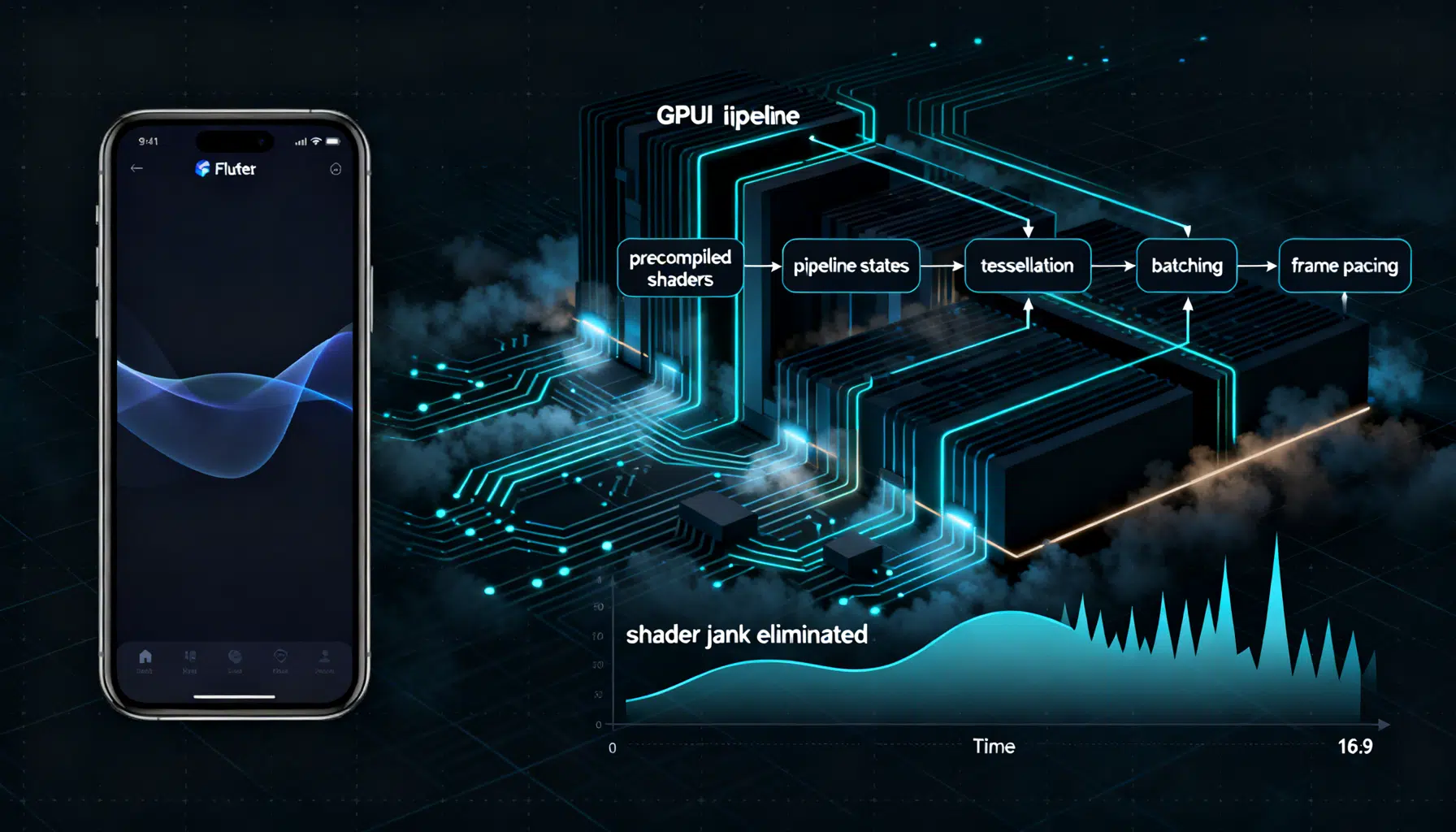
Flutter Impeller Rendering Engine: A Performance Deep Dive and Tuning Guide
A practical performance deep dive into Flutter’s Impeller renderer: how it works, how to measure it, and tuning patterns for smooth, jank‑free UIs.
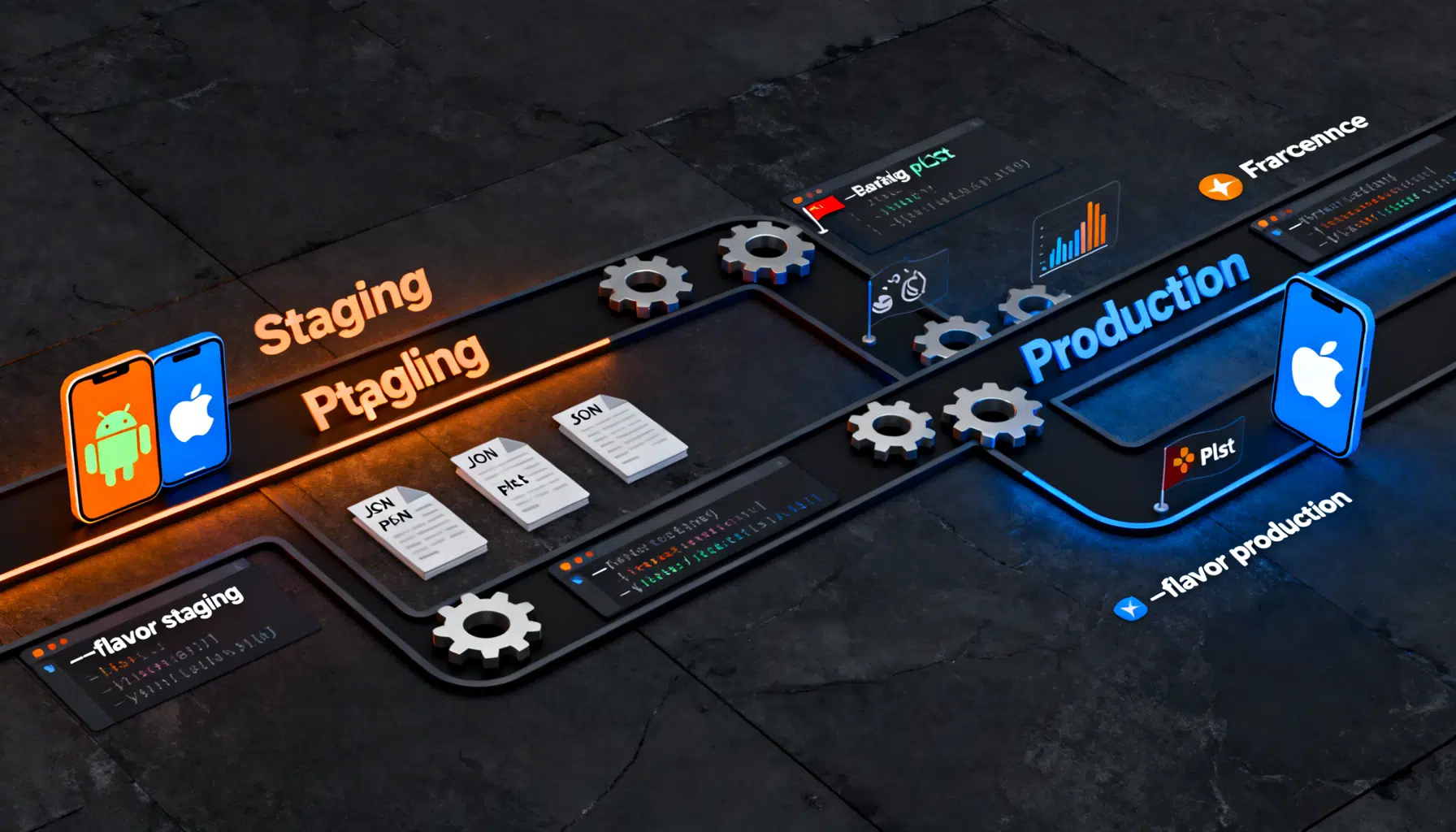
Flutter Flavors Done Right: Production and Staging Configuration
A practical, end-to-end guide to configuring Flutter flavors for production and staging across Android, iOS, CI/CD, Firebase, and more.
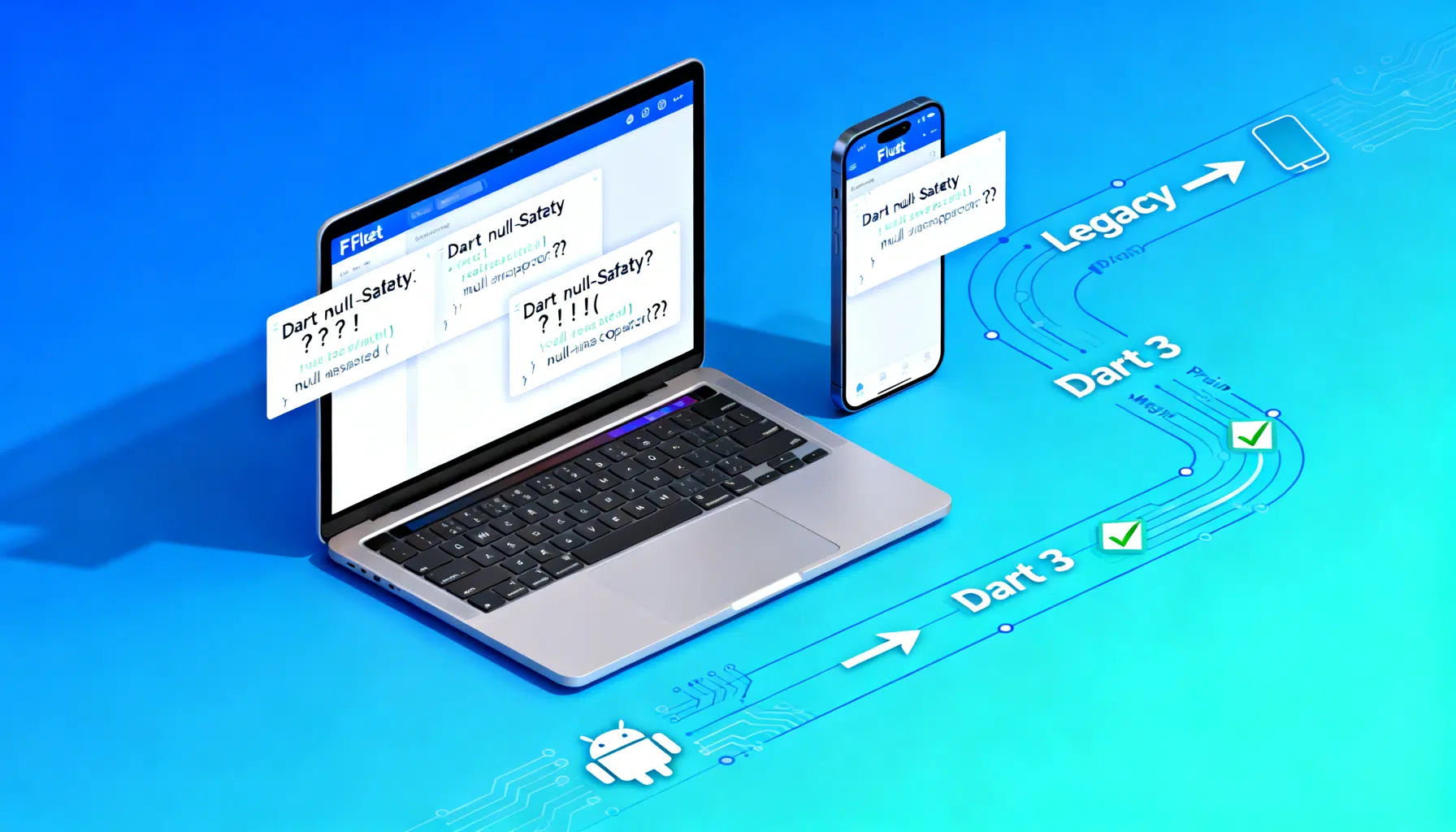
Migrating to Dart 3 Null Safety in Flutter: A Practical Guide
Step-by-step guide to migrate a Flutter codebase to Dart 3’s sound null safety with commands, patterns, pitfalls, and checklists.