
Flutter barcode scanning with the camera plugin: a production-ready guide
Build a fast, on‑device Flutter barcode scanner using the camera plugin and ML Kit, with code, overlays, performance tips, and platform setup.
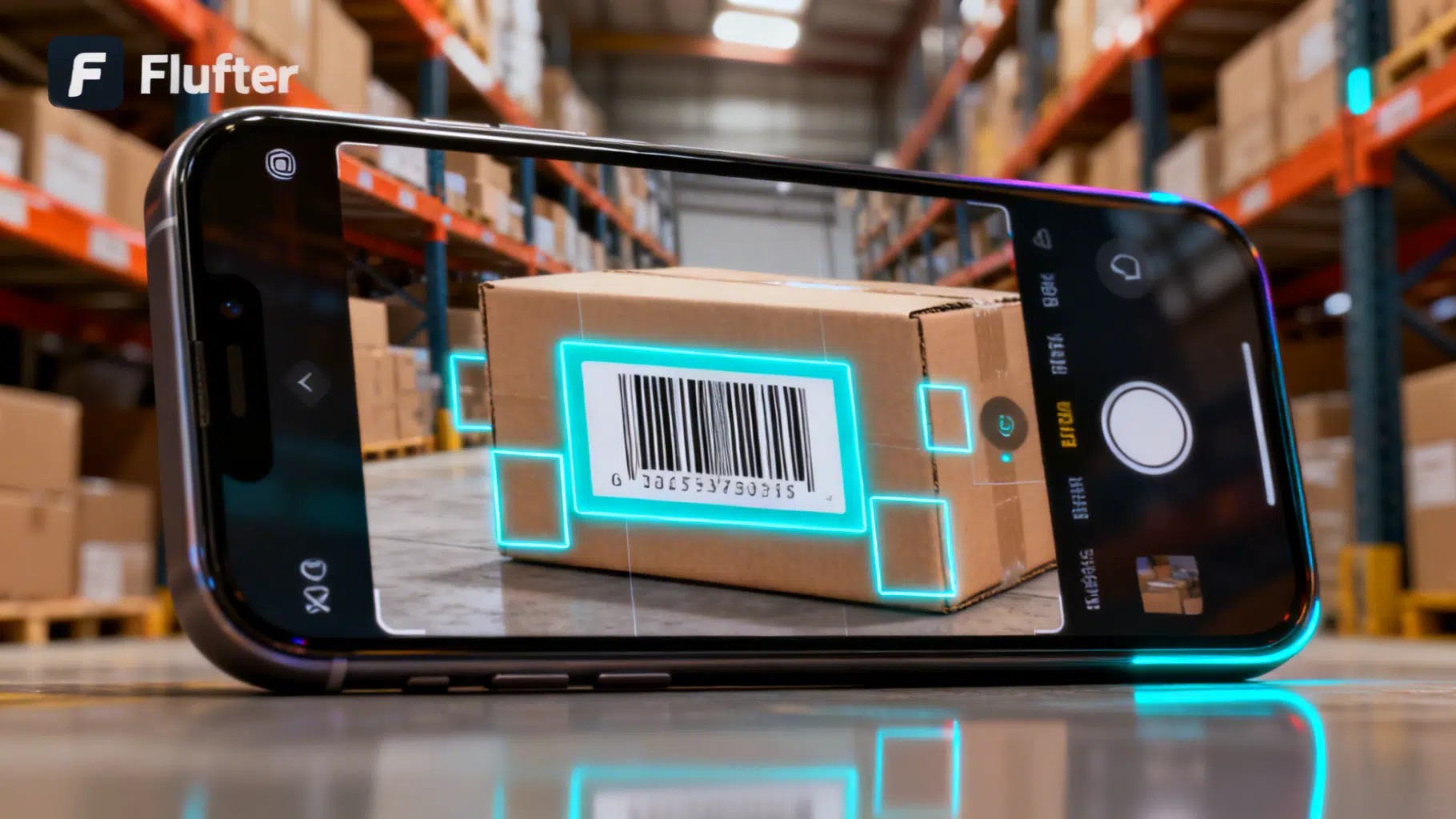
Image used for representation purposes only.
Overview
Building a fast, accurate barcode scanner in Flutter is straightforward with the camera plugin plus an on‑device detector. This guide shows you how to wire up the camera preview, stream frames, run detection using Google’s ML Kit, draw bounding boxes, and ship a production‑ready experience with strong performance on both Android and iOS.
What you’ll build:
- A CameraPreview with live barcode detection
- Support for common formats (QR, EAN‑13, Code 128, etc.)
- Real‑time overlays, torch toggle, and simple throttling
When to use the camera plugin vs. “all‑in‑one” scanners
- camera + ML Kit: Maximum control over UX, formats, overlays, and performance. Slightly more boilerplate.
- mobile_scanner/qr_code_scanner: Quicker start, fewer moving parts, less customization.
If you need custom UI/overlays, rate limiting, analytics hooks, or specialized formats, building on camera is the flexible path.
Architecture at a glance
- CameraController streams YUV/BGRA frames.
- Convert CameraImage to ML Kit’s InputImage with correct rotation/metadata.
- BarcodeScanner processes frames on‑device; results feed the overlay and callback.
- Throttle/work queue avoids blocking the UI thread.
Dependencies and setup
Add the camera plugin and ML Kit’s barcode package.
# pubspec.yaml
dependencies:
  flutter:
    sdk: flutter
  camera: ^latest
  google_mlkit_barcode_scanning: ^latest
Android permissions (android/app/src/main/AndroidManifest.xml):
<uses-permission android:name="android.permission.CAMERA" />
<application ...>
    <!-- Required if you use torch/flash or autofocus is typically automatic -->
</application>
iOS permissions (ios/Runner/Info.plist):
<key>NSCameraUsageDescription</key>
<string>We use the camera to scan barcodes.</string>
Tip: Test on real devices. Emulators often lack full camera capabilities or deliver low frame rates.
Initializing the camera
Create a stateful page that picks the back camera, sets a reasonable resolution, and shows the preview.
import 'dart:async';
import 'dart:typed_data';
import 'package:camera/camera.dart';
import 'package:flutter/material.dart';
import 'package:google_mlkit_barcode_scanning/google_mlkit_barcode_scanning.dart';

class BarcodeScannerPage extends StatefulWidget {
  const BarcodeScannerPage({super.key});
  @override
  State<BarcodeScannerPage> createState() => _BarcodeScannerPageState();
}

class _BarcodeScannerPageState extends State<BarcodeScannerPage> {
  CameraController? _controller;
  late final BarcodeScanner _scanner;
  bool _isProcessing = false;
  List<Barcode> _barcodes = const [];
  bool _torchOn = false;

  @override
  void initState() {
    super.initState();
    _scanner = BarcodeScanner(formats: [
      BarcodeFormat.qrCode,
      BarcodeFormat.ean13,
      BarcodeFormat.code128,
      BarcodeFormat.dataMatrix,
      BarcodeFormat.upcA,
    ]);
    _init();
  }

  Future<void> _init() async {
    final cameras = await availableCameras();
    final back = cameras.firstWhere((c) => c.lensDirection == CameraLensDirection.back);
    _controller = CameraController(
      back,
      ResolutionPreset.medium,
      enableAudio: false,
      imageFormatGroup: ImageFormatGroup.yuv420,
    );
    await _controller!.initialize();

    // Start streaming frames
    await _controller!.startImageStream(_processCameraImage);
    if (mounted) setState(() {});
  }

  @override
  void dispose() {
    _controller?.dispose();
    _scanner.close();
    super.dispose();
  }

  @override
  Widget build(BuildContext context) {
    final controller = _controller;
    if (controller == null || !controller.value.isInitialized) {
      return const Scaffold(body: Center(child: CircularProgressIndicator()));
    }

    return Scaffold(
      appBar: AppBar(
        title: const Text('Barcode Scanner'),
        actions: [
          IconButton(
            icon: Icon(_torchOn ? Icons.flash_on : Icons.flash_off),
            onPressed: () async {
              if (!controller.value.isInitialized) return;
              _torchOn = !_torchOn;
              await controller.setFlashMode(
                _torchOn ? FlashMode.torch : FlashMode.off,
              );
              if (mounted) setState(() {});
            },
          ),
        ],
      ),
      body: LayoutBuilder(
        builder: (context, constraints) {
          final preview = CameraPreview(controller);
          return Stack(
            fit: StackFit.expand,
            children: [
              Center(
                child: AspectRatio(
                  aspectRatio: controller.value.aspectRatio,
                  child: preview,
                ),
              ),
              // Draw results on top
              Positioned.fill(
                child: CustomPaint(
                  painter: _BarcodeOverlayPainter(
                    barcodes: _barcodes,
                    camera: controller,
                  ),
                ),
              ),
            ],
          );
        },
      ),
    );
  }

  // Throttled frame processing
  Future<void> _processCameraImage(CameraImage image) async {
    if (_isProcessing) return; // simple throttle; see performance notes below
    _isProcessing = true;
    try {
      final inputImage = _inputImageFromCameraImage(image, _controller!);
      final results = await _scanner.processImage(inputImage);
      if (mounted) setState(() => _barcodes = results);

      // Example: auto‑stop when a desired barcode is found
      final first = results.firstWhere(
        (b) => b.rawValue != null && b.rawValue!.isNotEmpty,
        orElse: () => const Barcode(rawValue: null),
      );
      if (first.rawValue != null) {
        // Handle match (navigate, show dialog, etc.)
      }
    } catch (_) {
      // swallow/handle gracefully to keep stream alive
    } finally {
      _isProcessing = false;
    }
  }
}
Converting CameraImage to InputImage
The critical part is passing bytes and metadata (size, rotation, plane info) correctly. The camera plugin emits YUV420 on Android and BGRA8888 on iOS by default; ML Kit accepts both when metadata matches.
InputImage _inputImageFromCameraImage(
  CameraImage image,
  CameraController controller,
) {
  // 1) Concatenate plane bytes (Y, U, V or BGRA)
  final WriteBuffer allBytes = WriteBuffer();
  for (final Plane plane in image.planes) {
    allBytes.putUint8List(plane.bytes);
  }
  final bytes = allBytes.done().buffer.asUint8List();

  // 2) Rotation based on sensor orientation
  final rotation = InputImageRotationValue.fromRawValue(
        controller.description.sensorOrientation,
      ) ??
      InputImageRotation.rotation0deg;

  // 3) Image format
  final format = InputImageFormatValue.fromRawValue(image.format.raw) ??
      InputImageFormat.nv21; // common on Android; ML Kit handles BGRA on iOS

  // 4) Plane metadata
  final planeData = image.planes
      .map(
        (Plane p) => InputImagePlaneMetadata(
          bytesPerRow: p.bytesPerRow,
          height: p.height,
          width: p.width,
        ),
      )
      .toList();

  final metadata = InputImageMetadata(
    size: Size(image.width.toDouble(), image.height.toDouble()),
    rotation: rotation,
    format: format,
    planeData: planeData,
  );

  return InputImage.fromBytes(bytes: bytes, metadata: metadata);
}
Notes:
- Do not rotate bytes yourself; provide rotation metadata and let ML Kit handle it.
- For performance, reuse the BarcodeScanner instance; don’t create/close per frame.
Drawing bounding boxes
ML Kit returns each barcode’s boundingBox in image coordinates. Map those to your preview size, accounting for rotation/aspect.
class _BarcodeOverlayPainter extends CustomPainter {
  _BarcodeOverlayPainter({required this.barcodes, required this.camera});
  final List<Barcode> barcodes;
  final CameraController camera;

  @override
  void paint(Canvas canvas, Size size) {
    if (!camera.value.isInitialized) return;
    final previewSize = camera.value.previewSize!; // in landscape (width>height)

    // Because the preview is rotated to portrait, swap axes when computing scale.
    final scaleX = size.width / previewSize.height;
    final scaleY = size.height / previewSize.width;

    final paint = Paint()
      ..style = PaintingStyle.stroke
      ..color = Colors.cyanAccent
      ..strokeWidth = 3;

    for (final b in barcodes) {
      final rect = b.boundingBox;
      if (rect == null) continue;

      // Map image rect -> widget rect
      final left = rect.left * scaleX;
      final top = rect.top * scaleY;
      final right = rect.right * scaleX;
      final bottom = rect.bottom * scaleY;

      final r = Rect.fromLTRB(left, top, right, bottom);
      canvas.drawRRect(
        RRect.fromRectAndRadius(r, const Radius.circular(8)),
        paint,
      );
    }
  }

  @override
  bool shouldRepaint(covariant _BarcodeOverlayPainter oldDelegate) {
    return oldDelegate.barcodes != barcodes || oldDelegate.camera != camera;
  }
}
Caveat: Camera transforms differ by device orientation and lens. For perfect mapping across rotations, consider:
- Using the controller’s value.deviceOrientation to adapt scaleX/scaleY.
- Accounting for front camera mirroring when needed.
- Clipping/pillarboxing: if your preview is letterboxed, compute effective displayed region and offset accordingly.
Handling focus and tap‑to‑meter
Expose tap‑to‑focus for better performance in dim light.
GestureDetector(
  behavior: HitTestBehavior.opaque,
  onTapDown: (d) async {
    final box = context.findRenderObject() as RenderBox?;
    if (box == null) return;
    final offset = box.globalToLocal(d.globalPosition);
    final point = Offset(
      offset.dx / box.size.width,
      offset.dy / box.size.height,
    );
    try {
      await _controller?.setFocusPoint(point);
      await _controller?.setExposurePoint(point);
    } catch (_) {}
  },
  child: CameraPreview(_controller!),
)
Throttling and isolates for smooth 60 fps
- Simple flag throttle: Process the next frame only after the current one finishes. This keeps UI responsive and is often sufficient.
- Time‑based throttle: Process at 10–15 FPS while rendering 60 FPS.
- Heavy lifting in an isolate: Convert bytes in a compute() call to offload work from the UI thread, especially when concatenating planes or cropping a region of interest.
- Reduce resolution: Use ResolutionPreset.medium or low; detection accuracy for 1D barcodes remains strong.
- Early‑exit: Once you’ve found a valid payload, pause the stream:
await _controller?.stopImageStream();
Example time‑based throttle:
DateTime _last = DateTime.fromMillisecondsSinceEpoch(0);
const minGap = Duration(milliseconds: 70); // ~14 fps

Future<void> _processCameraImage(CameraImage image) async {
  if (DateTime.now().difference(_last) < minGap) return;
  if (_isProcessing) return;
  _last = DateTime.now();
  _isProcessing = true;
  try {
    final input = _inputImageFromCameraImage(image, _controller!);
    final res = await _scanner.processImage(input);
    if (mounted) setState(() => _barcodes = res);
  } finally {
    _isProcessing = false;
  }
}
Reading barcode contents
Each Barcode exposes type‑specific data and rawValue.
for (final b in _barcodes) {
  final value = b.rawValue ?? '';
  switch (b.type) {
    case BarcodeType.url:
      // b.url?.url
      break;
    case BarcodeType.wifi:
      // ssid: b.wifi?.ssid, password: b.wifi?.password
      break;
    default:
      // Fallback to raw string
  }
}
Region of interest (ROI) scanning
Improve UX and speed by scanning only the center region.
- Show a framing box and tell users to align the code.
- Crop bytes before detection (requires manual YUV cropping) or simply ignore results outside your ROI rectangle after detection.
Quick filter after detection:
Rect roi = Rect.fromLTWH(
  size.width * 0.1, // left margin
  size.height * 0.3,
  size.width * 0.8,
  size.height * 0.4,
);

final inRoi = _barcodes.where((b) {
  final r = _mapImageRectToWidget(b.boundingBox!);
  return roi.overlaps(r) && roi.contains(r.center);
});
Torch/flash and low‑light strategy
- Use a visible torch button; don’t auto‑enable flash without user consent.
- Consider bumping exposure via setExposureMode/Point.
- Fall back to a manual entry field if scanning consistently fails under harsh lighting.
Error handling and lifecycle
Common issues and remedies:
- Black preview on Android emulator: test on hardware, or cold boot the emulator and check camera permission.
- CameraException(Disposed): guard setState after dispose; stop stream before navigating; re‑initialize on app resume if needed.
- Rotated/offset boxes: verify orientation math; use deviceOrientation; consider front camera mirroring.
- iOS BGRA crash: ensure you pass correct plane metadata; avoid manual color conversions.
Performance checklist
- Reuse a single BarcodeScanner instance.
- Throttle frame processing (flag or timed).
- Medium resolution preset; avoid ultra‑high.
- Use YUV420 (Android) and let ML Kit do rotation/format handling.
- Prefer center ROI; skip tiny bounding boxes likely to be noise.
- Keep overlay painting lightweight; avoid heavy rebuilds.
Packaging the feature
- Provide callbacks like onBarcodeFound(String value) with a debounce to avoid duplicate events.
- Add a cancel button and manual entry fallback.
- Respect privacy: all detection is on‑device; avoid uploading frames unless clearly disclosed.
Minimal, complete example widget
This simplified widget encapsulates scanning and returns the first detected payload.
class SimpleBarcodeScanner extends StatefulWidget {
  const SimpleBarcodeScanner({super.key, this.onScanned});
  final ValueChanged<String>? onScanned;

  @override
  State<SimpleBarcodeScanner> createState() => _SimpleBarcodeScannerState();
}

class _SimpleBarcodeScannerState extends State<SimpleBarcodeScanner> {
  CameraController? _c;
  late final BarcodeScanner _scanner;
  bool _busy = false;

  @override
  void initState() {
    super.initState();
    _scanner = BarcodeScanner();
    _start();
  }

  Future<void> _start() async {
    final cams = await availableCameras();
    final back = cams.firstWhere((e) => e.lensDirection == CameraLensDirection.back);
    _c = CameraController(back, ResolutionPreset.medium, enableAudio: false);
    await _c!.initialize();
    await _c!.startImageStream((img) async {
      if (_busy) return;
      _busy = true;
      try {
        final input = _inputImageFromCameraImage(img, _c!);
        final result = await _scanner.processImage(input);
        final first = result.firstWhere(
          (b) => b.rawValue != null && b.rawValue!.isNotEmpty,
          orElse: () => const Barcode(rawValue: null),
        );
        if (first.rawValue != null) {
          widget.onScanned?.call(first.rawValue!);
          await _c?.stopImageStream();
        }
      } finally {
        _busy = false;
      }
    });
    if (mounted) setState(() {});
  }

  @override
  void dispose() {
    _c?.dispose();
    _scanner.close();
    super.dispose();
  }

  @override
  Widget build(BuildContext context) {
    if (_c == null || !_c!.value.isInitialized) {
      return const Center(child: CircularProgressIndicator());
    }
    return AspectRatio(
      aspectRatio: _c!.value.aspectRatio,
      child: CameraPreview(_c!),
    );
  }
}
Testing strategy
- Use a sample sheet of barcodes at multiple sizes and contrasts.
- Test distances: close (macro), medium (20–40 cm), far (up to 1 m for large 1D codes).
- Verify all target formats in both orientations.
- Low‑light and glare scenarios; torch behavior.
- Front vs. back camera selection on devices with multiple lenses.
Security and privacy
- Keep processing on‑device; ML Kit runs locally by default.
- Explain data handling in your privacy policy.
- If you log barcode values, avoid storing sensitive payloads (Wi‑Fi passwords, personal info) unless necessary and consented.
Alternatives and enhancements
- mobile_scanner: Great drop‑in if you don’t need custom pipelines.
- zxing2 for pure‑Dart decoding when you want zero native deps (usually slower on mobile cameras).
- Add haptic feedback on successful scan.
- Use a state machine (Idle → Detecting → Found → Confirmed) to avoid duplicate navigations.
Wrap‑up
With the camera plugin and ML Kit, you can deliver a robust, low‑latency barcode scanner entirely on‑device. Start with the minimal example, then layer in throttling, ROI, overlays, and UX touches like torch and tap‑to‑focus. The result is a production‑grade scanner tailored to your app’s needs.
Related Posts
Mastering Flutter Platform Channels on iOS and Android: A Practical Guide
A practical, end-to-end guide to Flutter platform channels on iOS and Android with Kotlin, Swift, Dart code, testing, performance, and pitfalls.
Flutter Flavors Done Right: Production and Staging Configuration
A practical, end-to-end guide to configuring Flutter flavors for production and staging across Android, iOS, CI/CD, Firebase, and more.
Migrating to Dart 3 Null Safety in Flutter: A Practical Guide
Step-by-step guide to migrate a Flutter codebase to Dart 3’s sound null safety with commands, patterns, pitfalls, and checklists.