
Gemini API Multimodal Tutorial (Python & JavaScript): Images, Video, JSON, Tools, and Live Streaming
Build a multimodal app with the Gemini API: text+image, YouTube video, structured JSON, function calling, and Live API streaming (Python & JS).

Image used for representation purposes only.
Overview
Gemini is a native multimodal API: you can send text, images, video, audio, and documents together, and get text, audio, or tool calls back—synchronously, as a stream, or in real time. In this tutorial you’ll install the official SDKs, wire up text+image and video prompts (including YouTube), enforce structured JSON outputs, call tools, and finish with a Live API snippet for low‑latency speech. We’ll use Python and JavaScript throughout, with up‑to‑date model and endpoint details as of March 31, 2026. (ai.google.dev )
Note on models and deprecations: Gemini 3 Pro Preview was shut down on March 9, 2026—use current Gemini 3.1 or 2.5 series models (for example, gemini‑3.1‑pro‑preview, gemini‑3‑flash, or gemini‑2.5‑pro/flash) depending on your latency vs. reasoning needs. (ai.google.dev )
Prerequisites
- Create a Gemini API key in Google AI Studio and export it as GEMINI_API_KEY. (ai.google.dev )
- Install the official SDKs:
- Python: pip install -U google-genai
- JavaScript/TypeScript: npm install @google/genai (ai.google.dev )
Authentication works automatically via the SDKs if GEMINI_API_KEY is set, or you can send x-goog-api-key in REST calls. Primary endpoints are generateContent (single response), streamGenerateContent (SSE streaming), and the Live API (bi‑directional WebSocket). (ai.google.dev )
Your first multimodal call (text + image)
We’ll caption an image by sending text and image parts in one request. For small files, inline base64 is simplest; for larger or reusable media, use the Files API (next section).
Python
from google import genai
from google.genai import types

client = genai.Client()

with open("path/to/sample.jpg", "rb") as f:
    image_bytes = f.read()

resp = client.models.generate_content(
    model="gemini-3-flash-preview",
    contents=[
        types.Part.from_bytes(data=image_bytes, mime_type="image/jpeg"),
        "Caption this image."
    ],
)
print(resp.text)
JavaScript
import { GoogleGenAI } from "@google/genai";
import * as fs from "node:fs";

const ai = new GoogleGenAI({});
const base64 = fs.readFileSync("path/to/sample.jpg", { encoding: "base64" });

const res = await ai.models.generateContent({
  model: "gemini-3-flash-preview",
  contents: [
    { inlineData: { mimeType: "image/jpeg", data: base64 } },
    { text: "Caption this image." }
  ]
});
console.log(res.text);
- Inline data is great for quick tests and real‑time inputs. For limits, see the file input guidelines: inline payloads up to 100 MB (50 MB for PDFs). (ai.google.dev )
Upload once, reuse often (Files API)
For large files or when you’ll reference the same asset across prompts, upload via the Files API and pass the file handle in contents. Files API supports up to ~2 GB per file and about 20 GB per project, with temporary persistence (typically 48 hours). (ai.google.dev )
Python
from google import genai
client = genai.Client()

uploaded = client.files.upload(file="path/to/large.jpg")
resp = client.models.generate_content(
    model="gemini-3-flash-preview",
    contents=[uploaded, "What’s in this image?"]
)
print(resp.text)
JavaScript
import { GoogleGenAI, createUserContent, createPartFromUri } from "@google/genai";
const ai = new GoogleGenAI({});

const file = await ai.files.upload({ file: "path/to/large.jpg", config: { mimeType: "image/jpeg" } });
const out = await ai.models.generateContent({
  model: "gemini-3-flash-preview",
  contents: createUserContent([
    createPartFromUri(file.uri, file.mimeType),
    "What’s in this image?"
  ])
});
console.log(out.text);
Video understanding (including YouTube URLs)
Gemini can analyze local videos you upload, Files API uploads, or even public YouTube URLs directly. YouTube URL support is currently marked preview and may change; free‑tier projects can upload up to about 8 hours/day of YouTube video, while paid tiers remove that length cap. With Gemini 2.5+ you can include up to 10 videos per request; earlier models allow one. You can also clip segments and set custom FPS via videoMetadata. (ai.google.dev )
JavaScript (YouTube URL + clipping)
import { GoogleGenAI } from "@google/genai";
const ai = new GoogleGenAI({});

const contents = [
  {
    fileData: {
      fileUri: "https://www.youtube.com/watch?v=9hE5-98ZeCg",
      mimeType: "video/*"
    },
    videoMetadata: { startOffset: "40s", endOffset: "80s" }
  },
  { text: "Summarize the clip in 3 sentences." }
];

const resp = await ai.models.generateContent({
  model: "gemini-3-flash-preview",
  contents
});
console.log(resp.text);
Enforce structured JSON (Pydantic/Zod or raw JSON Schema)
When your app expects machine‑readable results, enable structured outputs. Set response_mime_type to application/json and provide response_json_schema. The SDKs also make it ergonomic to define schemas with Pydantic (Python) or Zod (JS), which are converted under the hood to JSON Schema. (ai.google.dev )
Python (Pydantic)
from google import genai
from pydantic import BaseModel, Field

class Ingredient(BaseModel):
    name: str = Field(description="Name of the ingredient")
    quantity: str = Field(description="Amount with units")
class Recipe(BaseModel):
    recipe_name: str
    ingredients: list[Ingredient]

client = genai.Client()
resp = client.models.generate_content(
    model="gemini-3-flash-preview",
    contents="Extract a recipe from the text...",
    config={
        "response_mime_type": "application/json",
        "response_json_schema": Recipe.model_json_schema(),
    },
)
print(Recipe.model_validate_json(resp.text))
JavaScript (Zod)
import { GoogleGenAI } from "@google/genai";
import { z } from "zod";
import { zodToJsonSchema } from "zod-to-json-schema";

const ai = new GoogleGenAI({});
const schema = z.object({
  sentiment: z.enum(["positive", "neutral", "negative"]),
  summary: z.string()
});

const out = await ai.models.generateContent({
  model: "gemini-3.1-pro-preview",
  contents: "Summarize and classify this feedback",
  config: {
    responseMimeType: "application/json",
    responseJsonSchema: zodToJsonSchema(schema)
  }
});
console.log(JSON.parse(out.text));
Call external tools (function calling)
Register function declarations and let Gemini decide when to call them. The response contains functionCalls with an id and args; execute your function and send a follow‑up turn with a functionResponse that includes the same id. Parallel and compositional tool use are supported. (ai.google.dev )
Python (minimal sketch)
from google import genai
from google.genai import types

client = genai.Client()
get_weather = types.FunctionDeclaration(
  name="get_weather",
  description="Get weather in a city",
  parameters={"type":"object","properties":{"city":{"type":"string"}},"required":["city"]},
)

r1 = client.models.generate_content(
  model="gemini-3-flash-preview",
  contents=["Do I need an umbrella in Seattle?"],
  config=types.GenerateContentConfig(tools=[types.Tool(function_declarations=[get_weather])])
)
call = r1.function_calls[0]
# Execute your tool here, then return functionResponse with the same id
Real‑time apps (Live API via WebSockets)
For sub‑second voice or interactive UX, use the Live API (stateful WebSocket). Connect to the BidiGenerateContent endpoint and send a setup message with model/config, then stream text/audio/video chunks and handle server messages. You can authenticate with your API key in the query string, or use short‑lived “ephemeral tokens” for constrained sessions. (ai.google.dev )
JavaScript (connect + configure)
const API_KEY = process.env.GEMINI_API_KEY;
const MODEL = "gemini-3.1-flash-live-preview";
const url = `wss://generativelanguage.googleapis.com/ws/google.ai.generativelanguage.v1beta.GenerativeService.BidiGenerateContent?key=${API_KEY}`;
const ws = new WebSocket(url);

ws.onopen = () => {
  ws.send(JSON.stringify({
    config: {
      model: `models/${MODEL}`,
      responseModalities: ["AUDIO"],
      systemInstruction: { parts: [{ text: "You are a helpful assistant." }] }
    }
  }));
};

// Later: send audio chunks as base64 PCM 16kHz
// ws.send(JSON.stringify({ realtimeInput: { audio: { data: base64, mimeType: 'audio/pcm;rate=16000' } } }));
WebSocket endpoint, message types (setup/clientContent/realtimeInput/toolResponse), and session resumption are documented in the Live API reference. Ephemeral tokens use a v1alpha constrained endpoint. (ai.google.dev )
Retrieval‑augmented answers with File Search (native RAG)
When you need grounded answers on your docs, use the File Search tool. Upload or import files into a File Search store, then pass the store name as a tool; Gemini handles storage, chunking, indexing, and dynamic retrieval. Storage/embedding during retrieval is free; you pay for initial embeddings and normal model tokens. (ai.google.dev )
High‑level flow (JavaScript)
const ai = new GoogleGenAI({});
const store = await ai.fileSearchStores.create({ config: { displayName: 'kb' } });
await ai.fileSearchStores.uploadToFileSearchStore({ file: 'handbook.pdf', fileSearchStoreName: store.name });
const grounded = await ai.models.generateContent({
  model: 'gemini-3-flash-preview',
  contents: 'What are our PTO rules?',
  config: { tools: [{ fileSearch: { fileSearchStoreNames: [store.name] } }] }
});
console.log(grounded.text);
Cost, limits, and performance knobs
- Rate limits vary by model and usage tier; view your active limits in AI Studio. Batch limits (e.g., 2 GB input files, project storage, enqueued tokens) are documented separately. (ai.google.dev )
- Count tokens up front with models.countTokens and read usageMetadata on responses. All modalities are tokenized, including images and PDFs. (ai.google.dev )
- Control quality vs. latency/cost for visual inputs using mediaResolution (global or per‑part on Gemini 3). Higher resolutions use more tokens; per‑part settings override global defaults. (ai.google.dev )
Production checklist
- Choose an appropriate model: Flash for speed/cost; Pro for deeper reasoning; Live variants for voice. Monitor deprecations and upgrade paths. (ai.google.dev )
- Prefer Files API for large/reused media; fall back to inlineData for small, transient files. Mind size limits. (ai.google.dev )
- Use structured outputs for predictable parsing; validate with Pydantic/Zod. (ai.google.dev )
- For video, consider clipping/FPS and the YouTube URL workflow (preview limits apply). (ai.google.dev )
- For real‑time UX, use the Live API WebSocket and consider ephemeral tokens on untrusted clients. (ai.google.dev )
Wrap‑up
You now have a working mental model and code for the Gemini API’s multimodal stack: text+image, video (including YouTube), structured JSON, tool calls, and real‑time audio. Start with generateContent for simple flows; add streaming and Live API when UX demands it; layer in File Search for grounded answers; and dial mediaResolution plus token counting to stay inside your performance and cost targets. The official docs and model catalog linked throughout are the source of truth—always check current guidance before you ship. (ai.google.dev )
Related Posts

GPT‑4 API Structured Outputs: A Hands‑On Tutorial for Reliable JSON
A practical GPT‑4 API guide to Structured Outputs: enforce JSON Schemas via Responses and Chat Completions, with code, streaming, and production tips.
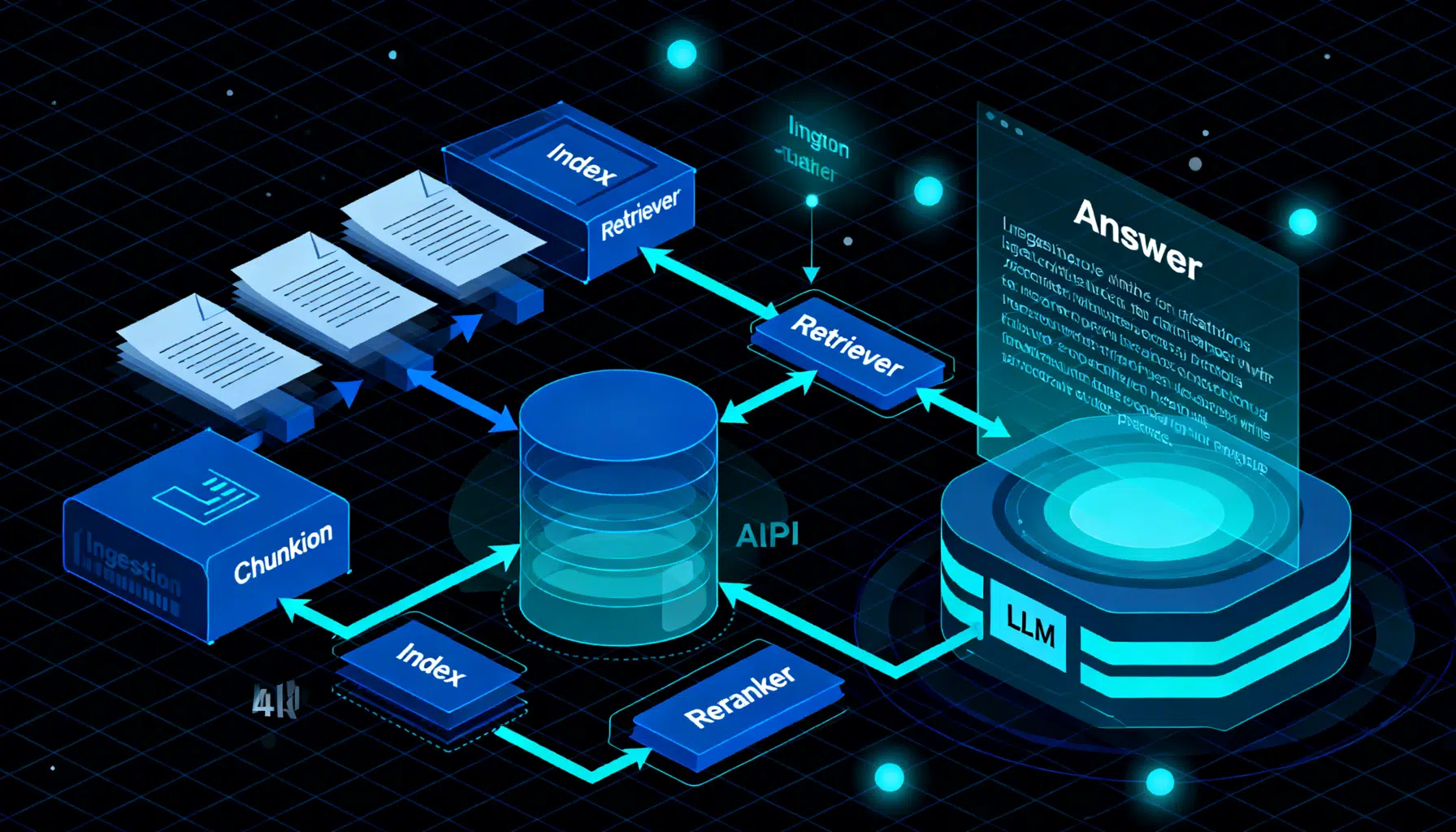
Building a Production-Ready RAG System with LlamaIndex: A Hands-On Tutorial
Step-by-step LlamaIndex RAG tutorial: ingestion, indexing, reranking, citations, persistence, evaluation, and deployment with a FastAPI service.

Pinecone Vector Database API Tutorial: Semantic & Hybrid Search with Python and Node (2026)
Hands-on Pinecone API tutorial: create serverless indexes, upsert vectors, filter metadata, and run semantic + hybrid search in Python & Node (2026).