
Flutter Push Notifications with Firebase Cloud Messaging (FCM): A Complete Setup Guide
Step-by-step guide to set up FCM push notifications in Flutter for Android and iOS, with code, permissions, background handling, and testing tips.
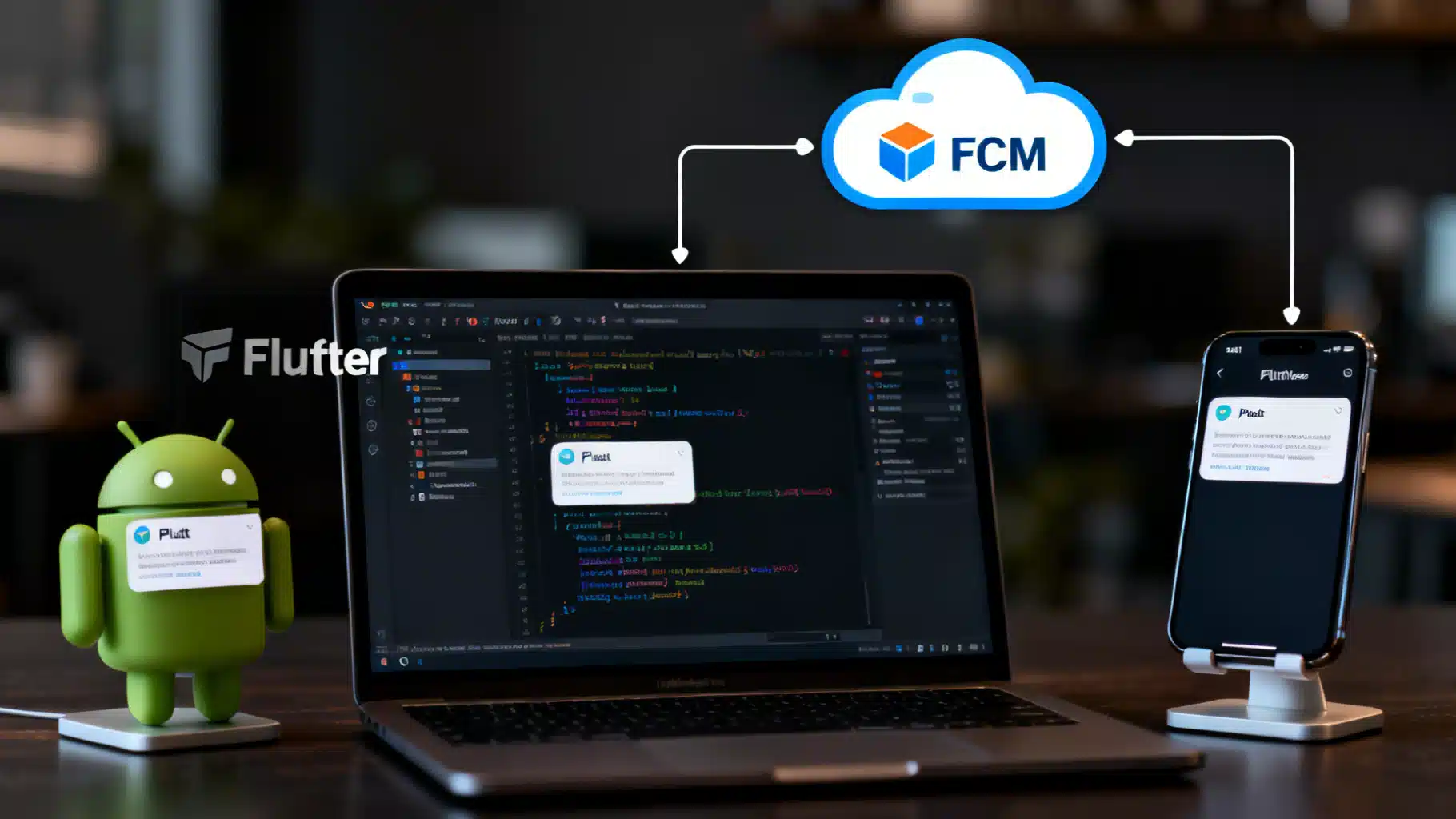
Image used for representation purposes only.
Overview
Flutter makes building cross‑platform apps fast, and Firebase Cloud Messaging (FCM) makes push notifications reliable. This guide walks you end‑to‑end through configuring FCM for a Flutter app on Android and iOS, covering permissions, background handlers, foreground presentation, notification channels, navigation on tap, topics, and testing from the Firebase Console and your own server.
What you’ll build:
- A Flutter app initialized with Firebase
- End‑to‑end push notification handling (foreground, background, terminated)
- iOS APNs + Android channels and runtime permissions
- Token management and topic subscriptions
- Server-side examples using curl and Node.js (firebase-admin)
Prerequisites
- Flutter SDK and a recent stable channel
- A Firebase project (owner or editor permissions)
- Apple Developer Program membership for iOS push (APNs)
- Xcode (for iOS), Android Studio + Android SDKs (for Android)
- A physical iOS device for APNs testing (the iOS simulator does not receive push). Android emulators with Google Play services can receive FCM.
1) Create your Firebase project and register apps
- In the Firebase console, create (or open) a project.
- Add iOS and Android apps:
- iOS: Use your app’s exact bundle identifier (e.g., com.example.myapp).
- Android: Use your app’s package name (e.g., com.example.myapp).
- Do not manually download and place config files if you plan to use FlutterFire CLI; it will handle that for you.
2) Configure Flutter with FlutterFire CLI
Install and run the CLI to link your Flutter app to Firebase and generate platform config.
dart pub global activate flutterfire_cli
flutterfire configure
What it does:
- Links your Firebase project
- Registers the platforms you choose
- Generates lib/firebase_options.dart with DefaultFirebaseOptions for each platform
3) Add dependencies
Add Firebase Core and Messaging (and, optionally, local notifications for foreground presentation on Android).
# pubspec.yaml
dependencies:
  flutter: any
  firebase_core: any
  firebase_messaging: any
  flutter_local_notifications: any   # optional but recommended for Android foreground
Run:
flutter pub get
4) Initialize Firebase early
Initialize Firebase before using messaging and register the background handler.
// lib/main.dart
import 'package:firebase_core/firebase_core.dart';
import 'package:firebase_messaging/firebase_messaging.dart';
import 'firebase_options.dart';
import 'package:flutter/material.dart';

@pragma('vm:entry-point')
Future<void> _firebaseMessagingBackgroundHandler(RemoteMessage message) async {
  // Background handler runs in its own isolate.
  await Firebase.initializeApp(options: DefaultFirebaseOptions.currentPlatform);
  // TODO: handle background data (e.g., update local DB).
}

Future<void> main() async {
  WidgetsFlutterBinding.ensureInitialized();
  await Firebase.initializeApp(options: DefaultFirebaseOptions.currentPlatform);

  FirebaseMessaging.onBackgroundMessage(_firebaseMessagingBackgroundHandler);

  // iOS: control how notifications are displayed when app is in foreground
  await FirebaseMessaging.instance.setForegroundNotificationPresentationOptions(
    alert: true,
    badge: true,
    sound: true,
  );

  runApp(const MyApp());
}

class MyApp extends StatelessWidget {
  const MyApp({super.key});
  @override
  Widget build(BuildContext context) {
    return MaterialApp(home: Scaffold(body: Center(child: Text('FCM Setup'))));
  }
}
5) iOS setup (APNs and capabilities)
To receive push on iOS you must configure APNs and enable capabilities.
- In Xcode, open ios/Runner.xcworkspace.
- Select Runner target → Signing & Capabilities → add:
- Push Notifications
- Background Modes → check Remote notifications
- In the Firebase console: Project Settings → Cloud Messaging → Apple app configuration.
- Upload your APNs Auth Key (.p8) and enter Key ID and Team ID, or use certificates. Ensure the iOS bundle ID matches.
- Build to a physical device. The iOS simulator will not receive remote push.
Tip: For silent background updates, your payload must include "content-available": 1 (APNs), and you must avoid showing an alert/sound for that specific message.
6) Android setup (permissions and manifest)
- Android 13+ requires the POST_NOTIFICATIONS runtime permission.
- Android 8.0+ requires a NotificationChannel for high-importance notifications.
Add the permission to android/app/src/main/AndroidManifest.xml:
<manifest ...>
  <uses-permission android:name="android.permission.POST_NOTIFICATIONS" />
  <application
      android:name="io.flutter.app.FlutterApplication"
      android:icon="@mipmap/ic_launcher"
      android:label="@string/app_name">

    <!-- Optional default icon/color for notifications -->
    <meta-data
      android:name="com.google.firebase.messaging.default_notification_icon"
      android:resource="@drawable/ic_stat_notification" />
    <meta-data
      android:name="com.google.firebase.messaging.default_notification_color"
      android:resource="@color/notification_color" />
  </application>
</manifest>
Note: If you use a custom Application class, ensure Firebase is properly initialized. Most Flutter apps don’t need to change the application name.
7) Request permission and get the FCM token
On iOS (and Android 13+), you must request notification permission at runtime. Then retrieve and monitor the device’s FCM registration token.
Future<void> initPush() async {
  final messaging = FirebaseMessaging.instance;

  // Request permission (iOS + Android 13+)
  final settings = await messaging.requestPermission(
    alert: true,
    announcement: false,
    badge: true,
    carPlay: false,
    criticalAlert: false,
    provisional: false, // set true for iOS provisional (no prompt)
    sound: true,
  );
  debugPrint('Permission status: ${settings.authorizationStatus}');

  // Get the token
  final token = await messaging.getToken();
  debugPrint('FCM token: $token');
  // TODO: send token to your server and associate with the signed-in user

  // Listen for token refresh
  FirebaseMessaging.instance.onTokenRefresh.listen((newToken) {
    // TODO: update token on your server
  });
}
Call initPush() after Firebase initialization and, ideally, after onboarding or login to store tokens server-side.
8) Handle messages: foreground, background, terminated
- Foreground:
FirebaseMessaging.onMessagefires. Show a local notification if you want a banner on Android. - App opened from background:
FirebaseMessaging.onMessageOpenedAppfires on tap. - App opened from a terminated state: use
getInitialMessage()to read the notification that launched the app.
void registerMessageHandlers() {
  FirebaseMessaging.onMessage.listen((RemoteMessage message) {
    debugPrint('Foreground message: ${message.messageId}');
    // Optionally display a local notification on Android; iOS presentation is controlled above.
  });

  FirebaseMessaging.onMessageOpenedApp.listen((RemoteMessage message) {
    _handleNotificationNavigation(message);
  });
}

Future<void> checkInitialMessage() async {
  final initial = await FirebaseMessaging.instance.getInitialMessage();
  if (initial != null) {
    _handleNotificationNavigation(initial);
  }
}

void _handleNotificationNavigation(RemoteMessage message) {
  final target = message.data['screen'];
  // Use your navigator to route, e.g., Navigator.pushNamed(context, target)
}
Call registerMessageHandlers() and checkInitialMessage() in your app startup after Firebase initialization.
9) Foreground banners on Android with flutter_local_notifications
By default, Android does not show a system banner when your app is in the foreground. Use flutter_local_notifications to surface a notification.
import 'package:flutter_local_notifications/flutter_local_notifications.dart';

final FlutterLocalNotificationsPlugin fln = FlutterLocalNotificationsPlugin();

const AndroidNotificationChannel highImportanceChannel = AndroidNotificationChannel(
  'high_importance', 'High Importance',
  description: 'Used for important notifications.',
  importance: Importance.max,
);

Future<void> setupLocalNotifications() async {
  const androidInit = AndroidInitializationSettings('@mipmap/ic_launcher');
  const iosInit = DarwinInitializationSettings();
  await fln.initialize(const InitializationSettings(android: androidInit, iOS: iosInit));

  // Create the channel once (Android 8+)
  await fln.resolvePlatformSpecificImplementation<AndroidFlutterLocalNotificationsPlugin>()
      ?.createNotificationChannel(highImportanceChannel);

  // Show a banner when a foreground FCM message arrives
  FirebaseMessaging.onMessage.listen((message) {
    final notification = message.notification;
    if (notification != null) {
      fln.show(
        notification.hashCode,
        notification.title,
        notification.body,
        NotificationDetails(
          android: AndroidNotificationDetails(
            highImportanceChannel.id,
            highImportanceChannel.name,
            channelDescription: highImportanceChannel.description,
            icon: '@mipmap/ic_launcher',
            importance: Importance.max,
            priority: Priority.high,
          ),
          iOS: const DarwinNotificationDetails(),
        ),
        payload: message.data['screen'],
      );
    }
  });
}
10) Data vs notification payloads
- Notification payload:
{ notification: { title, body }, data: {...} }- The system can display it automatically (background), especially on Android.
- Data-only payload:
{ data: {...} }- Gives you full control. On iOS, include APNs
content-available: 1for background delivery and enable Background Modes. Avoid heavy work; iOS limits execution time.
- Gives you full control. On iOS, include APNs
Choose the model that best fits your UX. Many apps send both: show an alert and include routing info in data.
11) Send a test message from Firebase Console
- Cloud Messaging → Send your first message.
- Paste a device token or select a target app.
- Include a simple title/body and optional custom data (e.g.,
screen: inbox).
Great for initial validation.
12) Send messages from your server
HTTP v1 via curl
Obtain an OAuth2 access token from a service account, then call FCM.
# Using gcloud (with GOOGLE_APPLICATION_CREDENTIALS set to your service account JSON)
ACCESS_TOKEN=$(gcloud auth application-default print-access-token)
PROJECT_ID=your-project-id

curl -X POST \
  -H "Authorization: Bearer $ACCESS_TOKEN" \
  -H "Content-Type: application/json; UTF-8" \
  https://fcm.googleapis.com/v1/projects/$PROJECT_ID/messages:send \
  -d '{
    "message": {
      "token": "DEVICE_FCM_TOKEN",
      "notification": {"title": "Hello", "body": "World"},
      "data": {"screen": "inbox", "orderId": "123"},
      "android": {"notification": {"channel_id": "high_importance"}},
      "apns": {"payload": {"aps": {"content-available": 1}}}
    }
  }'
Node.js with firebase-admin
import admin from 'firebase-admin';
import serviceAccount from './service-account.json' assert { type: 'json' };

admin.initializeApp({ credential: admin.credential.cert(serviceAccount) });

const res = await admin.messaging().send({
  token: 'DEVICE_FCM_TOKEN',
  notification: { title: 'Hi', body: 'Welcome!' },
  data: { screen: 'home' },
  android: { notification: { channelId: 'high_importance' } },
  apns: { payload: { aps: { contentAvailable: true } } },
});
console.log('Sent:', res);
13) Navigate on notification tap
Use onMessageOpenedApp for warm starts and getInitialMessage() for cold starts. Include routing data in your payload.
Payload example (data fields):
{
  "message": {
    "token": "...",
    "notification": { "title": "New message", "body": "Open your inbox" },
    "data": { "screen": "inbox", "threadId": "abc" }
  }
}
14) Topics and user segmentation
- Subscribe clients to topics:
await FirebaseMessaging.instance.subscribeToTopic('news');
await FirebaseMessaging.instance.unsubscribeFromTopic('promotions');
- Send to a topic from your server by specifying
topic: 'news'instead oftoken. - Combine with custom claims or server-side audience rules for precise targeting.
15) Web support (brief)
For Flutter Web, you need:
- A public VAPID key set in Firebase console
- A firebase-messaging-sw.js service worker at the site root
getToken(vapidKey: '...')in your web build
Because service worker scope and hosting paths vary, consult the FlutterFire web messaging docs when adding web.
16) Troubleshooting checklist
- iOS device not receiving push:
- Verify APNs Auth Key is uploaded and Bundle ID matches.
- Ensure Push Notifications + Background Modes (Remote notifications) are enabled.
- Test on a physical device; simulator won’t receive push.
- Android foreground shows nothing:
- Use flutter_local_notifications in
onMessageto display a local notification. - Ensure a NotificationChannel exists with high importance.
- Use flutter_local_notifications in
- Permission prompts not appearing:
- iOS: calling
requestPermissionmore than once after denial won’t show a dialog; direct users to Settings. - Android 13+: ensure you requested POST_NOTIFICATIONS at runtime (firebase_messaging’s
requestPermission).
- iOS: calling
- Token is null or changes often:
- Ensure Google Play services are up to date (Android) and APNs is configured (iOS).
- Handle
onTokenRefreshand update your backend.
- Data-only silent pushes on iOS not delivered:
- Include
content-available: 1, remove alert/sound, and respect Apple’s execution limits. Delivery is not guaranteed when the device is power constrained.
- Include
17) Security and delivery best practices
- Never ship service account keys in the client app. Send pushes from your backend only.
- Associate FCM tokens with authenticated user IDs and device metadata on your server.
- Use topics or condition expressions to avoid storing per-user token lists where possible.
- Keep payloads small; large data reduces reliability and can be delayed on constrained networks.
- For sensitive actions, require in-app confirmation instead of executing directly from push.
18) Summary
You configured Firebase with FlutterFire, requested permissions, obtained and refreshed tokens, handled foreground/background/terminated deliveries, added Android channels and iOS capabilities, and learned how to send pushes from the console and your own server. With this foundation, you can implement rich, reliable messaging and deep navigation across Android and iOS.
Related Posts
Flutter Plugin Development with Native Code: Channels, Pigeon, and FFI
A practical, end-to-end guide to building robust Flutter plugins with native code, Pigeon, FFI, testing, and multi-platform best practices.
Flutter barcode scanning with the camera plugin: a production-ready guide
Build a fast, on‑device Flutter barcode scanner using the camera plugin and ML Kit, with code, overlays, performance tips, and platform setup.
Mastering Flutter Platform Channels on iOS and Android: A Practical Guide
A practical, end-to-end guide to Flutter platform channels on iOS and Android with Kotlin, Swift, Dart code, testing, performance, and pitfalls.