
Flutter Cupertino Widgets: An iOS-Style UI Guide with Practical Examples
A practical guide to Flutter’s Cupertino iOS-style widgets: app shells, navigation, lists, forms, pickers, theming, and adaptive patterns with code.
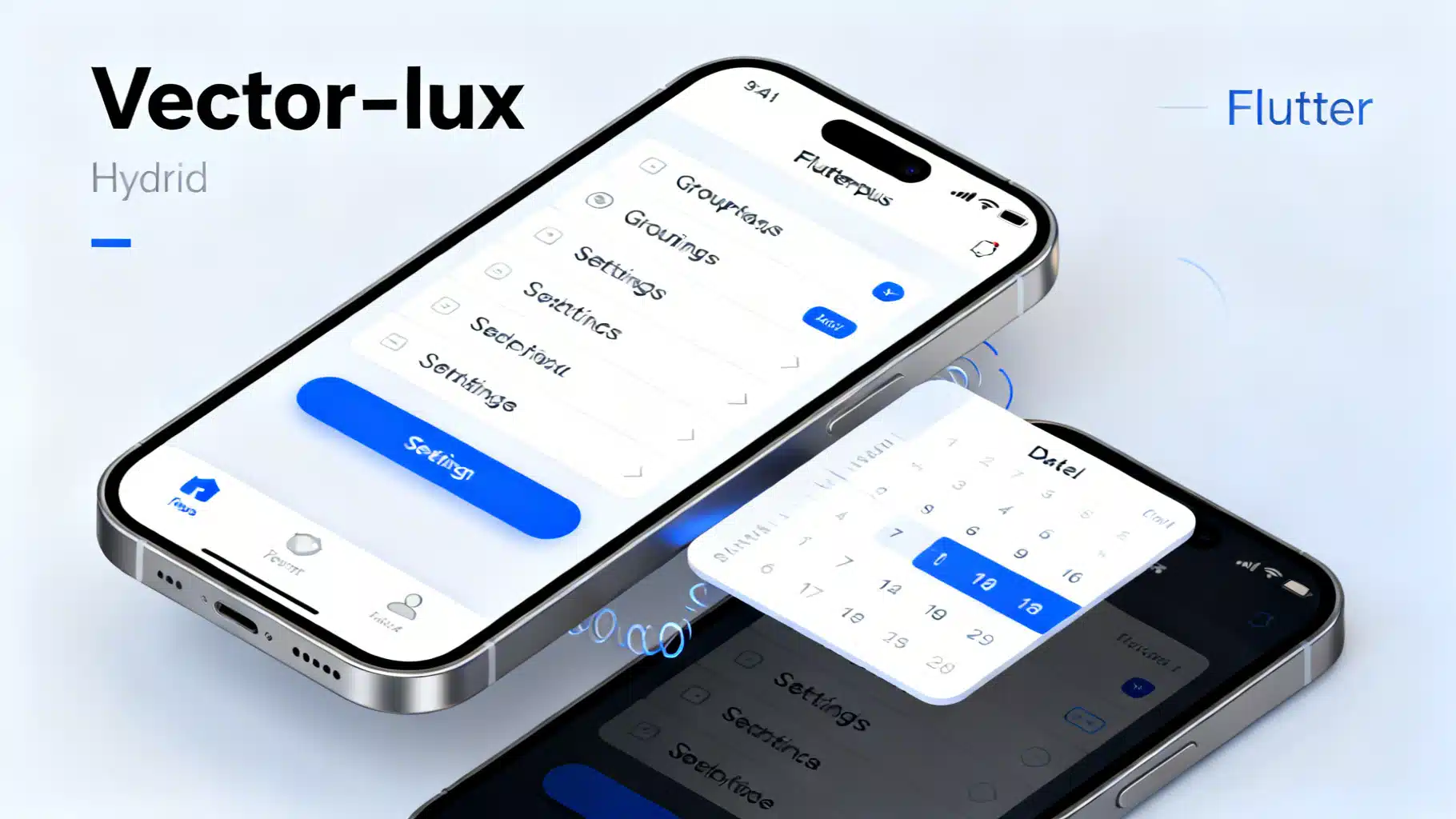
Image used for representation purposes only.
Overview
Flutter’s Cupertino library gives you native-feeling iOS interfaces without leaving Dart. This guide walks through the core Cupertino widgets, navigation patterns, theming, and platform-adaptive techniques—with focused examples you can paste into your project.
When to choose Cupertino
- You’re building an iOS-first experience and want native navigation, typography, and motion.
- You’re shipping a platform-adaptive app that should look Material on Android and Cupertino on iOS.
- You need iOS-specific controls like pickers, action sheets, large-title navigation bars, and segmented controls.
Cupertino widgets can live inside a Material app, and vice versa. The key is picking an app shell and navigation approach that matches your goals.
App shells: CupertinoApp vs MaterialApp
- CupertinoApp
- Uses iOS page transitions and text styles out of the box.
- Honors CupertinoTheme and dynamic system colors.
- Navigator pushes use CupertinoPageRoute by default.
- MaterialApp
- Great for cross-platform; you can still drop in Cupertino widgets where needed.
- Use CupertinoPageRoute for iOS-style transitions on specific routes.
Example: minimal Cupertino app
import 'package:flutter/cupertino.dart';

void main() => runApp(const MyApp());

class MyApp extends StatelessWidget {
  const MyApp({super.key});

  @override
  Widget build(BuildContext context) {
    return const CupertinoApp(
      debugShowCheckedModeBanner: false,
      home: CupertinoPageScaffold(
        navigationBar: CupertinoNavigationBar(middle: Text('Home')),
        child: Center(child: Text('Hello, iOS')),
      ),
    );
  }
}
Navigation patterns that feel native
1) Stacked navigation with back-swipe
CupertinoPageRoute enables the iOS edge-swipe back gesture and the classic right-to-left push transition.
Navigator.of(context).push(CupertinoPageRoute(
  builder: (_) => const DetailsPage(),
));
Use CupertinoPageScaffold for each screen. Its CupertinoNavigationBar supports leading, middle (title), and trailing areas.
class DetailsPage extends StatelessWidget {
  const DetailsPage({super.key});

  @override
  Widget build(BuildContext context) {
    return const CupertinoPageScaffold(
      navigationBar: CupertinoNavigationBar(
        middle: Text('Details'),
      ),
      child: Center(child: Text('Details body')),
    );
  }
}
2) Large titles with scroll effects
Use CupertinoSliverNavigationBar inside a CustomScrollView for iOS large-title behavior that collapses on scroll.
class LargeTitlePage extends StatelessWidget {
  const LargeTitlePage({super.key});

  @override
  Widget build(BuildContext context) {
    return CupertinoPageScaffold(
      child: CustomScrollView(
        slivers: [
          const CupertinoSliverNavigationBar(
            largeTitle: Text('Library'),
          ),
          SliverList(
            delegate: SliverChildBuilderDelegate(
              (context, i) => Padding(
                padding: const EdgeInsets.all(16),
                child: Text('Item #$i'),
              ),
              childCount: 30,
            ),
          ),
        ],
      ),
    );
  }
}
3) Tabbed apps with preserved state
CupertinoTabScaffold pairs with CupertinoTabBar and CupertinoTabView to maintain independent navigation stacks per tab (a very iOS pattern).
class TabsApp extends StatelessWidget {
  const TabsApp({super.key});

  @override
  Widget build(BuildContext context) {
    return CupertinoApp(
      home: CupertinoTabScaffold(
        tabBar: const CupertinoTabBar(
          items: [
            BottomNavigationBarItem(icon: Icon(CupertinoIcons.house), label: 'Home'),
            BottomNavigationBarItem(icon: Icon(CupertinoIcons.search), label: 'Search'),
            BottomNavigationBarItem(icon: Icon(CupertinoIcons.person), label: 'Profile'),
          ],
        ),
        tabBuilder: (context, index) {
          return CupertinoTabView(
            builder: (context) {
              switch (index) {
                case 0:
                  return const HomeTab();
                case 1:
                  return const SearchTab();
                default:
                  return const ProfileTab();
              }
            },
          );
        },
      ),
    );
  }
}
Lists, safe areas, and pull-to-refresh
- Safe areas: iOS relies on insets for notches and the home indicator. CupertinoPageScaffold and CupertinoSliverNavigationBar manage this well; add SafeArea when building custom layouts.
- Scroll physics: Bouncing physics are default in many Cupertino scrollables, matching iOS.
- Pull-to-refresh: Use CupertinoSliverRefreshControl inside a CustomScrollView sliver list.
class RefreshingList extends StatelessWidget {
  const RefreshingList({super.key});

  Future<void> _refresh() async {
    await Future<void>.delayed(const Duration(seconds: 1));
  }

  @override
  Widget build(BuildContext context) {
    return CupertinoPageScaffold(
      child: CustomScrollView(
        slivers: [
          const CupertinoSliverNavigationBar(largeTitle: Text('Inbox')),
          CupertinoSliverRefreshControl(onRefresh: _refresh),
          SliverList(
            delegate: SliverChildBuilderDelegate(
              (context, i) => ListTile(title: Text('Message #$i')),
              childCount: 20,
            ),
          ),
        ],
      ),
    );
  }
}
Tip: Add CupertinoScrollbar for a platform-appropriate scrollbar appearance.
Core Cupertino widgets you’ll use often
Buttons and controls
- CupertinoButton: Tappable control with iOS styling. Use CupertinoButton.filled for a prominent button.
- CupertinoSwitch, CupertinoSlider: iOS toggles and sliders.
- CupertinoActivityIndicator: Indeterminate spinner.
CupertinoButton.filled(
  onPressed: () {},
  child: const Text('Continue'),
)
Text and search
- CupertinoTextField: iOS text field with clear button, prefix/suffix widgets, and decoration.
- CupertinoSearchTextField: A search field with built-in styling and clear behavior.
const CupertinoSearchTextField(placeholder: 'Search...')
Pickers
- CupertinoPicker: Wheel-style picker for custom lists.
- CupertinoDatePicker: Date/time pickers with iOS wheels.
- CupertinoTimerPicker: Hour/minute/second duration picker.
Present pickers modally using showCupertinoModalPopup for the classic bottom sheet feel.
void showDatePicker(BuildContext context) {
  showCupertinoModalPopup(
    context: context,
    builder: (_) => Container(
      color: CupertinoColors.systemBackground.resolveFrom(context),
      height: 300,
      child: Column(
        children: [
          SizedBox(
            height: 250,
            child: CupertinoDatePicker(
              mode: CupertinoDatePickerMode.dateAndTime,
              onDateTimeChanged: (dt) {},
            ),
          ),
          CupertinoButton(
            child: const Text('Done'),
            onPressed: () => Navigator.of(context).pop(),
          ),
        ],
      ),
    ),
  );
}
Alerts and action sheets
- CupertinoAlertDialog: iOS alert with title, content, and actions.
- CupertinoActionSheet: Vertical list of actions plus a cancel button.
showCupertinoDialog(
  context: context,
  builder: (_) => CupertinoAlertDialog(
    title: const Text('Delete file?'),
    content: const Text('This cannot be undone.'),
    actions: [
      CupertinoDialogAction(
        isDestructiveAction: true,
        onPressed: () => Navigator.of(context).pop(),
        child: const Text('Delete'),
      ),
      CupertinoDialogAction(
        isDefaultAction: true,
        onPressed: () => Navigator.of(context).pop(),
        child: const Text('Cancel'),
      ),
    ],
  ),
);
Segmented control
CupertinoSegmentedControl is perfect for mutually exclusive options.
class Segments extends StatefulWidget {
  const Segments({super.key});
  @override
  State<Segments> createState() => _SegmentsState();
}

class _SegmentsState extends State<Segments> {
  String value = 'A';
  @override
  Widget build(BuildContext context) {
    return CupertinoSegmentedControl<String>(
      groupValue: value,
      onValueChanged: (v) => setState(() => value = v),
      children: const {
        'A': Padding(padding: EdgeInsets.all(8), child: Text('A')),
        'B': Padding(padding: EdgeInsets.all(8), child: Text('B')),
      },
    );
  }
}
Forms the iOS way
Group settings and inputs using CupertinoFormSection and CupertinoFormRow to achieve the familiar grouped-list appearance with dividers and headers.
class SettingsForm extends StatelessWidget {
  const SettingsForm({super.key});

  @override
  Widget build(BuildContext context) {
    return CupertinoPageScaffold(
      navigationBar: const CupertinoNavigationBar(middle: Text('Settings')),
      child: SafeArea(
        child: ListView(
          children: [
            CupertinoFormSection.insetGrouped(
              header: const Text('Account'),
              children: const [
                CupertinoFormRow(
                  prefix: Text('Username'),
                  child: CupertinoTextField(placeholder: 'john_appleseed'),
                ),
              ],
            ),
            CupertinoFormSection.insetGrouped(
              header: const Text('Preferences'),
              children: [
                CupertinoFormRow(
                  prefix: const Text('Notifications'),
                  child: CupertinoSwitch(value: true, onChanged: (v) {}),
                ),
              ],
            ),
          ],
        ),
      ),
    );
  }
}
Theming, colors, and dark mode
Use CupertinoTheme to control typography and colors. Prefer CupertinoColors and systemX palettes for dynamic light/dark behavior. CupertinoDynamicColor resolves to the correct variant at runtime.
CupertinoApp(
  theme: const CupertinoThemeData(
    brightness: Brightness.light,
    primaryColor: CupertinoColors.systemBlue,
    barBackgroundColor: CupertinoColors.systemGroupedBackground,
  ),
  home: const Home(),
);
To read a dynamic color resolved for the current context:
final resolved = CupertinoColors.systemBackground.resolveFrom(context);
Typography comes from the default iOS San Francisco font stack via DefaultTextStyle in Cupertino widgets; override via CupertinoThemeData.textTheme if needed.
Icons the iOS way
Use CupertinoIcons for the SF Symbols-inspired icon set:
const Icon(CupertinoIcons.heart)
These icons are vector-based and render crisply at multiple sizes.
Platform-adaptive composition
Most production apps should adapt to the host platform. Create small adapter widgets that switch between Cupertino and Material.
import 'dart:io' show Platform;
import 'package:flutter/foundation.dart' show defaultTargetPlatform, kIsWeb;
import 'package:flutter/material.dart';
import 'package:flutter/cupertino.dart';

class AdaptiveScaffold extends StatelessWidget {
  final String title;
  final Widget body;
  const AdaptiveScaffold({super.key, required this.title, required this.body});

  bool get _isCupertino {
    if (kIsWeb) return defaultTargetPlatform == TargetPlatform.iOS;
    return Platform.isIOS || Platform.isMacOS;
  }

  @override
  Widget build(BuildContext context) {
    if (_isCupertino) {
      return CupertinoPageScaffold(
        navigationBar: CupertinoNavigationBar(middle: Text(title)),
        child: body,
      );
    }
    return Scaffold(appBar: AppBar(title: Text(title)), body: body);
  }
}
You can push platform-matching routes similarly:
void adaptivePush(BuildContext context, Widget page) {
  final platform = Theme.of(context).platform;
  final route = platform == TargetPlatform.iOS
      ? CupertinoPageRoute(builder: (_) => page)
      : MaterialPageRoute(builder: (_) => page);
  Navigator.of(context).push(route);
}
Motion and polish tips
- Use Hero for shared element transitions; CupertinoPageRoute supports them.
- Prefer showCupertinoModalPopup for bottom sheets that should dim the background and slide up from the bottom.
- Trigger light haptics for critical affordances using HapticFeedback (from services package) when appropriate.
Accessibility and localization
- Dynamic type: CupertinoTextField and Cupertino widgets respect system text scaling—verify with large fonts in Settings.
- Contrast and colors: Rely on CupertinoColors.system… palettes which adapt in dark mode and high-contrast environments.
- Localization: CupertinoAlertDialog, date/time formats, and pickers follow the active locale. Wrap your app with proper LocalizationsDelegates if you customize beyond defaults.
- Right-to-left: Check that paddings and iconography mirror correctly; Cupertino widgets are RTL-aware.
Performance and behavior
- Prefer constant constructors (const) to reduce rebuild costs when possible.
- Keep lists efficient with ListView.builder or SliverList.
- Avoid heavyweight layouts in navigation bars; keep middle/leading/trailing light.
- For mixed apps, ensure only one top-level Navigator if you’re not using tabs; with tabs, each CupertinoTabView owns its own Navigator.
Common pitfalls (and fixes)
- Problem: Back swipe doesn’t work.
- Fix: Ensure routes are CupertinoPageRoute (or you’re inside CupertinoApp) and that the left edge isn’t captured by another GestureDetector.
- Problem: ActionSheet doesn’t dismiss.
- Fix: Call Navigator.of(context).pop(result) from an action handler.
- Problem: Mixed styling in a Material app.
- Fix: Wrap specific pages with CupertinoPageScaffold and use Cupertino-widgets end-to-end on that page; avoid mixing Scaffold and CupertinoNavigationBar in the same route.
- Problem: Pickers over keyboard.
- Fix: Present pickers modally via showCupertinoModalPopup; avoid stacking with an active keyboard, or unfocus first.
Putting it together: a small iOS-style screen
class ProfileScreen extends StatelessWidget {
  const ProfileScreen({super.key});

  @override
  Widget build(BuildContext context) {
    return CupertinoPageScaffold(
      child: CustomScrollView(
        slivers: [
          const CupertinoSliverNavigationBar(largeTitle: Text('Profile')),
          SliverToBoxAdapter(
            child: Padding(
              padding: const EdgeInsets.all(16),
              child: Column(
                crossAxisAlignment: CrossAxisAlignment.stretch,
                children: [
                  const CircleAvatar(radius: 40, child: Icon(CupertinoIcons.person)),
                  const SizedBox(height: 16),
                  const Text('John Appleseed', textAlign: TextAlign.center),
                  const SizedBox(height: 24),
                  CupertinoButton.filled(
                    onPressed: () => showDatePicker(context),
                    child: const Text('Edit Birthday'),
                  ),
                ],
              ),
            ),
          ),
          SliverToBoxAdapter(
            child: CupertinoFormSection.insetGrouped(
              header: const Text('Settings'),
              children: [
                CupertinoFormRow(
                  prefix: const Text('Private Account'),
                  child: CupertinoSwitch(value: false, onChanged: (v) {}),
                ),
                CupertinoFormRow(
                  prefix: const Text('About'),
                  child: const Icon(CupertinoIcons.right_chevron),
                ),
              ],
            ),
          ),
        ],
      ),
    );
  }
}
Checklist before you ship
- Use CupertinoApp (or CupertinoPageRoute) on iOS.
- Adopt CupertinoSliverNavigationBar for large-title pages.
- Present pickers and action sheets with showCupertinoModalPopup.
- Group settings with CupertinoFormSection and use CupertinoTextField where appropriate.
- Rely on CupertinoColors.system… for adaptive colors and dark mode.
- Test edge-swipe back, text scaling, RTL, and tab-state preservation.
Summary
Flutter’s Cupertino library delivers authentic iOS look-and-feel: navigation bars with large titles, wheel pickers, action sheets, segmented controls, and bouncy scrolling. Combine these with platform-adaptive routing and system-aware colors, and your app will feel right at home on iPhone—while still sharing code with Android and the web.
Related Posts
Flutter Push Notifications with Firebase Cloud Messaging (FCM): A Complete Setup Guide
Step-by-step guide to set up FCM push notifications in Flutter for Android and iOS, with code, permissions, background handling, and testing tips.

Flutter Plugin Development with Native Code: Channels, Pigeon, and FFI
A practical, end-to-end guide to building robust Flutter plugins with native code, Pigeon, FFI, testing, and multi-platform best practices.

Flutter barcode scanning with the camera plugin: a production-ready guide
Build a fast, on‑device Flutter barcode scanner using the camera plugin and ML Kit, with code, overlays, performance tips, and platform setup.