
Flutter Charts: A Practical Data Visualization Guide
A practical, end-to-end Flutter charts guide: choose libraries, build beautiful charts, optimize performance, add interactivity, accessibility, and tests.
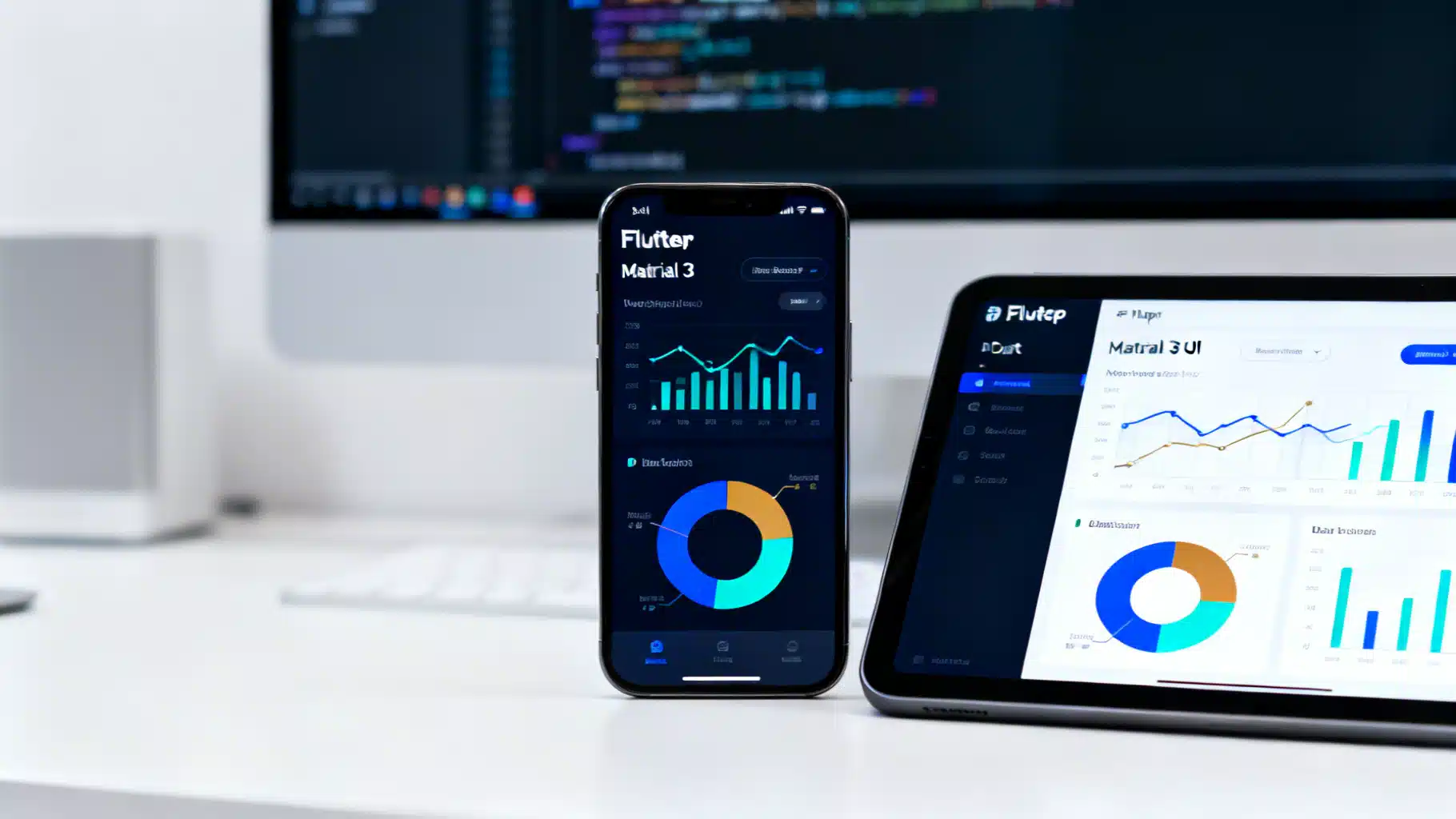
Image used for representation purposes only.
Why Flutter Charts Matter
Data is only useful when it’s understandable. In Flutter, charts turn raw numbers into patterns, comparisons, and trends that users can act on—whether that’s monitoring sales, tracking fitness progress, or visualizing IoT telemetry. This guide walks you through picking the right chart, choosing a library, building polished visuals, and shipping fast, accessible, and maintainable chart experiences.
Choose the Right Chart for the Job
- Line: time‑series trends, continuous data
- Area: cumulative impact and trend magnitude
- Column/Bar: categorical comparisons, rankings
- Stacked Bar/Area: composition within categories over time
- Scatter/Bubble: correlation, clusters, outliers
- Pie/Donut: share of a whole (use sparingly; compare few parts)
- Candlestick/OHLC: financial open–high–low–close
- Heatmap: density and intensity across two dimensions
Tip: If users must compare precise values, prefer bars/columns; if they need to see shape and momentum, choose lines/areas. Always label axes, units, and time zones.
The Flutter Charting Landscape
There’s no single “built‑in” chart widget; you’ll integrate a library. Common options include:
- FL Chart (open source): Lightweight, customizable, friendly APIs; great for mobile dashboards. Good documentation and active community.
- Syncfusion Flutter Charts (enterprise‑grade): Feature‑rich (zoom/pan, annotations, trendlines, financial series, error bars), excellent performance, and accessibility features. Free community license available for eligible users.
- ECharts via flutter_echarts (web‑powered): Extensive chart types and interactions powered by ECharts in a WebView. Best when you already use ECharts.
- Graphic: A grammar‑of‑graphics approach for expressive, declarative charts.
Selection tips:
- Need breadth, financial charts, annotations, performance at scale: consider Syncfusion.
- Need quick, beautiful, mobile‑first charts with Dart‑native rendering: consider FL Chart.
- Need highly custom, declarative composition: consider Graphic.
- Need parity with existing web dashboards: consider flutter_echarts/ECharts.
Project Setup
Add your chosen package in pubspec.yaml, then run flutter pub get. Example:
dependencies:
  fl_chart: any
Import it where you build the chart:
import 'package:fl_chart/fl_chart.dart';
Quick Start: Line Chart with FL Chart
class SimpleLineChart extends StatelessWidget {
  const SimpleLineChart({super.key});

  @override
  Widget build(BuildContext context) {
    final spots = <FlSpot>[
      const FlSpot(0, 1),
      const FlSpot(1, 1.5),
      const FlSpot(2, 1.4),
      const FlSpot(3, 3.4),
      const FlSpot(4, 2),
      const FlSpot(5, 2.2),
      const FlSpot(6, 1.8),
    ];

    return AspectRatio(
      aspectRatio: 1.6,
      child: LineChart(
        LineChartData(
          backgroundColor: Theme.of(context).colorScheme.surface,
          gridData: FlGridData(show: true, drawVerticalLine: true),
          titlesData: FlTitlesData(
            leftTitles: AxisTitles(sideTitles: SideTitles(showTitles: true)),
            bottomTitles: AxisTitles(sideTitles: SideTitles(showTitles: true)),
          ),
          lineTouchData: LineTouchData(
            enabled: true,
            touchTooltipData: LineTouchTooltipData(
              tooltipBgColor: Colors.black87,
              getTooltipItems: (spots) => spots.map((s) => LineTooltipItem(
                'x: ${s.x.toStringAsFixed(0)}\ny: ${s.y.toStringAsFixed(2)}',
                const TextStyle(color: Colors.white),
              )).toList(),
            ),
          ),
          minX: 0,
          maxX: 6,
          minY: 0,
          maxY: 4,
          lineBarsData: [
            LineChartBarData(
              spots: spots,
              isCurved: true,
              color: Theme.of(context).colorScheme.primary,
              barWidth: 3,
              dotData: FlDotData(show: false),
              belowBarData: BarAreaData(
                show: true,
                color: Theme.of(context).colorScheme.primary.withOpacity(0.15),
              ),
            ),
          ],
        ),
      ),
    );
  }
}
Quick Start: Column Chart with Syncfusion
import 'package:syncfusion_flutter_charts/charts.dart';

class Sales {
  const Sales(this.quarter, this.value);
  final String quarter;
  final double value;
}

class ColumnChartExample extends StatelessWidget {
  ColumnChartExample({super.key});

  final data = const [
    Sales('Q1', 42), Sales('Q2', 58), Sales('Q3', 61), Sales('Q4', 75),
  ];

  @override
  Widget build(BuildContext context) {
    return SfCartesianChart(
      primaryXAxis: CategoryAxis(),
      title: ChartTitle(text: 'Quarterly Sales'),
      tooltipBehavior: TooltipBehavior(enable: true),
      series: <ChartSeries<Sales, String>>[
        ColumnSeries<Sales, String>(
          dataSource: data,
          xValueMapper: (s, _) => s.quarter,
          yValueMapper: (s, _) => s.value,
          color: Theme.of(context).colorScheme.primary,
          dataLabelSettings: const DataLabelSettings(isVisible: true),
        ),
      ],
    );
  }
}
Modeling and Preparing Data
- Create typed models (e.g., SalesPoint with DateTime time, double value) to avoid runtime parsing errors.
- Normalize units: e.g., store currency as cents or doubles with clear precision.
- Time zones: convert to UTC internally and format in the user’s locale.
- Transformations: compute rolling averages, percent change, cumulative sums before rendering.
Example model and mapper:
class MetricPoint {
  final DateTime t;
  final double v;
  const MetricPoint(this.t, this.v);
}

List<FlSpot> toSpots(List<MetricPoint> pts) {
  // Use millisecondsSinceEpoch as X for time-series, scaled to days for readability.
  final base = pts.first.t.millisecondsSinceEpoch.toDouble();
  return pts.map((p) {
    final x = (p.t.millisecondsSinceEpoch - base) / Duration.millisecondsPerDay;
    return FlSpot(x, p.v);
  }).toList();
}
Interactivity Patterns That Matter
- Tooltips: show value and context (units, series name, timestamp). Debounce updates for smoother UX.
- Selection/Highlight: emphasize tapped series or point; dim others.
- Zoom/Pan: useful for dense time series. Offer reset controls.
- Legends and Filters: let users toggle series; keep state across navigations.
- Annotations: thresholds, events, goal lines; use contrasting colors and labels.
Theming and Visual Design
- Align with Material 3 ColorScheme; prefer high‑contrast palettes that pass WCAG AA.
- Use consistent stroke widths and corner radii; avoid drop shadows on lines (blurry visuals on low‑DPI).
- Limit simultaneous hues. For multiple series, vary hue and also pattern (dashed vs solid) for accessibility.
- Label axes and units. For dates, show major ticks (months) and minor ticks (weeks) rather than every day.
Performance: Rendering at 60 FPS
Charts can become expensive with thousands of points. Strategies:
- Minimize rebuilds: keep chart config const where possible; lift heavy computations out of build.
- Cache derived data (e.g., FlSpots) with memoization or ValueNotifier.
- Downsample large series (e.g., largest‑triangle‑three‑buckets or simple binning) to reduce points without losing shape.
- Clip wisely: avoid painting outside the viewport; use RepaintBoundary to isolate chart repaints.
- Use LayoutBuilder/AspectRatio to avoid expensive relayouts.
- For Flutter Web: CanvasKit generally renders complex charts more smoothly than HTML rendering.
Example downsampling (simple binning):
List<MetricPoint> binDownsample(List<MetricPoint> pts, int bins) {
  if (pts.length <= bins) return pts;
  final minT = pts.first.t.millisecondsSinceEpoch;
  final maxT = pts.last.t.millisecondsSinceEpoch;
  final binSize = (maxT - minT) / bins;
  final buckets = List.generate(bins, (_) => <MetricPoint>[]);
  for (final p in pts) {
    final idx = ((p.t.millisecondsSinceEpoch - minT) / binSize).floor().clamp(0, bins - 1);
    buckets[idx].add(p);
  }
  return buckets.map((b) {
    final avgT = DateTime.fromMillisecondsSinceEpoch(
      (b.map((e) => e.t.millisecondsSinceEpoch).reduce((a, c) => a + c) / b.length).round(),
    );
    final avgV = b.map((e) => e.v).reduce((a, c) => a + c) / b.length;
    return MetricPoint(avgT, avgV);
  }).toList();
}
Real‑Time and Streaming Charts
Use StreamBuilder or a state management solution to append points efficiently.
class LiveChart extends StatefulWidget {
  const LiveChart({super.key});
  @override
  State<LiveChart> createState() => _LiveChartState();
}

class _LiveChartState extends State<LiveChart> {
  final _points = <FlSpot>[];

  @override
  Widget build(BuildContext context) {
    return StreamBuilder<MetricPoint>(
      stream: sensorStream(), // your data source
      builder: (context, snapshot) {
        if (snapshot.hasData) {
          final base = _points.isEmpty ? snapshot.data!.t.millisecondsSinceEpoch.toDouble() : _points.first.x;
          final x = _points.isEmpty
              ? 0
              : (snapshot.data!.t.millisecondsSinceEpoch.toDouble() - base) /
                  Duration.millisecondsPerSecond;
          _points.add(FlSpot(x, snapshot.data!.v));
          if (_points.length > 600) _points.removeAt(0); // sliding window
        }
        return LineChart(LineChartData(lineBarsData: [
          LineChartBarData(spots: _points, isCurved: true, barWidth: 2),
        ]));
      },
    );
  }
}
Accessibility and Internationalization
- Color: choose palettes legible for color‑vision deficiencies (e.g., blue/orange, purple/green). Add non‑color encodings like dash patterns.
- Semantics: provide a textual summary near the chart for screen readers.
Semantics(
  label: 'Sales trend chart from January to June. Peak in May at 75 units.',
  child: YourChartWidget(),
)
- Touch Targets: ensure legends and toggles are at least 44×44 dp.
- Text Scaling: test at 200% text scale; avoid clipped labels.
- i18n: format numbers and dates with the intl package; respect locale and units.
import 'package:intl/intl.dart';
final currency = NumberFormat.simpleCurrency(locale: Localizations.localeOf(context).toString());
final dateFmt = DateFormat.MMMd(Localizations.localeOf(context).toString());
State Management Integration
- Provider/Riverpod: expose chart data as a stream or value notifier to widgets.
- BLoC/Cubit: derive series from events and emit immutable chart states.
- MVC/MVVM: keep parsing, filtering, and downsampling in the model layer to keep widgets light.
Annotations, Trendlines, and Advanced Features
- Thresholds: draw horizontal lines for targets/SLAs.
- Event markers: annotate releases or incidents with vertical lines and labels.
- Trendlines: moving average (SMA/EMA); highlight with dashed strokes.
- Ranges: shaded regions for confidence intervals or maintenance windows.
With Syncfusion, many of these are built‑in (annotations, trendlines). With FL Chart, you can layer CustomPainter widgets or use belowBarData and extra lines via LineChartBarData.
Exporting and Sharing Charts
Capture a chart as an image using RepaintBoundary.
class ExportableChart extends StatefulWidget {
  const ExportableChart({super.key});
  @override
  State<ExportableChart> createState() => _ExportableChartState();
}

class _ExportableChartState extends State<ExportableChart> {
  final _key = GlobalKey();

  Future<Uint8List?> _capturePng() async {
    final boundary = _key.currentContext!.findRenderObject() as RenderRepaintBoundary;
    final image = await boundary.toImage(pixelRatio: 3.0);
    final byteData = await image.toByteData(format: ImageByteFormat.png);
    return byteData?.buffer.asUint8List();
  }

  @override
  Widget build(BuildContext context) {
    return Column(
      children: [
        RepaintBoundary(key: _key, child: SizedBox(height: 240, child: YourChartWidget())),
        ElevatedButton(
          onPressed: () async {
            final png = await _capturePng();
            if (png == null) return;
            // Share or save using your preferred plugin
          },
          child: const Text('Export PNG'),
        ),
      ],
    );
  }
}
For PDFs, render the captured PNG inside a pdf document using popular PDF packages, or use chart libraries with built‑in export support where available.
Testing Charts
- Golden tests: verify rendering doesn’t regress.
- Widget tests: tap tooltips, toggle legends, validate accessibility labels.
Example golden test snippet:
testWidgets('line chart renders', (tester) async {
  await tester.pumpWidget(const MaterialApp(home: SimpleLineChart()));
  await expectLater(
    find.byType(SimpleLineChart),
    matchesGoldenFile('goldens/line_chart.png'),
  );
});
Debugging Common Issues
- “Missing ticks/labels”: increase reserved size for titles or rotate labels.
- “Jittery interaction”: debounce touch events; avoid setState on every pointer move.
- “Slow with large data”: downsample, paginate time windows, or use a more performant series type.
- “Overlapping series colors”: adjust opacity and stacking order; add dashed outlines.
- “Web blurriness”: ensure devicePixelRatio scaling; prefer CanvasKit on complex scenes.
Production Checklist
- Pick charts that match tasks; limit to essential types.
- Normalize and pre‑aggregate data server‑side where possible.
- Add interactivity (tooltips/zoom) with thoughtful defaults and reset controls.
- Design with contrast, labels, and units; support dark mode.
- Ensure accessibility: semantics, touch targets, color‑safe palettes.
- Optimize performance: minimize rebuilds, downsample, cache derived data.
- Test with golden and widget tests; verify at large text scales.
- Provide export/share options if users need to report or archive insights.
Conclusion
Flutter makes it straightforward to deliver high‑quality, interactive data visualizations. Choose a charting library aligned with your requirements, model data cleanly, focus on accessibility and performance, and iterate with testing. With these practices, your charts won’t merely look good—they’ll communicate clearly and help users make better decisions.
Related Posts
Flutter sqflite Database Migration Guide: Safe, Incremental Upgrades with Confidence
A step-by-step Flutter sqflite migration guide: design, implement, and test safe schema upgrades with code patterns, tips, and pitfalls to avoid.
Flutter Impeller Rendering Engine: A Performance Deep Dive and Tuning Guide
A practical performance deep dive into Flutter’s Impeller renderer: how it works, how to measure it, and tuning patterns for smooth, jank‑free UIs.
Flutter background fetch periodic tasks: reliable patterns for Android and iOS
Learn how to run periodic background tasks in Flutter with WorkManager and iOS BackgroundTasks, plus reliable patterns, caveats, and code examples.