
Flutter PDF Generation and Viewing: A Complete, Modern Tutorial
Step-by-step Flutter tutorial to generate, preview, print, share, and save PDFs using pdf and printing packages—complete with code, fonts, images, and tips.
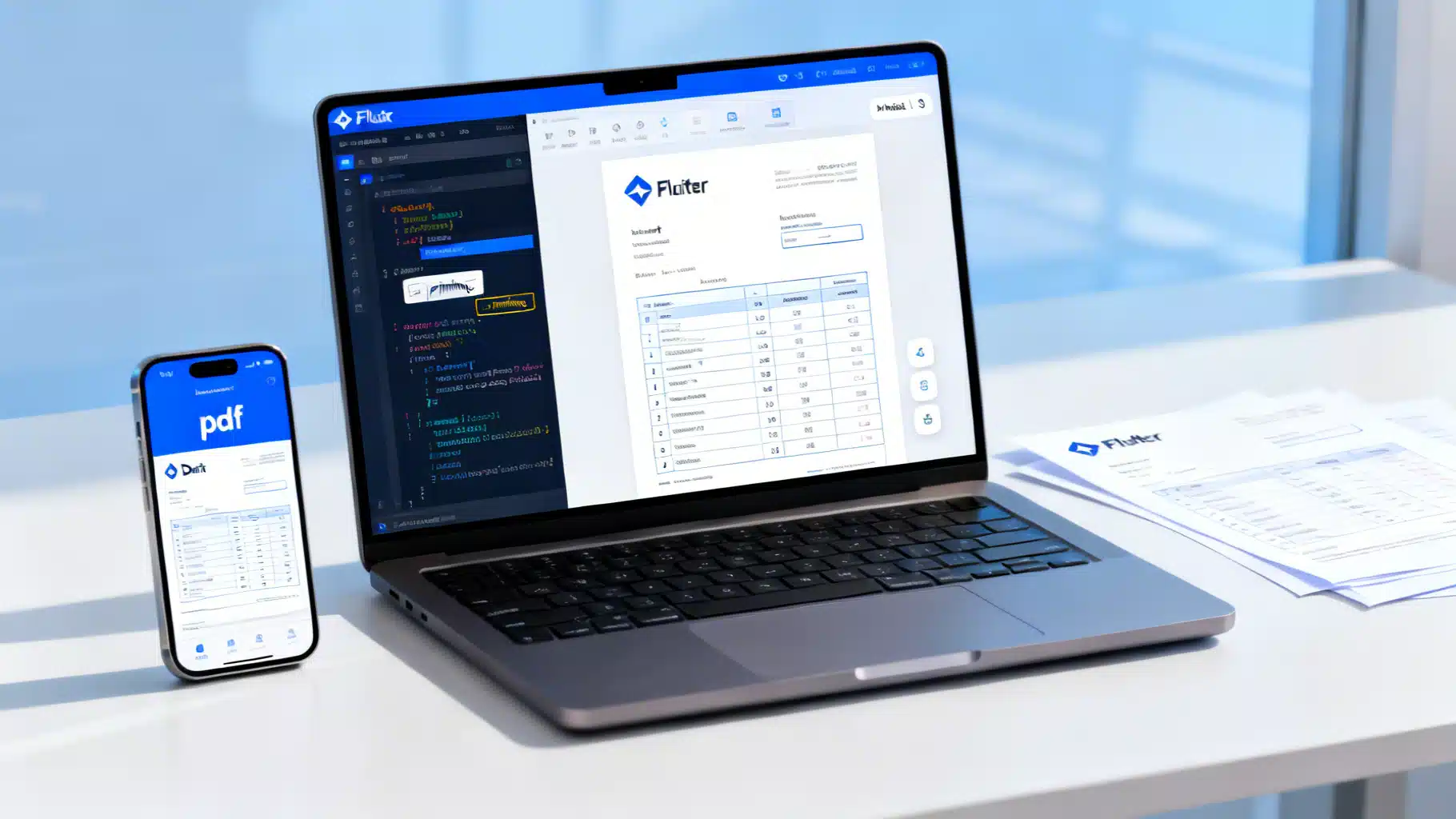
Image used for representation purposes only.
Overview
Generating and viewing PDFs in Flutter is a common requirement for invoices, reports, tickets, catalogs, and handouts. In this tutorial you’ll build a production‑ready workflow to create richly formatted PDFs, preview them in‑app, print or share them, and save them to local storage. We’ll use the battle‑tested pdf and printing packages, cover fonts and images, add headers/footers with page numbers, and discuss performance, testing, and platform caveats (mobile, desktop, and web).
What you’ll build
- A reusable PDF generator function that returns Uint8List bytes
- A screen with a live PDF preview (zoom, print, share)
- Utilities to save/open the PDF on mobile/desktop and to download/share on web
- A styled multi‑page document with a logo, table, and header/footer
Prerequisites
- Flutter SDK installed
- Familiarity with Dart async/await and Flutter widgets
- A blank Flutter app (flutter create pdf_demo)
Packages and project setup
Add dependencies in pubspec.yaml. Use the latest compatible versions.
name: pdf_demo
publish_to: 'none'

environment:
  sdk: '>=3.0.0 <4.0.0'

dependencies:
  flutter:
    sdk: flutter
  pdf: ^3.10.0        # PDF generation
  printing: ^5.13.0   # Preview, print, share
  path_provider: ^2.1.0
  open_filex: ^4.4.0  # Open files on device (Android/iOS/desktop)

flutter:
  assets:
    - assets/images/logo.png
    - assets/fonts/Roboto-Regular.ttf
    - assets/fonts/Roboto-Bold.ttf
Notes
- Include TTF fonts as assets to ensure consistent text rendering offline. You can use any open font (e.g., Roboto).
- If you support only in‑app preview/print/share and not saving to disk, you can omit path_provider and open_filex.
Project structure (suggested):
lib/
  main.dart
  pdf/
    pdf_invoice.dart      # PDF builder (returns bytes)
    pdf_assets.dart       # Fonts/images loader & cache
  ui/
    preview_page.dart     # PdfPreview widget screen
assets/
  images/logo.png
  fonts/Roboto-Regular.ttf
  fonts/Roboto-Bold.ttf
Building your first PDF (bytes, not files)
Create a reusable generator that takes a PdfPageFormat and returns bytes. Keep fonts and images outside the function or cache them to avoid reloading every time.
// lib/pdf/pdf_assets.dart
import 'package:flutter/services.dart' show rootBundle;
import 'package:pdf/widgets.dart' as pw;

class PdfAssets {
  pw.Font? _regular;
  pw.Font? _bold;
  pw.MemoryImage? _logo;

  Future<pw.Font> regular() async =>
      _regular ??= pw.Font.ttf(await rootBundle.load('assets/fonts/Roboto-Regular.ttf'));

  Future<pw.Font> bold() async =>
      _bold ??= pw.Font.ttf(await rootBundle.load('assets/fonts/Roboto-Bold.ttf'));

  Future<pw.MemoryImage> logo() async => _logo ??= pw.MemoryImage(
        (await rootBundle.load('assets/images/logo.png')).buffer.asUint8List(),
      );
}
// lib/pdf/pdf_invoice.dart
import 'dart:typed_data';
import 'package:pdf/pdf.dart';
import 'package:pdf/widgets.dart' as pw;
import 'pdf_assets.dart';

class InvoiceItem {
  final String description;
  final int qty;
  final double price;
  const InvoiceItem(this.description, this.qty, this.price);
}

Future<Uint8List> buildInvoicePdf(PdfPageFormat pageFormat) async {
  final assets = PdfAssets();
  final base = await assets.regular();
  final bold = await assets.bold();
  final logo = await assets.logo();

  final pdf = pw.Document();

  final items = const <InvoiceItem>[
    InvoiceItem('Design work', 12, 65),
    InvoiceItem('Development', 30, 80),
    InvoiceItem('Hosting (6 months)', 1, 120),
  ];

  double total() => items.fold(0, (s, i) => s + i.qty * i.price);

  pdf.addPage(
    pw.MultiPage(
      pageFormat: pageFormat,
      theme: pw.ThemeData.withFont(base: base, bold: bold),
      margin: const pw.EdgeInsets.symmetric(horizontal: 24, vertical: 32),
      header: (ctx) => pw.Row(
        mainAxisAlignment: pw.MainAxisAlignment.spaceBetween,
        children: [
          pw.Row(children: [
            pw.Image(logo, width: 36, height: 36),
            pw.SizedBox(width: 8),
            pw.Text('Acme LLC', style: pw.TextStyle(font: bold, fontSize: 16)),
          ]),
          pw.Text('Invoice #1001', style: pw.TextStyle(font: bold)),
        ],
      ),
      footer: (ctx) => pw.Container(
        alignment: pw.Alignment.centerRight,
        child: pw.Text('Page ${ctx.pageNumber} of ${ctx.pagesCount}',
            style: const pw.TextStyle(fontSize: 10)),
      ),
      build: (ctx) => [
        pw.SizedBox(height: 8),
        pw.Row(
          crossAxisAlignment: pw.CrossAxisAlignment.start,
          children: [
            pw.Expanded(
              child: pw.Column(
                crossAxisAlignment: pw.CrossAxisAlignment.start,
                children: [
                  pw.Text('Bill To', style: pw.TextStyle(font: bold)),
                  pw.Text('Jane Doe'),
                  pw.Text('jane@example.com'),
                ],
              ),
            ),
            pw.SizedBox(width: 32),
            pw.Column(
              crossAxisAlignment: pw.CrossAxisAlignment.end,
              children: [
                pw.Text('Date: 2026-04-12'),
                pw.Text('Due: 2026-04-26'),
              ],
            )
          ],
        ),
        pw.SizedBox(height: 24),
        pw.Table.fromTextArray(
          headerStyle: pw.TextStyle(font: bold),
          headers: ['Description', 'Qty', 'Price', 'Amount'],
          data: items
              .map((i) => [
                    i.description,
                    i.qty,
                    '
$${i.price.toStringAsFixed(2)}',
                    '
$${(i.qty * i.price).toStringAsFixed(2)}',
                  ])
              .toList(),
          cellAlignment: pw.Alignment.centerLeft,
          headerDecoration: const pw.BoxDecoration(color: PdfColors.grey300),
          cellHeight: 28,
          columnWidths: {
            0: const pw.FlexColumnWidth(3),
            1: const pw.FlexColumnWidth(1),
            2: const pw.FlexColumnWidth(1),
            3: const pw.FlexColumnWidth(1),
          },
        ),
        pw.SizedBox(height: 12),
        pw.Align(
          alignment: pw.Alignment.centerRight,
          child: pw.Row(
            mainAxisSize: pw.MainAxisSize.min,
            children: [
              pw.Text('Total: ', style: pw.TextStyle(font: bold, fontSize: 14)),
              pw.Text('
$${total().toStringAsFixed(2)}', style: const pw.TextStyle(fontSize: 14)),
            ],
          ),
        ),
        pw.SizedBox(height: 16),
        pw.UrlLink(
          destination: 'https://example.com/pay',
          child: pw.Text('Pay online', style: pw.TextStyle(font: bold, color: PdfColors.blue800)),
        ),
        pw.SizedBox(height: 24),
        pw.Paragraph(
          text:
              'Thank you for your business! Please remit payment within 14 days. For questions, contact billing@example.com.',
        ),
      ],
    ),
  );

  return pdf.save();
}
Live preview, printing, and sharing
Add a screen that uses PdfPreview from printing. It rebuilds the PDF when the user changes orientation or paper size.
// lib/ui/preview_page.dart
import 'package:flutter/material.dart';
import 'package:printing/printing.dart';
import '../pdf/pdf_invoice.dart';

class PreviewPage extends StatelessWidget {
  const PreviewPage({super.key});

  @override
  Widget build(BuildContext context) {
    return Scaffold(
      appBar: AppBar(title: const Text('Invoice Preview')),
      body: PdfPreview(
        maxPageWidth: 900,
        canChangePageFormat: true,
        canChangeOrientation: true,
        allowPrinting: true,
        allowSharing: true,
        build: (format) => buildInvoicePdf(format),
      ),
    );
  }
}
The PdfPreview widget works on mobile, desktop, and web. On web, sharing triggers a file download or native share if supported.
To programmatically print or share without the preview:
import 'package:printing/printing.dart';
import 'package:pdf/pdf.dart';

Future<void> printDirect() async {
  await Printing.layoutPdf(onLayout: (format) => buildInvoicePdf(format));
}

Future<void> shareDirect() async {
  final bytes = await buildInvoicePdf(PdfPageFormat.a4);
  await Printing.sharePdf(bytes: bytes, filename: 'invoice-1001.pdf');
}
Saving and opening the PDF (mobile/desktop)
On Android/iOS/desktop, you can write to a file and open it with the default viewer.
import 'dart:io';
import 'package:flutter/foundation.dart' show kIsWeb;
import 'package:path_provider/path_provider.dart';
import 'package:open_filex/open_filex.dart';
import 'package:pdf/pdf.dart';

Future<void> saveAndOpen() async {
  final bytes = await buildInvoicePdf(PdfPageFormat.a4);

  if (kIsWeb) {
    // On web use Printing.sharePdf or trigger a download via anchor.
    await Printing.sharePdf(bytes: bytes, filename: 'invoice-1001.pdf');
    return;
  }

  final dir = await getApplicationDocumentsDirectory();
  final file = File('${dir.path}/invoice-1001.pdf');
  await file.writeAsBytes(bytes, flush: true);
  await OpenFilex.open(file.path); // Opens the system viewer
}
Tip: Consider adding a user‑visible “Downloads” or “Documents” toggle so users can find saved files later.
Layout building blocks you’ll use often
- MultiPage: automatically paginates content; supports header/footer builders with context.pageNumber/pagesCount
- Table.fromTextArray: quick tabular data; for custom cells use Table + TableRow
- Wrap/Row/Column/SizedBox: familiar Flutter‑like layout primitives
- Image: embed MemoryImage or raw bytes (PNG/JPEG). For SVG, rasterize first or pre‑render to PNG
- UrlLink and LinkAnnotation: add clickable hyperlinks
- ThemeData.withFont: set base and bold fonts; add monospace if you print code
Example: header/footer with a watermark
pdf.addPage(
  pw.MultiPage(
    header: (ctx) => pw.Stack(children: [
      pw.Align(
        alignment: pw.Alignment.center,
        child: pw.Opacity(
          opacity: 0.05,
          child: pw.Text('CONFIDENTIAL', style: pw.TextStyle(fontSize: 60)),
        ),
      ),
      pw.Padding(
        padding: const pw.EdgeInsets.only(top: 8),
        child: pw.Text('Quarterly Report', style: pw.TextStyle(font: bold)),
      ),
    ]),
    footer: (ctx) => pw.Row(
      mainAxisAlignment: pw.MainAxisAlignment.spaceBetween,
      children: [
        pw.Text('Acme LLC — acme.example'),
        pw.Text('Page ${ctx.pageNumber}/${ctx.pagesCount}'),
      ],
    ),
    build: (ctx) => [/* ... */],
  ),
);
Performance tips
- Reuse assets: Load fonts/images once and cache (see PdfAssets). Reloading inside build() increases memory and jank.
- Use isolates for heavy docs: Offload generation with compute to keep the UI responsive.
import 'package:flutter/foundation.dart';
import 'package:pdf/pdf.dart';

// Must be a top-level or static function to use with compute
Future<Uint8List> buildInIsolate(PdfPageFormat format) => buildInvoicePdf(format);

Future<void> printFast() async {
  await Printing.layoutPdf(onLayout: (f) => compute(buildInIsolate, f));
}
- Avoid gigantic images: Resize or compress before embedding. PDFs balloon quickly with camera photos.
- Paginate early: Prefer MultiPage to manual Page unless you’re drawing fixed‑size artboards.
Testing your generator
You can write fast unit tests that assert byte output is not empty and contains expected metadata or text patterns.
import 'package:flutter_test/flutter_test.dart';
import 'package:pdf/pdf.dart';
import 'dart:typed_data';

void main() {
  test('invoice PDF is generated', () async {
    final bytes = await buildInvoicePdf(PdfPageFormat.a4);
    expect(bytes, isA<Uint8List>());
    expect(bytes.length, greaterThan(1500));
  });
}
Snapshot/golden tests for exact bytes are brittle; prefer higher‑level assertions (length, known strings, page count if parsed) or visual checks with PdfPreview in a testbed app.
Web, desktop, and mobile caveats
- Web downloads: Users can print/share/download via PdfPreview/Printing. Direct file system paths aren’t available—avoid path_provider for persistent storage on web.
- Desktop printing: Platform print dialogs may differ. PdfPreview and Printing handle most details, but test on each OS.
- Fonts: Always embed fonts if you rely on non‑ASCII characters or specific typography. Missing glyphs cause tofu boxes.
- Right‑to‑left and CJK: Use fonts that include required scripts and ensure your layout mirrors correctly.
Optional: Dedicated viewers
PdfPreview is perfect for creation workflows. If you need a long‑term viewer with search/zoom/bookmarks in your app:
- pdfx: Native rendering on Android/iOS with a simple viewer widget.
- Syncfusion PDF Viewer: Full‑featured viewer with search, thumbnails, and form filling; commercial license with a community tier. Check each package’s platform support and license before shipping.
Putting it all together (main.dart)
// lib/main.dart
import 'package:flutter/material.dart';
import 'ui/preview_page.dart';

void main() {
  runApp(const MyApp());
}

class MyApp extends StatelessWidget {
  const MyApp({super.key});

  @override
  Widget build(BuildContext context) {
    return MaterialApp(
      title: 'Flutter PDF Tutorial',
      theme: ThemeData(colorSchemeSeed: Colors.indigo, useMaterial3: true),
      home: const PreviewPage(),
    );
  }
}
Run the app, open the preview, and try changing paper size/orientation. Use the built‑in print/share buttons to test end‑to‑end.
Troubleshooting
- Blank pages or missing text: Ensure you’re returning pdf.save() and not an empty buffer. Verify your build callback returns Future
. - Garbled characters: Embed a font that contains your characters and set ThemeData.withFont. Don’t rely on platform fonts.
- Asset not found: Confirm asset paths and indentation in pubspec.yaml, then run flutter pub get. Hot restart if necessary.
- Very large files: Compress images, avoid huge tables on a single page, and consider splitting reports into sections.
Next steps
- Add charts (render Flutter charts to images and embed them)
- Create fillable forms and annotations
- Generate PDFs in the background and cache them
- Localize your document and select fonts per locale
Summary
You learned how to generate professional PDFs in Flutter using the pdf package, preview and print/share them with printing, embed fonts and images, add tables and headers/footers with page numbers, and save or download across platforms. With the reusable generator and preview screen in place, you can adapt the layout for invoices, reports, or any document your app needs.
Related Posts
Mastering Flutter Text Field Validation: Patterns, UX, and Code Examples
Robust Flutter text field validation patterns—sync and async rules, input formatters, cross‑field logic, UX tips, and tests with practical Dart code.

Build a Real‑Time Chat App in Flutter with WebSockets
Build a robust Flutter WebSocket real-time chat app: minimal server, resilient client with reconnection and heartbeats, security, scaling, and deployment.
Flutter Cupertino Widgets: An iOS-Style UI Guide with Practical Examples
A practical guide to Flutter’s Cupertino iOS-style widgets: app shells, navigation, lists, forms, pickers, theming, and adaptive patterns with code.