
Build a Polished React Timeline Component with React and TypeScript
Build a flexible, accessible React timeline component with TypeScript—layout, theming, animation, responsiveness, virtualization, and tests.
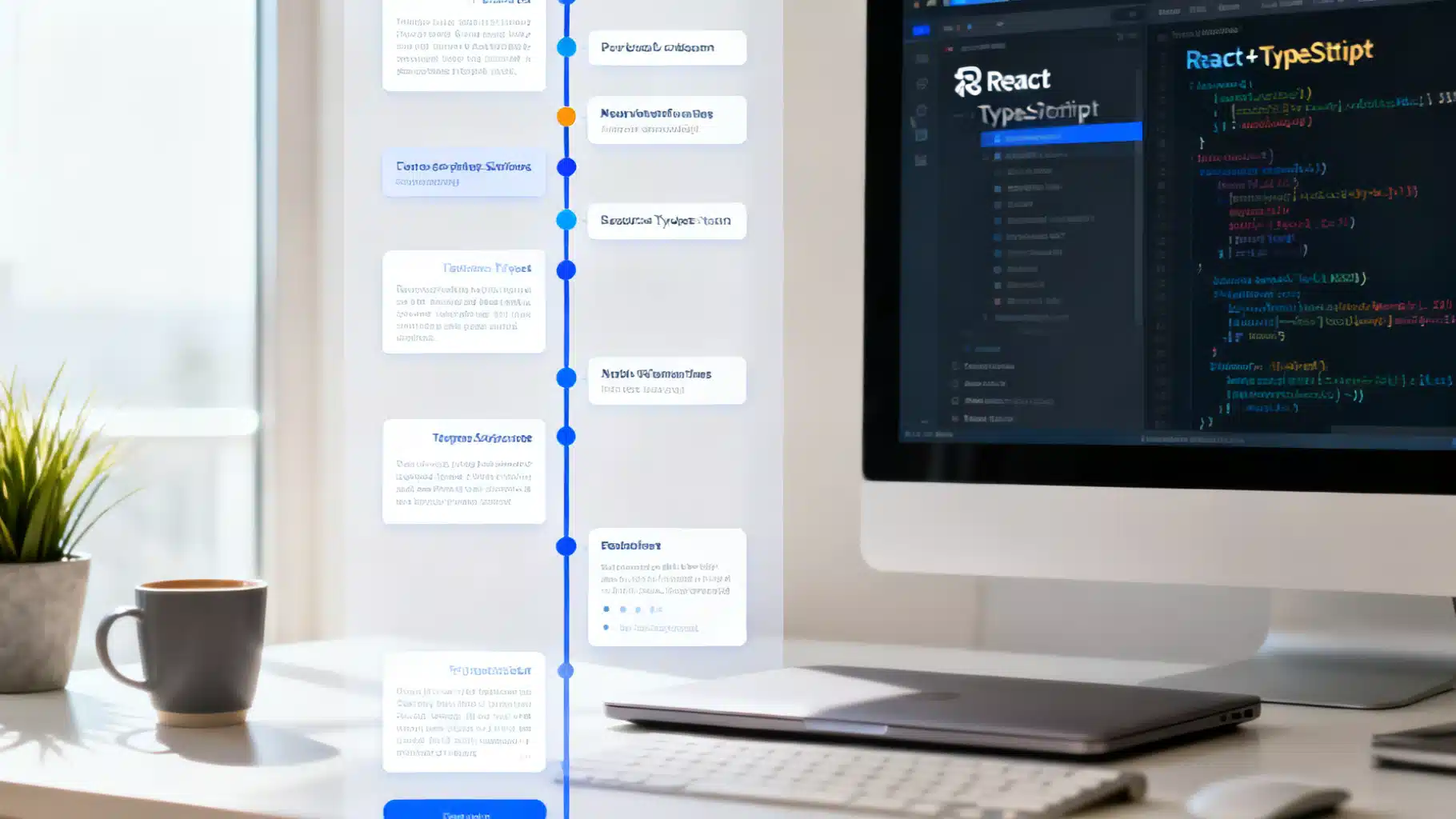
Image used for representation purposes only.
Overview
A timeline is a versatile UI pattern for visualizing events, steps, or histories. In this tutorial you’ll build a polished, accessible React timeline component from scratch using TypeScript and modern CSS. You’ll design a flexible API, support alternating layouts, add scroll‑reveal animations that respect user preferences, make it responsive, themeable, and even explore windowing for very long lists. By the end, you’ll have a production‑ready component you can drop into any app.
What we’ll build
Our Timeline will include:
- Vertical layout with left, right, or alternating item alignment
- Semantic markup (ol/li, time) and accessible interactions
- Responsive single‑column collapse on small screens
- CSS variables for theming (light/dark, brand accents)
- Optional scroll‑reveal animations with reduced‑motion support
- Optional virtualization for long timelines
- A small test to ensure core rendering works
Prerequisites
- React 18+
- Basic TypeScript
- Comfort with modern CSS (Grid/Flex, custom properties)
Project setup
You can start with any toolchain. Here’s a Vite+TS quick start.
# Create the project
yarn create vite react-timeline --template react-ts
cd react-timeline

# Install optional utilities
yarn add clsx
# Optional (for virtualization section later)
yarn add react-window

# Testing libs (optional but recommended)
yarn add -D vitest @testing-library/react @testing-library/jest-dom jsdom
Data model
Create a lightweight model for timeline entries.
// src/types.ts
export type TimelineEntry = {
  id: string
  title: string
  subtitle?: string
  time: string | Date
  description?: string
  icon?: React.ReactNode
  color?: string // Accent for the dot
  url?: string // Optional link for more context
}
Component API
We’ll design a composable but simple API.
// src/components/Timeline.tsx
import * as React from 'react'
import { clsx } from 'clsx'
import type { TimelineEntry } from '../types'

export type TimelineMode = 'left' | 'right' | 'alternate'

export type TimelineProps = {
  items: TimelineEntry[]
  mode?: TimelineMode
  className?: string
  renderItem?: (item: TimelineEntry, index: number) => React.ReactNode
}

export function Timeline({ items, mode = 'alternate', className, renderItem }: TimelineProps) {
  return (
    <ol
      className={clsx('rt-timeline', `rt--${mode}`, className)}
      role='list'
      aria-label='Timeline'
    >
      {items.map((item, i) => (
        <TimelineItem
          key={item.id}
          item={item}
          index={i}
          mode={mode}
          renderItem={renderItem}
        />
      ))}
    </ol>
  )
}

type ItemProps = {
  item: TimelineEntry
  index: number
  mode: TimelineMode
  renderItem?: (item: TimelineEntry, index: number) => React.ReactNode
}

function TimelineItem({ item, index, mode, renderItem }: ItemProps) {
  // Determine side for alternating layout
  const side = mode === 'alternate' ? (index % 2 === 0 ? 'left' : 'right') : mode

  return (
    <li className={clsx('rt-item', `rt-item--${side}`)}>
      {/* Marker column */}
      <div className='rt-marker' aria-hidden='true'>
        <span
          className='rt-dot'
          style={item.color ? { '--rt-dot': item.color } as React.CSSProperties : undefined}
        />
        <span className='rt-line' />
      </div>

      {/* Content column */}
      <article className='rt-card'>
        <header className='rt-header'>
          <time
            className='rt-time'
            dateTime={typeof item.time === 'string' ? item.time : item.time.toISOString()}
          >
            {typeof item.time === 'string' ? item.time : item.time.toLocaleDateString()}
          </time>
          <h3 className='rt-title'>{item.title}</h3>
          {item.subtitle && <p className='rt-subtitle'>{item.subtitle}</p>}
        </header>
        {item.description && <p className='rt-body'>{item.description}</p>}
        {item.url && (
          <p className='rt-cta'>
            <a className='rt-link' href={item.url} target='_blank' rel='noreferrer'>
              Learn more
            </a>
          </p>
        )}
      </article>
    </li>
  )
}
Styling the layout
Use CSS Grid to position the content left or right of a central vertical line. CSS variables keep the theme flexible.
/* src/components/timeline.css */
:root {
  --rt-gap: 1.25rem;
  --rt-line: 2px;
  --rt-dot: #2563eb; /* default accent */
  --rt-line-color: color-mix(in oklab, var(--rt-dot) 50%, #cbd5e1);
  --rt-card-bg: #ffffff;
  --rt-card-fg: #0f172a;
  --rt-muted: #64748b;
  --rt-radius: 12px;
  --rt-shadow: 0 6px 18px rgba(2, 6, 23, 0.08);
}

/* Container */
.rt-timeline {
  display: grid;
  gap: var(--rt-gap);
  margin: 0;
  padding: 0;
  list-style: none;
}

/* Item grid: [content] [spine] [content] */
.rt-item {
  display: grid;
  grid-template-columns: 1fr 44px 1fr;
  align-items: start;
  gap: var(--rt-gap);
}

/* Marker column (center) */
.rt-marker {
  grid-column: 2;
  display: grid;
  grid-template-rows: auto 1fr;
  justify-items: center;
}

.rt-dot {
  width: 14px;
  height: 14px;
  border-radius: 999px;
  background: var(--rt-dot);
  box-shadow: 0 0 0 4px color-mix(in oklab, var(--rt-dot) 15%, #ffffff);
}

.rt-line {
  width: var(--rt-line);
  background: var(--rt-line-color);
  margin-top: 6px;
  border-radius: 999px;
  inline-size: var(--rt-line);
  block-size: 100%;
}

/* Card */
.rt-card {
  background: var(--rt-card-bg);
  color: var(--rt-card-fg);
  border-radius: var(--rt-radius);
  box-shadow: var(--rt-shadow);
  padding: 1rem 1.25rem;
  border: 1px solid color-mix(in oklab, var(--rt-card-fg) 6%, transparent);
}

/* Place the card on the left or right */
.rt-item--left .rt-card { grid-column: 1; }
.rt-item--right .rt-card { grid-column: 3; }

/* Typography */
.rt-time {
  font-size: 0.8rem;
  color: var(--rt-muted);
}
.rt-title {
  margin: 0.15rem 0 0.25rem;
  font-size: 1.05rem;
}
.rt-subtitle { color: var(--rt-muted); margin: 0; }
.rt-body { margin-top: 0.5rem; line-height: 1.6; }
.rt-link {
  color: var(--rt-dot);
  text-underline-offset: 2px;
}

/* Responsive collapse: single column */
@media (max-width: 720px) {
  .rt-item {
    grid-template-columns: 28px 1fr; /* [spine] [content] */
  }
  .rt-marker { grid-column: 1; }
  .rt-card { grid-column: 2; }
}

/* Optional: subtle reveal animation */
.rt-item { opacity: 0; transform: translateY(8px); transition: opacity .4s ease, transform .4s ease; }
.rt-item.is-visible { opacity: 1; transform: translateY(0); }
@media (prefers-reduced-motion: reduce) {
  .rt-item { transition: none; }
}
Wire the stylesheet in your app entry (or co-locate with the component and import there):
// src/main.tsx
import './components/timeline.css'
Scroll‑reveal with IntersectionObserver
A tiny hook toggles a class when items enter the viewport.
// src/hooks/useInView.ts
import * as React from 'react'

export function useInView<T extends Element>(options?: IntersectionObserverInit) {
  const ref = React.useRef<T | null>(null)
  const [inView, setInView] = React.useState(false)

  React.useEffect(() => {
    if (!ref.current || typeof IntersectionObserver === 'undefined') return
    const obs = new IntersectionObserver(([entry]) => setInView(entry.isIntersecting), options)
    obs.observe(ref.current)
    return () => obs.disconnect()
  }, [options])

  return { ref, inView }
}
Apply the hook inside the item component:
// in TimelineItem
import { useInView } from '../hooks/useInView'

function TimelineItem({ item, index, mode, renderItem }: ItemProps) {
  const side = mode === 'alternate' ? (index % 2 === 0 ? 'left' : 'right') : mode
  const { ref, inView } = useInView<HTMLLIElement>({ rootMargin: '0px 0px -10% 0px', threshold: 0.1 })

  return (
    <li ref={ref} className={clsx('rt-item', `rt-item--${side}`, inView && 'is-visible')}>
      {/* ...same as before... */}
    </li>
  )
}
Example data and usage
// src/data.ts
import type { TimelineEntry } from './types'

export const releases: TimelineEntry[] = [
  {
    id: '1',
    title: 'MVP Launched',
    subtitle: 'Public beta opens',
    time: '2024-09-15',
    description: 'We shipped the core feature set and onboarded 1,000 beta users.'
  },
  {
    id: '2',
    title: 'Mobile App',
    subtitle: 'iOS & Android',
    time: '2025-02-01',
    description: 'Native apps arrive with offline mode and push notifications.',
    color: '#16a34a'
  },
  {
    id: '3',
    title: 'Team Workspaces',
    time: '2025-07-20',
    description: 'Collaborative spaces with roles, permissions, and shared billing.',
    color: '#f59e0b'
  },
  {
    id: '4',
    title: 'AI Suggestions',
    subtitle: 'Contextual insights',
    time: '2026-03-10',
    description: 'On-device suggestions that respect privacy and speed.',
    color: '#7c3aed',
    url: 'https://example.com/changelog/ai'
  }
]
// src/App.tsx
import * as React from 'react'
import { Timeline } from './components/Timeline'
import { releases } from './data'

export default function App() {
  return (
    <main style={{ padding: '2rem', background: '#f8fafc', minHeight: '100vh' }}>
      <h1 style={{ marginBottom: '1rem' }}>Product Changelog</h1>
      <Timeline items={releases} mode='alternate' />
    </main>
  )
}
Accessibility checklist
- Use semantic lists: the timeline root is an ordered list (ol) with role=‘list’.
- Include a time element with a machine‑readable dateTime.
- Decorative elements (lines, dots) have aria-hidden=‘true’.
- Links have clear labels; avoid using ‘Click here’.
- Ensure 3:1 contrast for borders and 4.5:1 for text where appropriate.
- Respect reduced motion via prefers-reduced-motion.
Theming with CSS variables
Expose theme tokens and let consumers override them. For example, support dark mode with a data attribute.
/* src/theme.css */
:root[data-theme='light'] {
  --rt-card-bg: #ffffff;
  --rt-card-fg: #0f172a;
  --rt-muted: #64748b;
}

:root[data-theme='dark'] {
  --rt-card-bg: #0b1220;
  --rt-card-fg: #e5e7eb;
  --rt-muted: #94a3b8;
  --rt-shadow: 0 0 0 rgba(0,0,0,0); /* flatter in dark mode */
  --rt-line-color: color-mix(in oklab, var(--rt-dot) 40%, #1f2937);
}
To switch themes, toggle the attribute at runtime:
// theme toggle example
const root = document.documentElement
root.setAttribute('data-theme', 'dark')
Consumers can override the accent per instance too:
<Timeline
  items={releases}
  className='marketing-timeline'
/>

<style>{`
  .marketing-timeline { --rt-dot: #e11d48; }
`}</style>
Alternate and side‑pinned modes
You already saw alternate mode. For a side‑pinned experience (all content left or right), pass mode=‘left’ or mode=‘right’. The CSS we wrote places the card into column 1 or 3 accordingly, and the central spine remains consistent.
Handling long timelines (virtualization)
If your dataset grows into hundreds or thousands of items, windowing improves performance by rendering only what’s visible. Here’s a minimal example using react-window. Use this only when you expect very long lists.
// src/components/VirtualizedTimeline.tsx
import * as React from 'react'
import { FixedSizeList as List, ListChildComponentProps } from 'react-window'
import { Timeline } from './Timeline'
import type { TimelineEntry } from '../types'

export function VirtualizedTimeline({ items, height = 600 }: { items: TimelineEntry[]; height?: number }) {
  const Row = ({ index, style }: ListChildComponentProps) => (
    <div style={style}>
      <Timeline items={[items[index]]} mode='alternate' />
    </div>
  )

  return (
    <List itemCount={items.length} itemSize={140} height={height} width={'100%'}>
      {Row}
    </List>
  )
}
Tips for good virtualization UX:
- Use a stable itemSize or measure dynamically with react-virtualized-auto-sizer.
- Apply a generous itemSize to avoid clipping shadows.
- Defer heavy images until in view.
Performance considerations
- Prefer CSS effects over JS where possible.
- Memoize heavy renderItem implementations with React.useCallback and React.memo.
- Keep DOM simple: avoid deeply nested wrappers.
- Test on mid‑range mobile; profile with React DevTools and Performance panel.
Extending the API
Some ergonomic additions you can layer on later:
- renderItem for fully custom cards (we already exposed it)
- header/section slots to group entries by year
- Horizontal layout for step‑based flows (Grid switches columns to rows)
- Keyboard shortucts to jump between milestones
Testing the basics
A light test ensures the component renders entries and time labels.
// src/components/Timeline.test.tsx
import { render, screen } from '@testing-library/react'
import '@testing-library/jest-dom'
import * as React from 'react'
import { Timeline } from './Timeline'

const items = [
  { id: 'a', title: 'Started', time: '2025-01-01' },
  { id: 'b', title: 'Launched', time: '2025-06-01' }
]

test('renders timeline items with dates', () => {
  render(<Timeline items={items} />)
  expect(screen.getByText('Started')).toBeInTheDocument()
  expect(screen.getByText('Launched')).toBeInTheDocument()
  expect(screen.getByText('2025-01-01')).toBeVisible()
})
Configure Vitest to use jsdom and run tests in package.json or vitest.config.
Common pitfalls and fixes
- Misaligned spine: ensure the marker column has a fixed width (44px in our CSS) so the vertical line doesn’t wobble.
- Overlapping content on small screens: switch to a two‑column grid at ~720px; keep a narrow marker column.
- Motion sickness reports: always honor prefers‑reduced‑motion and keep animations subtle.
- Date formatting inconsistencies: use a single source of truth (ISO strings) and format only for display.
Wrap‑up
You now have a flexible, accessible React timeline component with a clean API, responsive behavior, themed styling, and optional animation and virtualization. Use it for product changelogs, project histories, CVs, roadmaps, or onboarding flows. Because it’s built from first principles with Grid and semantic HTML, it’s easy to extend—try adding grouping by year, icons per event type, or a compact density. Ship it as an internal package, document the CSS variables, and keep your UI consistent across projects.
Related Posts
Build a Headless React UI Library: A Practical Tabs Tutorial
Build a headless React UI component library step by step—accessibility, state, TypeScript, testing, and packaging—using a fully featured Tabs example.

Building an Accessible React Tabs Component in React (WAI‑ARIA, Keyboard, TypeScript)
Build an accessible React Tabs component with WAI-ARIA roles, keyboard support, roving tabindex, and TypeScript—complete code and best practices.

Building a Robust React Toast Notification System: Patterns, Code, and UX
Design and implement a fast, accessible React toast system with clean APIs, animations, and promise toasts—complete code, patterns, and pitfalls.