
Flutter PDF Form Filling: A Complete, Practical Tutorial
Learn how to load, fill, flatten, and save AcroForm PDFs in Flutter with code examples, best practices, and troubleshooting tips.
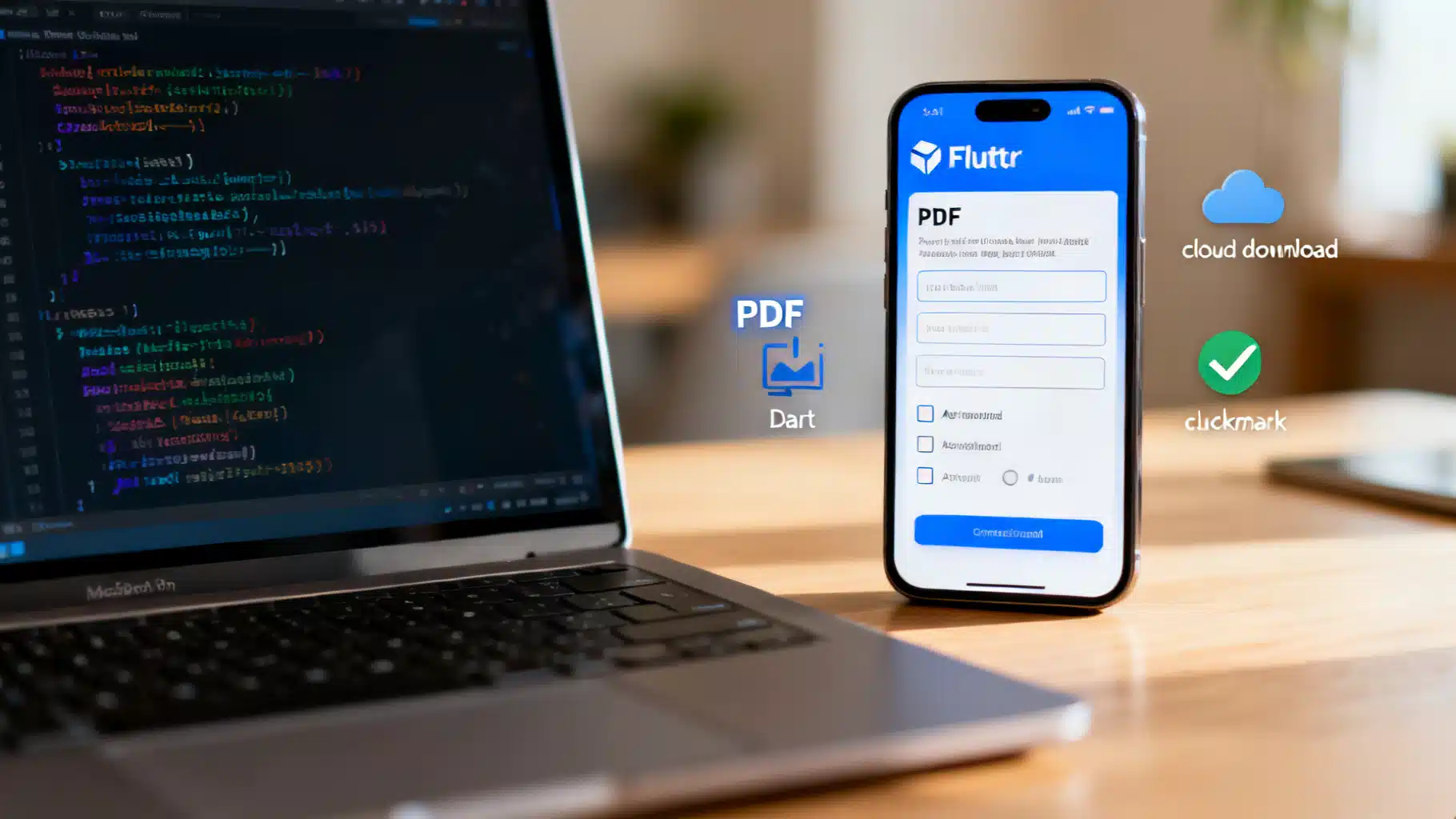
Image used for representation purposes only.
Overview
Filling PDF forms in Flutter is a common requirement for business apps: onboarding, tax forms, contracts, inspections, and more. In this tutorial you’ll learn how to load an existing PDF with AcroForm fields, populate text boxes, checkboxes, radio buttons, and dropdowns, then save, flatten, and preview the result—entirely on-device. We’ll focus on a purely Flutter/Dart approach using Syncfusion’s PDF library for programmatic form filling, plus common alternatives, patterns, and troubleshooting tips.
Note: Most government and business PDFs use AcroForms. Dynamic XFA forms are different and typically not supported by mobile viewers or most Flutter libraries. If your form doesn’t behave as expected, check whether it’s XFA.
What you’ll build
- Load an AcroForm-enabled PDF from assets or network
- Fill fields programmatically from a map of values
- Flatten the document (optional) for maximum compatibility
- Save the file to the device and open a preview
Prerequisites
- Flutter 3.x or newer
- A PDF with AcroForm fields (e.g., text boxes, checkboxes)
- Basic knowledge of Dart async/await and Flutter asset management
Project setup
Add dependencies in pubspec.yaml. Syncfusion’s PDF library is free for some use cases under their Community License; otherwise it’s a commercial library. You don’t need UI components—only the core PDF package.
name: pdf_form_filling
publish_to: "none"

environment:
  sdk: ">=3.3.0 <4.0.0"

dependencies:
  flutter:
    sdk: flutter
  syncfusion_flutter_pdf: ^xx.x.x     # PDF engine for reading/writing forms
  path_provider: ^2.1.0               # Locate a writable directory
  open_filex: ^4.3.2                  # Open the result with a native viewer

flutter:
  uses-material-design: true
  assets:
    - assets/forms/sample.pdf
Place your form at assets/forms/sample.pdf. Run flutter pub get after editing pubspec.yaml.
Understanding AcroForms in PDFs
- Text fields: freeform text (names, addresses)
- Check boxes: boolean choices (opt-in, terms)
- Radio buttons: mutually exclusive options (gender, rating)
- Combo/List boxes: single or multi-select lists
- Signature fields: space reserved for a signature appearance or digital signature
Each field has a name. You’ll fill by name or by iterating the form field collection. If you don’t know the names, you can introspect and print them at runtime (shown later).
Loading and filling a PDF from assets
Create a service class to encapsulate the form filling logic and file I/O.
import 'dart:io';
import 'dart:typed_data';
import 'package:flutter/services.dart' show rootBundle;
import 'package:path_provider/path_provider.dart';
import 'package:open_filex/open_filex.dart';
import 'package:syncfusion_flutter_pdf/pdf.dart';

class PdfFormService {
  /// Load a PDF from assets into memory.
  Future<Uint8List> _loadAsset(String assetPath) async {
    final data = await rootBundle.load(assetPath);
    return data.buffer.asUint8List(data.offsetInBytes, data.lengthInBytes);
  }

  /// Fill the form using a map of fieldName -> value and return new bytes.
  Future<Uint8List> fillFromAsset({
    required String assetPath,
    required Map<String, dynamic> values,
    bool flatten = false,
  }) async {
    final bytes = await _loadAsset(assetPath);
    final document = PdfDocument(inputBytes: bytes);

    final form = document.form; // Access the AcroForm

    // Optional: list fields to console while developing
    // _debugListFields(form);

    _applyValues(form, values);

    if (flatten) {
      // Convert fields to normal page content for maximum viewer compatibility
      form.flattenAllFields();
    }

    final outputBytes = await document.save();
    document.dispose();
    return Uint8List.fromList(outputBytes);
  }

  /// Save bytes to a file and open with a native viewer.
  Future<File> saveAndOpen(Uint8List bytes, String filename) async {
    final dir = await getApplicationDocumentsDirectory();
    final file = File('${dir.path}/$filename');
    await file.writeAsBytes(bytes, flush: true);
    await OpenFilex.open(file.path);
    return file;
  }

  /// Map values into the appropriate field types.
  void _applyValues(PdfForm form, Map<String, dynamic> values) {
    for (final entry in values.entries) {
      final field = _findFieldByName(form, entry.key);
      if (field == null) continue; // Unknown field name, skip gracefully
      final value = entry.value;

      if (field is PdfTextBoxField) {
        field.text = value?.toString() ?? '';
      } else if (field is PdfCheckBoxField) {
        field.isChecked = value == true || value?.toString().toLowerCase() == 'yes' || value == 'On';
      } else if (field is PdfRadioButtonListField) {
        if (value is int) {
          field.selectedIndex = value;
        } else {
          field.selectedValue = value?.toString();
        }
      } else if (field is PdfComboBoxField) {
        field.selectedValue = value?.toString();
      } else if (field is PdfListBoxField) {
        // Accept one or many values; normalize to List<String>
        final list = value is List ? value.map((e) => e.toString()).toList() : [value.toString()];
        field.selectedIndices = list
            .map((v) => field.items.indexWhere((item) => item.text == v))
            .where((i) => i >= 0)
            .toList();
      } else if (field is PdfSignatureField) {
        // Programmatic signature appearances require additional steps.
        // For now you could leave it empty or flatten after user signs in a viewer.
      }
    }

    // Some viewers rely on appearance streams. If your viewer shows blanks,
    // consider flattening or regenerating appearances before saving.
  }

  PdfFormField? _findFieldByName(PdfForm form, String name) {
    for (var i = 0; i < form.fields.count; i++) {
      final f = form.fields[i];
      if (f.name == name) return f;
    }
    return null;
  }

  void _debugListFields(PdfForm form) {
    for (var i = 0; i < form.fields.count; i++) {
      final f = form.fields[i];
      // ignore: avoid_print
      print('[${f.runtimeType}] name="${f.name}"');
    }
  }
}
Use the service from a simple screen:
import 'dart:typed_data';
import 'package:flutter/material.dart';
import 'pdf_form_service.dart';

class DemoPage extends StatefulWidget {
  const DemoPage({super.key});
  @override
  State<DemoPage> createState() => _DemoPageState();
}

class _DemoPageState extends State<DemoPage> {
  final _service = PdfFormService();
  bool _busy = false;

  Future<void> _fill() async {
    setState(() => _busy = true);

    final values = <String, dynamic>{
      'FullName': 'Jane Doe',
      'Email': 'jane@example.com',
      'Subscribe': true,           // checkbox
      'Gender': 'Female',          // radio group export value or index
      'Country': 'United States',  // combo box item text
      'Hobbies': ['Hiking', 'Art'] // list box selections
    };

    try {
      final bytes = await _service.fillFromAsset(
        assetPath: 'assets/forms/sample.pdf',
        values: values,
        flatten: true, // turn fields into static content for compatibility
      );
      await _service.saveAndOpen(bytes, 'filled-sample.pdf');
    } catch (e) {
      if (mounted) {
        ScaffoldMessenger.of(context).showSnackBar(
          SnackBar(content: Text('Failed: $e')),
        );
      }
    } finally {
      if (mounted) setState(() => _busy = false);
    }
  }

  @override
  Widget build(BuildContext context) {
    return Scaffold(
      appBar: AppBar(title: const Text('PDF Form Filling')),
      body: Center(
        child: _busy
            ? const CircularProgressIndicator()
            : ElevatedButton.icon(
                onPressed: _fill,
                icon: const Icon(Icons.picture_as_pdf),
                label: const Text('Fill PDF Form'),
              ),
      ),
    );
  }
}
Filling fields from an API or local JSON
Real apps often receive field values from a backend. Normalize payloads to match your PDF’s field names. Keep a mapping layer so you can rename fields without touching server contracts.
/// Example adapter: API keys -> PDF field names
const apiToPdf = <String, String>{
  'first_name': 'FirstName',
  'last_name': 'LastName',
  'email': 'Email',
  'country_code': 'Country',
  'opt_in': 'Subscribe',
};

Map<String, dynamic> toPdfValues(Map<String, dynamic> api) {
  final out = <String, dynamic>{};
  api.forEach((key, val) {
    final pdfKey = apiToPdf[key];
    if (pdfKey != null) out[pdfKey] = val;
  });
  return out;
}
Loading a PDF from network
If the form is retrieved at runtime (e.g., per-tenant templates), download it as bytes first.
import 'package:http/http.dart' as http;
import 'package:syncfusion_flutter_pdf/pdf.dart';

Future<Uint8List> fillFromUrl(String url, Map<String, dynamic> values) async {
  final res = await http.get(Uri.parse(url));
  if (res.statusCode != 200) {
    throw Exception('Failed to download PDF: ${res.statusCode}');
  }
  final doc = PdfDocument(inputBytes: res.bodyBytes);
  final form = doc.form;
  // ...apply values as before...
  final bytes = await doc.save();
  doc.dispose();
  return Uint8List.fromList(bytes);
}
Flattening vs editable output
- Editable (not flattened): The recipient can still edit fields using a PDF editor. Some mobile viewers may not render appearances correctly unless they regenerate them; this can lead to “blank-looking” values.
- Flattened: Converts fields to static page content. This ensures the data is visible everywhere, prevents further edits, and is ideal when you finalize a document for submission.
If you need signatures later, avoid flattening signature fields until after signing, or fill everything except signatures and let users sign in a viewer first.
Detecting field names at runtime
When you don’t know the field names used by the PDF, log them once:
void printFieldNames(Uint8List pdfBytes) {
  final doc = PdfDocument(inputBytes: pdfBytes);
  final form = doc.form;
  for (var i = 0; i < form.fields.count; i++) {
    final f = form.fields[i];
    // ignore: avoid_print
    print('${f.runtimeType} -> ${f.name}');
  }
  doc.dispose();
}
Open the debug console, press the button, and copy the names into your mapping.
Viewing the filled PDF
- open_filex: Opens with the device’s default viewer
- printing: Presents a print/share sheet, supports preview on iOS/Android
- pdfx or native SDKs: In-app viewer if you want tighter control
Example using the printing package to preview/share without leaving your app:
import 'package:printing/printing.dart';

Future<void> previewBytes(Uint8List bytes) async {
  await Printing.layoutPdf(onLayout: (_) async => bytes);
}
Handling signatures
There are two signature scenarios:
- Wet/hand-drawn signatures: Capture a signature as an image (e.g., with a Signature widget) and place it onto a page or a signature field appearance. After embedding, flatten the document.
- Digital certificates: Applying true cryptographic signatures requires certificate handling and APIs beyond basic form filling. Consider specialized SDKs if you need long-term validation (LTV), timestamping, or multiple signers.
A simple approach is to present the partially filled PDF in a viewer that supports inking/signing, let the user sign, then export a flattened copy.
Production hardening checklist
- Field mapping: Keep a central map and unit tests to ensure incoming payloads have the keys you expect.
- Validation: Validate and sanitize user data before writing (date formats, phone numbers, max lengths).
- Fonts and encoding: When filling non-Latin text, embed or substitute fonts to avoid tofu squares. Test on iOS and Android.
- Appearances: If values look blank in some viewers, flatten the form or regenerate appearances before saving.
- Security & PII: Never log PII. Store filled PDFs in app-private storage. Use OS-level file protection where available. Encrypt at rest if regulations require it.
- Large documents: Reuse buffers, close documents with dispose(), and avoid blocking the UI thread. Consider running heavy work in an isolate.
Common pitfalls and fixes
- Fields don’t show values in some apps: Flatten the form before distributing. Some viewers ignore appearance streams.
- Field not found by name: Names are case-sensitive. Dump names at runtime and confirm spelling.
- Checkbox values ignored: Many PDFs use export values like “Yes” or “On.” Normalize booleans to those when necessary.
- XFA form: Convert the PDF to AcroForm (authoring tool) or use a different SDK that supports XFA (often commercial and limited on mobile).
- Duplicate field names: Multiple widgets can share the same name, which updates them all. If that’s not intended, rename fields in the source PDF.
Alternatives and when to use them
- Pure generation (no existing template): The open-source pdf package is excellent for creating PDFs from scratch with absolute control over layout.
- Commercial viewers/SDKs: If you need advanced UI, real-time collaboration, digital signatures, form validation rules, or redaction, consider commercial SDKs that provide Flutter bindings. They can fill forms both programmatically and via user interaction with polished in-app viewers.
End-to-end example recap
- Add syncfusion_flutter_pdf, path_provider, and open_filex
- Add your PDF to assets and declare it in pubspec.yaml
- Load as bytes, fill fields by name via a values map
- Optionally flatten fields for compatibility
- Save to device storage and present a preview or open with the native viewer
With these building blocks, you can power workflows like onboarding packets, W‑9/W‑8BEN tax forms, maintenance checklists, leases, and more—reliably and entirely on-device.
Next steps
- Add date/time and formatting helpers (e.g., MM/DD/YYYY vs DD/MM/YYYY)
- Implement conditional logic (hide/show sections, compute totals) before writing values
- Integrate with your backend to store templates and audit filled documents
- Add user-facing review screens before finalizing and flattening
Related Posts

Build a Flutter QR Code Scanner and Generator in Flutter
Build a Flutter app that scans and generates QR codes with mobile_scanner and qr_flutter. Includes setup, code, exporting, UX, and tips.

Flutter + Google Maps: A Complete Integration Guide
Integrate Google Maps in Flutter: setup keys, Android/iOS config, markers, directions, clustering, styling, and best practices.

Build a Real‑Time Chat App in Flutter with WebSockets
Build a robust Flutter WebSocket real-time chat app: minimal server, resilient client with reconnection and heartbeats, security, scaling, and deployment.