
Flutter + HealthKit/Health Connect: A Practical Guide to Fitness Data
Build a Flutter app that reads and writes fitness data via Apple HealthKit and Android Health Connect—permissions, code samples, sync, and best practices.
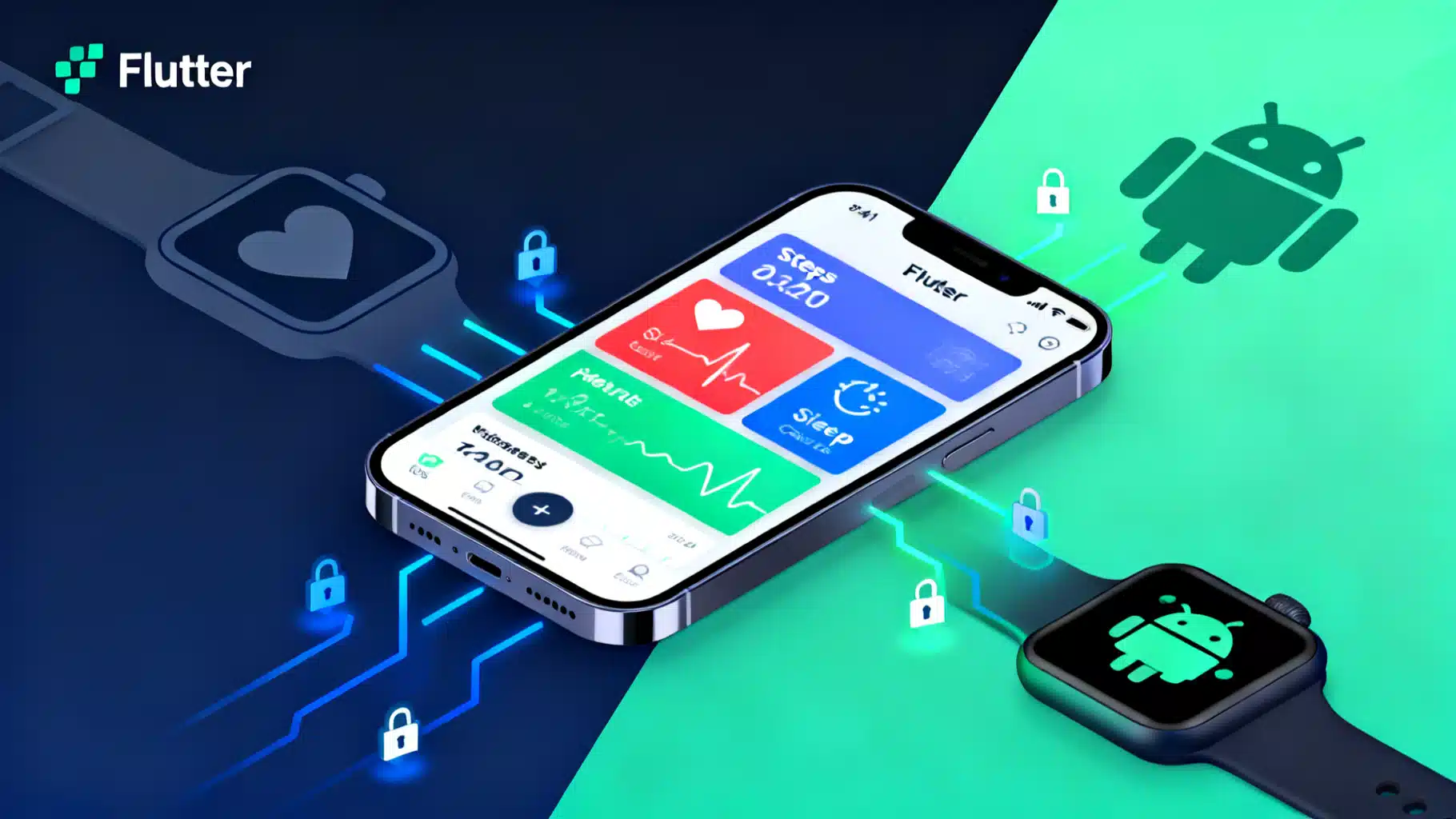
Image used for representation purposes only.
Overview
Building health and fitness experiences in Flutter has never been more viable. On iOS, Apple HealthKit is the system-of-record for wellness data; on Android, Health Connect has become the centralized hub that unifies data from Google Fit and third‑party apps. With the right plugins, your Flutter app can read and write steps, heart rate, sleep, workouts, calories, and more—while honoring strict platform privacy rules.
This guide walks through platform concepts, plugin choices, permissions, core read/write flows, background updates, data modeling, and production checklists. Code samples use idiomatic Dart and popular Flutter plugins so you can ship confidently on both platforms.
Platform landscape at a glance
- iOS: HealthKit is the native framework. Users control per‑type read/write permissions. Data is stored locally, encrypted, and synced via iCloud when enabled. Background delivery lets apps receive change notifications.
- Android: Health Connect is the modern health data layer. It consolidates permissions by data type (steps, heart rate, sleep, etc.), stores data locally, and mediates access for approved apps. On many devices it’s preinstalled; otherwise the user installs it from the Play Store. Some ecosystems still write to Google Fit, but Health Connect is the forward‑looking path.
Implication for Flutter: Aim for a single abstraction that maps your use cases (steps, workouts, sleep) to HealthKit on iOS and Health Connect on Android.
Choosing Flutter plugins
Common options you’ll encounter:
- Cross‑platform aggregator plugin (recommended for most apps):
- Pros: Single API surface, unified types, less platform code.
- Cons: You’re limited to the features the plugin exposes.
- Platform‑specific plugins:
- iOS: HealthKit‑focused plugins (e.g., reporters/readers) if you need advanced queries (statistics, anchors, correlations).
- Android: Health Connect plugin if you need granular permissions or data types not exposed cross‑platform.
Pattern that scales: start with a cross‑platform health plugin for 80% of needs; add platform‑specific adapters behind a repository interface for advanced cases.
Permissions and entitlements
Privacy is non‑negotiable. Both platforms enforce per‑type access at runtime, and stores (App Store/Play) review your usage strings and flows.
-
iOS (HealthKit):
- Enable HealthKit capability in Xcode.
- Add purpose strings to Info.plist:
- NSHealthShareUsageDescription (why you read data)
- NSHealthUpdateUsageDescription (why you write data)
- Request permissions by data type at runtime. The user can change them anytime in Health settings.
-
Android (Health Connect):
- Declare Health Connect permissions per data type in AndroidManifest (READ/WRITE for steps, heart rate, sleep, etc.).
- Request runtime permission for each data category you access.
- If Health Connect isn’t present, prompt the user to install/enable it.
Tip: Ask for only the minimal set of types you actually need. Progressive disclosure (request more later when the user tries a feature) improves acceptance.
Data types you’ll likely use
- Activity: steps, distance, active energy (calories), exercise minutes
- Biometrics: heart rate, resting heart rate, heart rate variability
- Body: height, weight, body fat percentage
- Sleep: sessions and stages (light, deep, REM) when available
- Workouts: type, start/end, calories, distance, metadata
Units: Prefer SI units internally (meters, kilograms, seconds, joules/kilocalories). Convert at the edges for UI.
Project setup (high level)
- Add your chosen health plugin(s) to pubspec.yaml.
- iOS:
- Open ios/Runner.xcworkspace → Runner target → Signing & Capabilities → add HealthKit.
- Add Info.plist keys and clear purpose language (e.g., “Your walking steps are used to personalize daily goals.”).
- Android:
- Ensure minSdk meets plugin requirements.
- Manifest: declare Health Connect permissions.
- Handle the install/enable flow for Health Connect if needed.
Reading fitness data (cross‑platform example)
The following pattern covers 90% of read scenarios: request permission, choose a time window, query, and aggregate.
import 'package:flutter/material.dart';
import 'package:health/health.dart'; // Example cross-platform package

class StepsCard extends StatefulWidget {
  const StepsCard({super.key});
  @override
  State<StepsCard> createState() => _StepsCardState();
}

class _StepsCardState extends State<StepsCard> {
  final _health = HealthFactory(useHealthConnectIfAvailable: true);
  int? _steps;
  bool _loading = false;
  String? _error;

  Future<void> _load() async {
    setState(() { _loading = true; _error = null; });

    final types = [HealthDataType.STEPS];
    final rights = [HealthDataAccess.READ];

    try {
      // 1) Request runtime permissions for steps
      final granted = await _health.requestAuthorization(types, permissions: rights);
      if (!granted) {
        setState(() { _loading = false; _error = 'Permission denied'; });
        return;
      }

      // 2) Define interval (today)
      final now = DateTime.now();
      final start = DateTime(now.year, now.month, now.day);

      // 3) Fetch total steps
      final total = await _health.getTotalStepsInInterval(start, now);
      setState(() { _steps = total; _loading = false; });
    } catch (e) {
      setState(() { _error = e.toString(); _loading = false; });
    }
  }

  @override
  void initState() {
    super.initState();
    _load();
  }

  @override
  Widget build(BuildContext context) {
    if (_loading) return const CircularProgressIndicator();
    if (_error != null) return Text('Error: $_error');
    return Text('${_steps ?? 0} steps today');
  }
}
Notes:
- On iOS, this resolves to an HKStatisticsQuery for steps.
- On Android, this maps to Health Connect’s step count records (or Google Fit on older devices if your plugin uses a fallback).
Reading multiple data types with a single window
final types = [
  HealthDataType.STEPS,
  HealthDataType.HEART_RATE,
  HealthDataType.ACTIVE_ENERGY_BURNED,
  HealthDataType.DISTANCE_WALKING_RUNNING,
];
final access = List.filled(types.length, HealthDataAccess.READ);

final ok = await _health.requestAuthorization(types, permissions: access);
if (!ok) return;

final start = DateTime.now().subtract(const Duration(days: 7));
final end = DateTime.now();

final points = await _health.getHealthDataFromTypes(start, end, types);

// Example: aggregate heart rate by hour
final heartRates = points.where((p) => p.type == HealthDataType.HEART_RATE);
Be mindful of sampling frequency (heart rate can be every few seconds) and storage overhead if you materialize full time series. Aggregate early when possible.
Writing data (e.g., workouts)
If your app tracks workouts, you can write sessions so they appear in Health/Health Connect and sync to the user’s ecosystem.
final types = [HealthDataType.WORKOUT];
final perms = [HealthDataAccess.WRITE];
final ok = await _health.requestAuthorization(types, permissions: perms);
if (!ok) return;

final start = DateTime.now().subtract(const Duration(minutes: 45));
final end = DateTime.now();

final success = await _health.writeWorkoutData(
  HealthWorkoutActivityType.RUNNING,
  start,
  end,
  totalEnergyBurned: 420.0, // kcal
  totalDistance: 8_000.0,   // meters
);
Platform nuances:
- App‑written data must be labeled with your app as the source. Don’t attempt to overwrite data from another source.
- Some types (e.g., Apple’s ECG) are read‑only. Respect write constraints.
Background updates and sync strategy
- iOS: HealthKit supports background delivery. You register queries (observer + anchored queries) so your app wakes when new data arrives. In Flutter, this typically requires a native bridging layer plus a background callback mechanism (e.g., background isolates or a plugin that exposes streams).
- Android: Health Connect doesn’t push to apps. Use periodic sync with WorkManager. Poll conservatively (e.g., 15–60 minutes for activity; a few hours for sleep) and back off when the app is not in active use.
General approach:
- Store a per‑type “anchor” (iOS) or “last synced timestamp” (Android) and only fetch deltas.
- Debounce UI updates and aggregate on the server if you maintain user dashboards.
Data modeling and units
Adopt a domain model that’s platform‑agnostic:
class StepBucket {
  final DateTime start; // inclusive, UTC
  final DateTime end;   // exclusive, UTC
  final int steps;
  StepBucket(this.start, this.end, this.steps);
}

class WorkoutSession {
  final String kind; // running, cycling, yoga
  final DateTime startUtc;
  final DateTime endUtc;
  final double? distanceMeters;
  final double? energyKcal;
  final Map<String, Object?> metadata;
  WorkoutSession({
    required this.kind,
    required this.startUtc,
    required this.endUtc,
    this.distanceMeters,
    this.energyKcal,
    this.metadata = const {},
  });
}
- Normalize to UTC internally; format in local time for UI.
- Keep raw samples only when you need charts at high resolution; otherwise store rollups (per hour/day).
- Track provenance (source app, device) if exposed—useful for debugging duplicates.
Handling duplicates and conflicts
Users often connect multiple apps/devices that write overlapping data (e.g., a watch and a phone). Tips:
- Prefer platform totals for commodity metrics (e.g., “total steps today”) over summing individual sources.
- If you must merge sources, apply a precedence order (device > app; wearables > phone) and de‑duplicate overlapping intervals.
- Maintain idempotency by hashing records (type + time + value + source) to avoid double‑inserts in your DB.
UX and consent best practices
- Explain the benefit before asking for access (“We use your steps to tailor goals and recovery suggestions.”).
- Request only what’s needed now; prompt for more later.
- Offer clear controls to disconnect or purge data. Document retention in your privacy policy.
- Provide a read‑only mode when permissions are denied.
Testing strategies
- iOS Simulator doesn’t provide HealthKit. Test on a real device. Use the Health app to add mock data (Steps → Add Data).
- Android: Use a physical device or emulator with Health Connect support. Seed test records via developer tools, companion apps, or your plugin’s write APIs.
- Clock skew: test around DST changes and timezone shifts. Keep everything in UTC internally.
Troubleshooting checklist
- Permission prompts not appearing:
- iOS: Ensure HealthKit capability is added and Info.plist strings exist.
- Android: Verify Health Connect permissions in the manifest and that Health Connect is installed/enabled.
- Empty results:
- Confirm the selected date window actually has data.
- Check the data type—some are write‑only or require specific devices.
- Inconsistent step counts:
- Use platform totals where possible; avoid double‑counting from multiple sources.
- Background not triggering (iOS):
- Confirm observer queries are registered on app launch and background modes are configured.
Production hardening
- Analytics: instrument permission acceptance, data availability rates, and sync latency.
- Privacy: document data use; support data export and deletion.
- Performance: batch reads, page large windows, and cache aggregates.
- Resilience: exponential backoff on errors; queue writes when offline; reconcile at next launch.
- Reviews: keep permission purpose strings human, specific, and non‑marketing.
Example repository pattern
Abstract your data access so your UI and domain logic don’t care about the underlying plugin(s):
abstract class FitnessRepository {
  Future<bool> requestRead(types);
  Future<int> stepsTotal(DateTime start, DateTime end);
  Stream<int> stepsStream(Duration interval);
  Future<List<WorkoutSession>> workouts(DateTime start, DateTime end);
  Future<void> saveWorkout(WorkoutSession session);
}

class HealthRepo implements FitnessRepository {
  final HealthFactory _health;
  HealthRepo(this._health);
  // Implement with cross-platform calls; use platform channels for advanced cases.
}
By isolating data access, you can swap implementations (e.g., add a native HealthKit anchor flow for background sync on iOS) without rippling changes through your app.
Security and compliance
- Data stays on‑device unless you upload it. If you do, encrypt in transit and at rest.
- Gate server‑side processing behind explicit consent. Respect local laws (e.g., HIPAA may apply depending on your app’s use case and partnerships).
- Don’t infer sensitive conditions unless the user opts in and understands the implications.
Final checklist
- Minimal, clear permission requests, explained in‑app
- Correct iOS entitlements and Android permissions
- UTC normalization and robust aggregation
- Background delivery (iOS) and periodic sync (Android)
- Duplicate handling and source attribution
- Privacy policy, data export/deletion, encryption
- End‑to‑end tests on real devices with seeded data
Takeaway
Flutter can deliver first‑class health and fitness experiences by bridging to HealthKit on iOS and Health Connect on Android. Start with a cross‑platform plugin for common reads and writes, layer in platform‑specific capabilities where needed, and treat privacy and data quality as core product features. With a small set of well‑designed abstractions and a disciplined sync strategy, your app will show accurate, timely metrics that users can trust.
Related Posts
Flutter WorkManager Scheduled Tasks: The Complete, Practical Guide (2026)
A practical guide to scheduling background tasks in Flutter with WorkManager on Android and iOS, with setup, periodic jobs, constraints, and debugging.
AI Voice Assistant API Integration in Flutter: A Practical End-to-End Guide
Step-by-step Flutter guide to integrate an AI voice assistant API with STT, TTS, streaming patterns, security, and UX best practices.
Flutter sqflite Database Migration Guide: Safe, Incremental Upgrades with Confidence
A step-by-step Flutter sqflite migration guide: design, implement, and test safe schema upgrades with code patterns, tips, and pitfalls to avoid.