
Flutter Phone Number Authentication: A Complete Implementation Guide
A practical, end-to-end guide to implementing secure phone number authentication in Flutter with Firebase, UX tips, MFA, testing, and hardening.
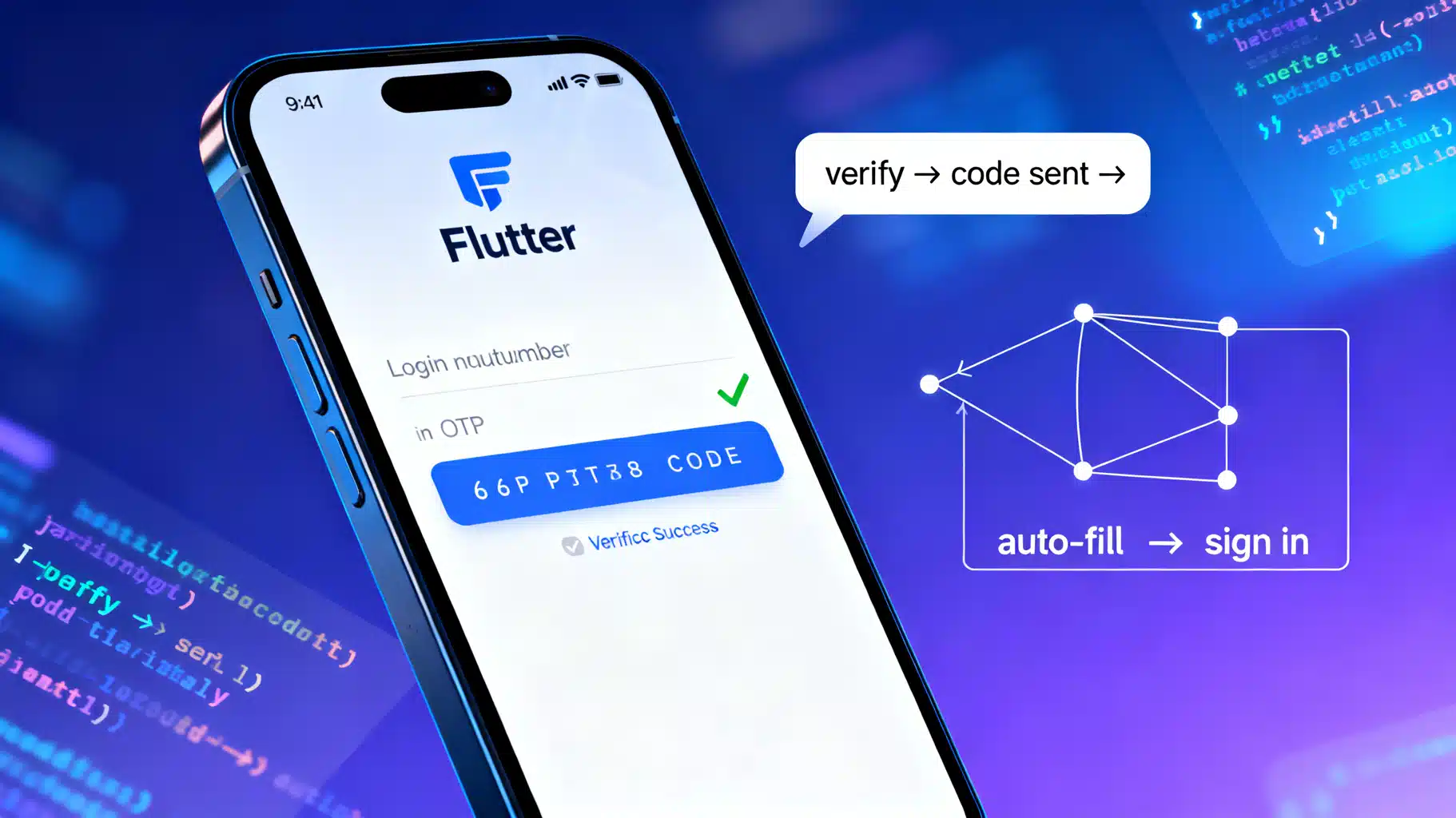
Image used for representation purposes only.
Overview
Phone number authentication lets users sign in with an SMS one-time passcode (OTP) instead of a password. In Flutter, the most practical route is Firebase Authentication, which abstracts SMS delivery, fraud checks, and platform-specific flows on Android and iOS. This guide walks through setup, implementation, auto-fill, testing, multi-factor, and production hardening.
When to use phone auth (and when not to)
- Use it if your users reliably have mobile numbers and expect frictionless onboarding.
- Avoid making it the only option for markets where SMS is slow/unreliable, or for apps with high abuse risk. Pair with email/SSO or add device-bound MFA for sensitive actions.
Prerequisites
- Flutter SDK installed and a device/emulator for Android and iOS.
- A Firebase project with the Phone provider enabled.
- FlutterFire CLI to bootstrap native config files.
Optional but recommended:
- Android SHA-1 and SHA-256 fingerprints added to your Firebase Android app settings.
- iOS APNs Auth Key uploaded to Firebase to improve silent verification and reduce reCAPTCHA prompts.
Project setup
- Create/choose a Firebase project and enable “Phone” in Authentication → Sign-in method.
- Add Android and iOS apps in Firebase console and download the platform config files:
- Android: google-services.json (place under android/app/)
- iOS: GoogleService-Info.plist (add to Runner/)
- Add Android SHA-1 and SHA-256 fingerprints (Project settings → Your apps → Android).
- Upload an APNs Auth Key (Project settings → Apple apps) to reduce verification friction on iOS.
- Add Flutter packages:
flutter pub add firebase_core firebase_auth
- Configure FlutterFire (generates firebase_options.dart):
flutterfire configure
- Initialize Firebase in main.dart:
import 'package:flutter/material.dart';
import 'package:firebase_core/firebase_core.dart';
import 'firebase_options.dart';

Future<void> main() async {
  WidgetsFlutterBinding.ensureInitialized();
  await Firebase.initializeApp(
    options: DefaultFirebaseOptions.currentPlatform,
  );
  runApp(const MyApp());
}

class MyApp extends StatelessWidget {
  const MyApp({super.key});
  @override
  Widget build(BuildContext context) {
    return MaterialApp(
      debugShowCheckedModeBanner: false,
      home: const PhoneAuthPage(),
    );
  }
}
Core flow: verify number, get code, sign in
Firebase’s verifyPhoneNumber handles SMS dispatch and verification state. The typical UX is:
- Collect the phone number in E.164 format (+15551234567).
- Call verifyPhoneNumber to send an OTP.
- If auto-retrieval completes, sign in silently.
- Otherwise, prompt for the 6-digit code and sign in with the credential.
import 'package:firebase_auth/firebase_auth.dart';
import 'package:flutter/material.dart';

class PhoneAuthPage extends StatefulWidget {
  const PhoneAuthPage({super.key});
  @override
  State<PhoneAuthPage> createState() => _PhoneAuthPageState();
}

class _PhoneAuthPageState extends State<PhoneAuthPage> {
  final _phoneCtrl = TextEditingController();
  final _codeCtrl = TextEditingController();

  String? _verificationId;
  int? _resendToken;
  bool _codeSent = false;
  bool _loading = false;
  String? _error;

  Future<void> _startVerification() async {
    setState(() { _loading = true; _error = null; });

    await FirebaseAuth.instance.verifyPhoneNumber(
      phoneNumber: _phoneCtrl.text.trim(),
      timeout: const Duration(seconds: 60),
      forceResendingToken: _resendToken,
      verificationCompleted: (PhoneAuthCredential credential) async {
        // Automatic verification on Android (instant or auto-retrieval)
        try {
          await FirebaseAuth.instance.signInWithCredential(credential);
          if (mounted) setState(() { _loading = false; });
        } on FirebaseAuthException catch (e) {
          if (mounted) setState(() { _error = e.message; _loading = false; });
        }
      },
      verificationFailed: (FirebaseAuthException e) {
        setState(() { _error = e.message; _loading = false; });
      },
      codeSent: (String verificationId, int? resendToken) {
        setState(() {
          _verificationId = verificationId;
          _resendToken = resendToken;
          _codeSent = true;
          _loading = false;
        });
      },
      codeAutoRetrievalTimeout: (String verificationId) {
        // Called when auto-retrieval times out (keep the verificationId)
        _verificationId = verificationId;
      },
    );
  }

  Future<void> _submitCode() async {
    if (_verificationId == null) return;
    setState(() { _loading = true; _error = null; });

    final credential = PhoneAuthProvider.credential(
      verificationId: _verificationId!,
      smsCode: _codeCtrl.text.trim(),
    );
    try {
      await FirebaseAuth.instance.signInWithCredential(credential);
    } on FirebaseAuthException catch (e) {
      setState(() { _error = e.message; });
    } finally {
      if (mounted) setState(() { _loading = false; });
    }
  }

  @override
  Widget build(BuildContext context) {
    return Scaffold(
      appBar: AppBar(title: const Text('Phone Sign-in')),
      body: Padding(
        padding: const EdgeInsets.all(16),
        child: Column(
          crossAxisAlignment: CrossAxisAlignment.start,
          children: [
            TextField(
              controller: _phoneCtrl,
              keyboardType: TextInputType.phone,
              decoration: const InputDecoration(
                labelText: 'Phone number',
                hintText: '+15551234567',
              ),
            ),
            const SizedBox(height: 12),
            if (_codeSent)
              TextField(
                controller: _codeCtrl,
                keyboardType: TextInputType.number,
                autofillHints: const [AutofillHints.oneTimeCode],
                decoration: const InputDecoration(
                  labelText: 'SMS code',
                  hintText: '123456',
                ),
              ),
            const SizedBox(height: 12),
            if (_error != null)
              Text(_error!, style: const TextStyle(color: Colors.red)),
            const Spacer(),
            Row(children: [
              Expanded(
                child: ElevatedButton(
                  onPressed: _loading ? null : _startVerification,
                  child: Text(_codeSent ? 'Resend code' : 'Send code'),
                ),
              ),
              const SizedBox(width: 12),
              Expanded(
                child: ElevatedButton(
                  onPressed: _loading || !_codeSent ? null : _submitCode,
                  child: const Text('Verify & Sign in'),
                ),
              ),
            ])
          ],
        ),
      ),
    );
  }
}
Notes:
- Use the resendToken by passing it back to forceResendingToken to avoid rate-limit penalties and provide a “Resend code” UX.
- The verificationCompleted callback may sign in users automatically on Android if the SMS is auto-retrieved.
Auto-fill and smoother UX
- iOS: Provide autofillHints: [AutofillHints.oneTimeCode] for your OTP field. Keep the field visible and focused.
- Android: Firebase attempts SMS auto-retrieval. To further optimize, you may add a consent-based SMS reader via a plugin (e.g., SMS User Consent). Always allow manual entry as a fallback.
- Make the OTP field numeric, enable paste, and clearly show the target phone number.
Linking and account management
You can link a phone number to an existing user so they can sign in with either method:
final user = FirebaseAuth.instance.currentUser;
final credential = PhoneAuthProvider.credential(
  verificationId: verificationId,
  smsCode: smsCode,
);
await user?.linkWithCredential(credential);
To update a phone number for a signed-in user, re-verify the new number and call updatePhoneNumber with a fresh credential.
Multi-factor authentication (MFA)
For sensitive actions, consider enrolling a phone as a second factor. The high-level flow is:
- Start an MFA session for the signed-in user.
- Verify the phone like usual and transform the PhoneAuthCredential into a PhoneMultiFactorAssertion.
- Enroll or resolve an MFA sign-in challenge.
Pattern (API shape may vary slightly by FlutterFire version):
final multiFactor = FirebaseAuth.instance.currentUser!.multiFactor;
final session = await multiFactor.getSession();

await FirebaseAuth.instance.verifyPhoneNumber(
  phoneNumber: '+15551234567',
  verificationCompleted: (cred) async {
    final assertion = PhoneMultiFactorGenerator.getAssertion(cred);
    await multiFactor.enroll(assertion, displayName: 'Primary phone');
  },
  verificationFailed: (e) { /* handle */ },
  codeSent: (verificationId, _) async { /* prompt for code, create assertion, enroll */ },
  codeAutoRetrievalTimeout: (_) {},
);
For MFA sign-ins, you’ll receive a multi-factor required error containing resolver hints; complete the SMS challenge and finalize sign-in.
Testing without burning SMS quota
- Add test phone numbers and codes in Firebase console → Authentication → Sign-in method → Phone. These bypass real SMS and reCAPTCHA/Play Integrity checks, perfect for CI and local development.
- Use the Firebase Authentication emulator for complete local testing.
- Throttle resend actions in UI (e.g., 30–60 seconds) and show a countdown.
Production hardening and security
- Abuse prevention: Firebase applies risk checks (e.g., reCAPTCHA/Play Integrity/DeviceCheck). Keep your app registered with correct SHA keys and package/bundle IDs. Avoid custom SMS gateways for primary auth unless you implement equivalent anti-abuse measures.
- Rate limiting: Implement client-side cooldowns and server-side throttles for endpoints tied to phone sign-in (e.g., profile creation).
- PII handling: Treat phone numbers as personal data. Minimize logging and mask phone numbers in analytics and crash reports.
- Error transparency: Surface clear messages for invalid numbers, expired codes, or quota exceeded, but don’t reveal whether a number already exists.
- Edge cases: Plan for no-signal or delayed SMS delivery; let users edit the number, retry, or try voice call if available in their region.
Common pitfalls and fixes
- Missing Android SHA-1/SHA-256: Silent failures or constant reCAPTCHA challenges. Add both in Firebase settings and re-download google-services.json.
- iOS reCAPTCHA every time: Upload APNs key, ensure real device testing, and confirm the bundle ID matches Firebase.
- Quota exceeded: Use test numbers in development, back off on retries, and request quota increases only with real need.
- Emulator gotchas: Some emulators can’t receive carrier SMS. Use Firebase test numbers or the emulator suite.
- Wrong number formats: Always normalize to E.164 and validate input.
Architecture tips
- Wrap verification and sign-in in a repository/service and expose states via Bloc, Riverpod, or ValueNotifier to keep UI lean.
- Persist transient state (verificationId, resendToken) in memory only. Don’t store OTPs or credentials on disk.
- Consider feature flags to toggle alternative sign-ins (email/SSO) per market.
Minimal UX checklist
- Clear country picker and E.164 formatting.
- Prominent “Wrong number?” action on the OTP screen.
- Countdown timer and accessible “Resend code.”
- Automatic focus and paste support for the OTP field.
- Success state transitions directly to the authenticated home.
Going beyond Firebase
If regulatory or delivery constraints require, you can integrate providers like Twilio Verify or MessageBird. You’ll need to build fraud checks (CAPTCHA/device checks, IP throttling), store OTP challenges server-side, and guard against SMS interception. Firebase remains the lowest-friction default for most Flutter apps.
Wrap-up
Flutter plus Firebase Authentication delivers a robust phone number sign-in with minimal code. Focus on correct platform configuration (SHA keys, APNs), a thoughtful OTP UX with auto-fill, and layered abuse protection. Add MFA for sensitive workflows and provide alternative sign-in paths to keep your onboarding resilient across markets.
Related Posts
Flutter Sign in with Apple: A Complete Step-by-Step Tutorial
Step-by-step Flutter Sign in with Apple: iOS/macOS setup, Android web flow, secure nonce, Firebase integration, testing, and troubleshooting.

Flutter SSL Certificate Pinning: A Practical, Battle‑Tested Guide
A practical, code-focused guide to implementing SSL certificate pinning in Flutter, with platform and Dart options, rotation strategy, and testing tips.
Flutter Foreground Service Location Tracking: A 2026 Deep‑Dive for Android and iOS
Implement reliable Flutter location tracking with Android foreground services and iOS background modes—permissions, code, and store compliance (Oct 2026).