
Flutter Foreground Service Notifications: A Complete Guide
How to implement a robust Flutter foreground service notification: Android setup, Dart code, permissions, iOS realities, testing, and best practices.
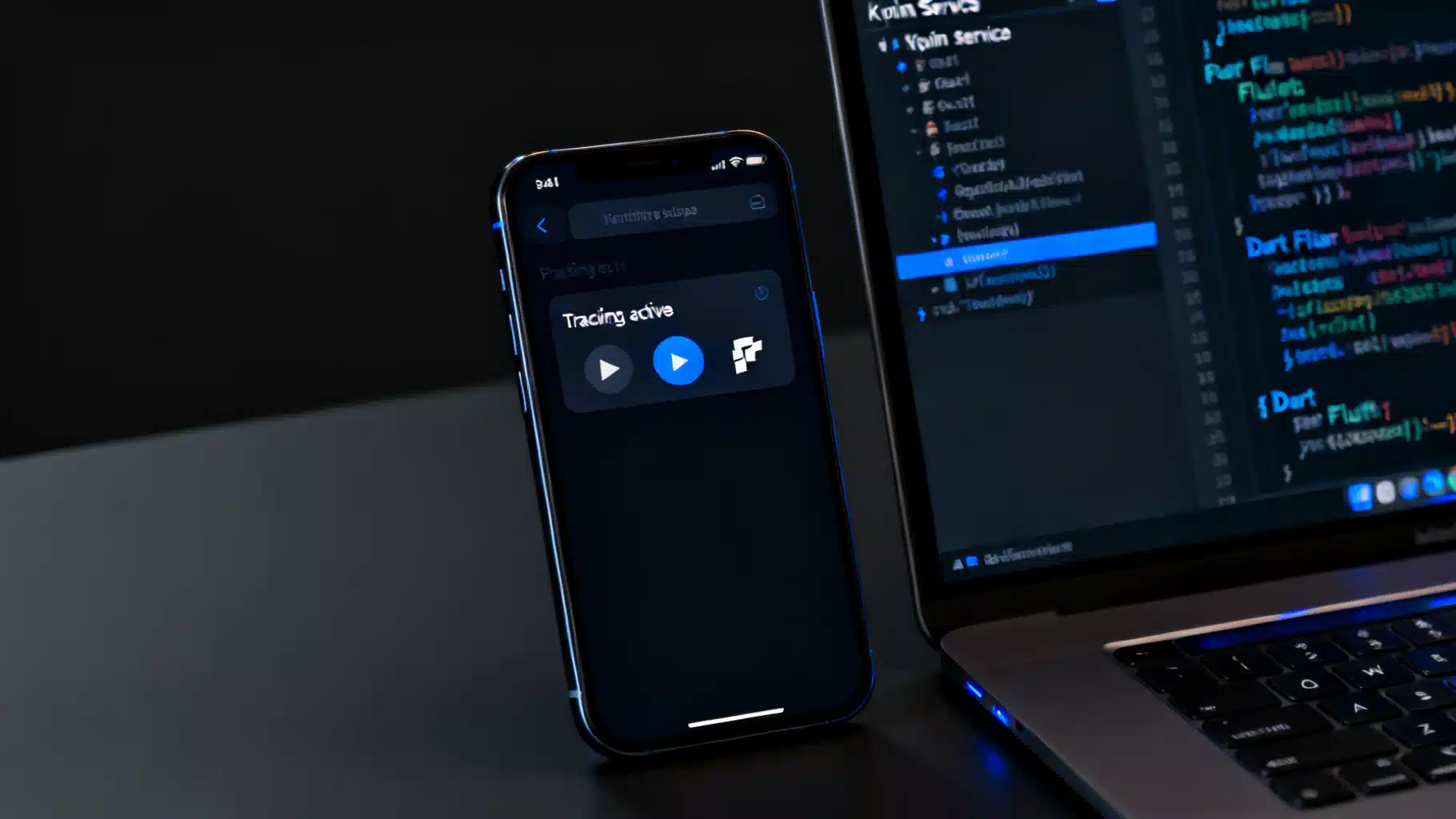
Image used for representation purposes only.
Overview
Foreground services let your app keep running while it’s not in the foreground and display an ongoing, non-dismissable notification to the user. In Flutter, this is most relevant on Android; iOS does not support general-purpose foreground services and only allows specific background modes (e.g., audio, location, VoIP). This article explains when to use a foreground service, the architectural options in Flutter, and how to implement, harden, and ship it responsibly.
When you actually need a foreground service
Use a foreground service only when the user expects long-running, user-visible work while the app is backgrounded, such as:
- Turn‑by‑turn navigation or continuous location tracking
- Music/podcast playback or ongoing calls
- File sync or uploads that must remain active
- Fitness tracking and sensors that stream data
If your work can be deferred, use WorkManager (deferred/background scheduling) or short background tasks instead. Foreground services carry stricter policy and UX expectations.
Platform reality check
- Android: Supports foreground services with an ongoing status notification. Starting with Android 8.0 (Oreo), you must call startForeground() within a few seconds of starting the service. Android 13+ adds a runtime notification permission, and Android 12+ requires declaring service “types” that match your use case.
- iOS: No generic foreground service. You must declare specific Background Modes (Audio, Location updates, External accessory, VoIP, etc.). A persistent notification like Android’s does not exist; consider Live Activities, push, or background fetch for limited work.
Architecture options in Flutter
You have two common paths:
- Use a Flutter plugin that wraps the native service lifecycle
- Examples: flutter_foreground_task, flutter_background_service, audio_service (for media)
- Pros: Faster setup, fewer native lines of code, Dart task handlers
- Cons: Constrained by plugin capabilities; advanced scenarios may still need native hooks
- Build a native Android foreground service and bridge to Flutter
- Write a Kotlin/Java Service that posts the notification and keeps itself alive
- Communicate via MethodChannel/EventChannel to the Flutter side
- Pros: Maximum control over service types, notifications, and system behaviors
- Cons: More native code and maintenance
The plugin path is excellent for most apps; the native path is ideal for complex or highly regulated behaviors.
Quick-start with a plugin (Android-first)
Below is a representative setup using a foreground-task style plugin. Names may differ per plugin, but the flow is similar.
- Initialize early in main()
import 'package:flutter/material.dart';
import 'package:flutter_foreground_task/flutter_foreground_task.dart';

void main() async {
  WidgetsFlutterBinding.ensureInitialized();

  // Configure the channel used by the ongoing notification.
  await FlutterForegroundTask.init(
    androidNotificationOptions: AndroidNotificationOptions(
      channelId: 'tracking',
      channelName: 'Background Tracking',
      channelDescription: 'Shows when background tracking is active.',
      channelImportance: NotificationChannelImportance.low,
      priority: NotificationPriority.low,
      // Optional action buttons, icons, etc.
    ),
    iosNotificationOptions: const IOSNotificationOptions(
      // iOS will not show a persistent Android-style notification.
      showNotification: false,
    ),
    foregroundTaskOptions: const ForegroundTaskOptions(
      interval: 5000, // task tick every 5s (tune to your needs)
      isOnceEvent: false,
      autoRunOnBoot: false,
    ),
  );

  runApp(const MyApp());
}
- Implement the background task handler
class MyTaskHandler extends TaskHandler {
  @override
  Future<void> onStart(DateTime timestamp, SendPort? sendPort) async {
    // Initialize resources, open DB, acquire sensors, etc.
  }

  @override
  Future<void> onEvent(DateTime timestamp, SendPort? sendPort) async {
    // Perform periodic work (e.g., read GPS and upload).
    // You can also update the notification text:
    FlutterForegroundTask.updateService(
      notificationTitle: 'Tracking active',
      notificationText: 'Last fix: $timestamp',
    );
  }

  @override
  Future<void> onDestroy(DateTime timestamp, SendPort? sendPort) async {
    // Clean up resources.
  }
}

@pragma('vm:entry-point')
void startCallback() {
  FlutterForegroundTask.setTaskHandler(MyTaskHandler());
}
- Start and stop the foreground service from UI
Future<void> startForeground() async {
  // On Android 13+, ask for POST_NOTIFICATIONS at runtime (see next section).
  await FlutterForegroundTask.startService(
    notificationTitle: 'Tracking active',
    notificationText: 'Tap to return to the app',
    callback: startCallback,
  );
}

Future<void> stopForeground() async {
  await FlutterForegroundTask.stopService();
}
This is the fastest path to a user-visible, long-running task with a persistent notification.
Request runtime notification permission (Android 13+)
On Android 13 and above, apps must request POST_NOTIFICATIONS at runtime or your foreground notification may not show. With permission_handler:
import 'package:permission_handler/permission_handler.dart';

Future<bool> ensureNotificationPermission() async {
  final status = await Permission.notification.status;
  if (status.isGranted) return true;
  final result = await Permission.notification.request();
  return result.isGranted;
}
Call ensureNotificationPermission() before starting the foreground service.
Declare the right Android manifest entries
In android/app/src/main/AndroidManifest.xml:
<manifest ...>
  <!-- Core permissions -->
  <uses-permission android:name="android.permission.FOREGROUND_SERVICE"/>
  <!-- Add service-type specific permissions as needed: -->
  <!-- e.g., location, media playback, connected device, etc. -->
  <uses-permission android:name="android.permission.ACCESS_FINE_LOCATION"/>
  <uses-permission android:name="android.permission.POST_NOTIFICATIONS"/>

  <application ...>
    <service
      android:name=".MyForegroundService"
      android:exported="false"
      android:foregroundServiceType="location|dataSync">
    </service>

    <!-- If you need auto-restart after reboot: -->
    <receiver android:name=".BootReceiver"
      android:enabled="true"
      android:exported="false">
      <intent-filter>
        <action android:name="android.intent.action.BOOT_COMPLETED"/>
      </intent-filter>
    </receiver>
  </application>
</manifest>
Notes:
- foregroundServiceType must truthfully reflect your behavior (e.g., location, mediaPlayback, dataSync). Mislabeling can cause policy violations or kills.
- If you support Android 12+, service types are mandatory for many use cases.
Manual native Android service (Kotlin) with Flutter bridge
If you need full control, create a Kotlin service that posts the notification and starts in the foreground.
- Create the notification channel and startForeground()
class MyForegroundService : Service() {
  private val channelId = "tracking"
  private val notificationId = 42

  override fun onCreate() {
    super.onCreate()
    if (Build.VERSION.SDK_INT >= Build.VERSION_CODES.O) {
      val channel = NotificationChannel(
        channelId,
        "Background Tracking",
        NotificationManager.IMPORTANCE_LOW
      )
      val manager = getSystemService(NotificationManager::class.java)
      manager.createNotificationChannel(channel)
    }
  }

  override fun onStartCommand(intent: Intent?, flags: Int, startId: Int): Int {
    val pendingIntent = PendingIntent.getActivity(
      this, 0, Intent(this, MainActivity::class.java),
      PendingIntent.FLAG_IMMUTABLE or PendingIntent.FLAG_UPDATE_CURRENT
    )

    val notification = NotificationCompat.Builder(this, channelId)
      .setSmallIcon(R.drawable.ic_stat_name)
      .setContentTitle("Tracking active")
      .setContentText("Tap to return to the app")
      .setOngoing(true)
      .setContentIntent(pendingIntent)
      .build()

    startForeground(notificationId, notification)

    // TODO: Start work (location updates, uploads, etc.)
    return START_STICKY
  }

  override fun onBind(intent: Intent?): IBinder? = null
}
- Start the service safely from your Flutter activity or a MethodChannel call
fun Context.startMyForegroundService() {
  val intent = Intent(this, MyForegroundService::class.java)
  if (Build.VERSION.SDK_INT >= Build.VERSION_CODES.O) {
    startForegroundService(intent)
  } else {
    startService(intent)
  }
}
Expose this via a MethodChannel to call from Dart:
class MainActivity: FlutterActivity() {
  private val CHANNEL = "com.example.app/fgs"

  override fun configureFlutterEngine(flutterEngine: FlutterEngine) {
    super.configureFlutterEngine(flutterEngine)
    MethodChannel(flutterEngine.dartExecutor.binaryMessenger, CHANNEL)
      .setMethodCallHandler { call, result ->
        when (call.method) {
          "start" -> {
            applicationContext.startMyForegroundService()
            result.success(null)
          }
          "stop" -> {
            stopService(Intent(this, MyForegroundService::class.java))
            result.success(null)
          }
          else -> result.notImplemented()
        }
      }
  }
}
Dart usage:
static const _ch = MethodChannel('com.example.app/fgs');
Future<void> startFgs() => _ch.invokeMethod('start');
Future<void> stopFgs()  => _ch.invokeMethod('stop');
- (Optional) Run Dart code in the service If you must execute Dart in the service, spin up a FlutterEngine in the service and run a background entrypoint. This is advanced—start simple with native work or use a plugin that manages isolates for you.
Battery and system behavior
- Battery optimizations: The OS may delay or throttle background work. If continuous work is essential, explain to users how to exempt your app from battery optimizations—but only when justified.
- Foreground timing: Call startForeground() quickly after service start. Delays can cause the system to stop your service.
- Work that doesn’t need to be continuous: Prefer WorkManager for retries, backoff, and doze compatibility.
iOS strategy (what to do instead)
- No generic foreground service or persistent notification banner.
- Use approved Background Modes (Capabilities > Background Modes): Audio for playback, Location updates for navigation/fitness, VoIP for call signaling, etc.
- For user-visible status, consider Live Activities or local notifications at key moments, not an ongoing banner.
Testing checklist
- Verify the notification appears immediately when starting the service.
- Rotate the device, lock/unlock, and swipe away the app; ensure the service persists as designed.
- Kill the app process and check restart policy (START_STICKY vs. explicit re-enqueue).
- Test on Android 13+ with and without POST_NOTIFICATIONS granted.
- Confirm the service type and permissions match the actual behavior (location, media, data sync, etc.).
- Validate battery usage, data transfers, and privacy disclosures.
Troubleshooting
- Notification never shows: Missing POST_NOTIFICATIONS on Android 13+, channel importance too low, or startForeground() not called in time.
- Service keeps dying: Heavy work on main thread, unhandled exceptions, or mis-declared service type. Move work to a background thread or use a plugin task handler.
- Location missing in background: Lacks background location permission, or OEM battery restrictions. Provide clear user education and fallbacks.
- Buttons on notification don’t work: Missing PendingIntent flags on Android 12+ (use FLAG_IMMUTABLE/UPDATE_CURRENT).
Policy, UX, and privacy
- Use a foreground service only when users benefit from continuous, visible work.
- Make the notification descriptive, actionable, and low priority unless it’s time‑sensitive.
- Request only the permissions you need, explain why, and allow users to stop the service easily.
- Document your data practices (e.g., location collection) in-app and in your privacy policy.
Recommended patterns
- Prefer a battle-tested plugin for most apps; graduate to native service code only for special cases.
- Pair foreground services with WorkManager for resilient retries and uploads.
- For media, use audio_service + just_audio; for navigation/fitness, combine a foreground service with a location plugin that supports background updates.
Summary
A Flutter foreground service notification is primarily an Android concern that keeps user‑visible, long‑running work alive with an ongoing notification. Start with a plugin to reduce complexity, request runtime notification permission on Android 13+, declare accurate service types and permissions, and rigorously test across OEMs and OS versions. On iOS, redesign with approved background modes or Live Activities instead of trying to mimic Android’s persistent notification.
Related Posts
Flutter WorkManager Scheduled Tasks: The Complete, Practical Guide (2026)
A practical guide to scheduling background tasks in Flutter with WorkManager on Android and iOS, with setup, periodic jobs, constraints, and debugging.
Flutter WorkManager: Reliable Background Tasks on Android and iOS
A practical guide to Flutter WorkManager for background tasks: setup, scheduling, constraints, iOS limits, testing, and best practices.
Flutter background fetch periodic tasks: reliable patterns for Android and iOS
Learn how to run periodic background tasks in Flutter with WorkManager and iOS BackgroundTasks, plus reliable patterns, caveats, and code examples.