
Flutter Background Geofencing: A Practical, Production‑Ready Tutorial
Build reliable background geofencing in Flutter for Android and iOS: permissions, setup, code, testing, and production tips.
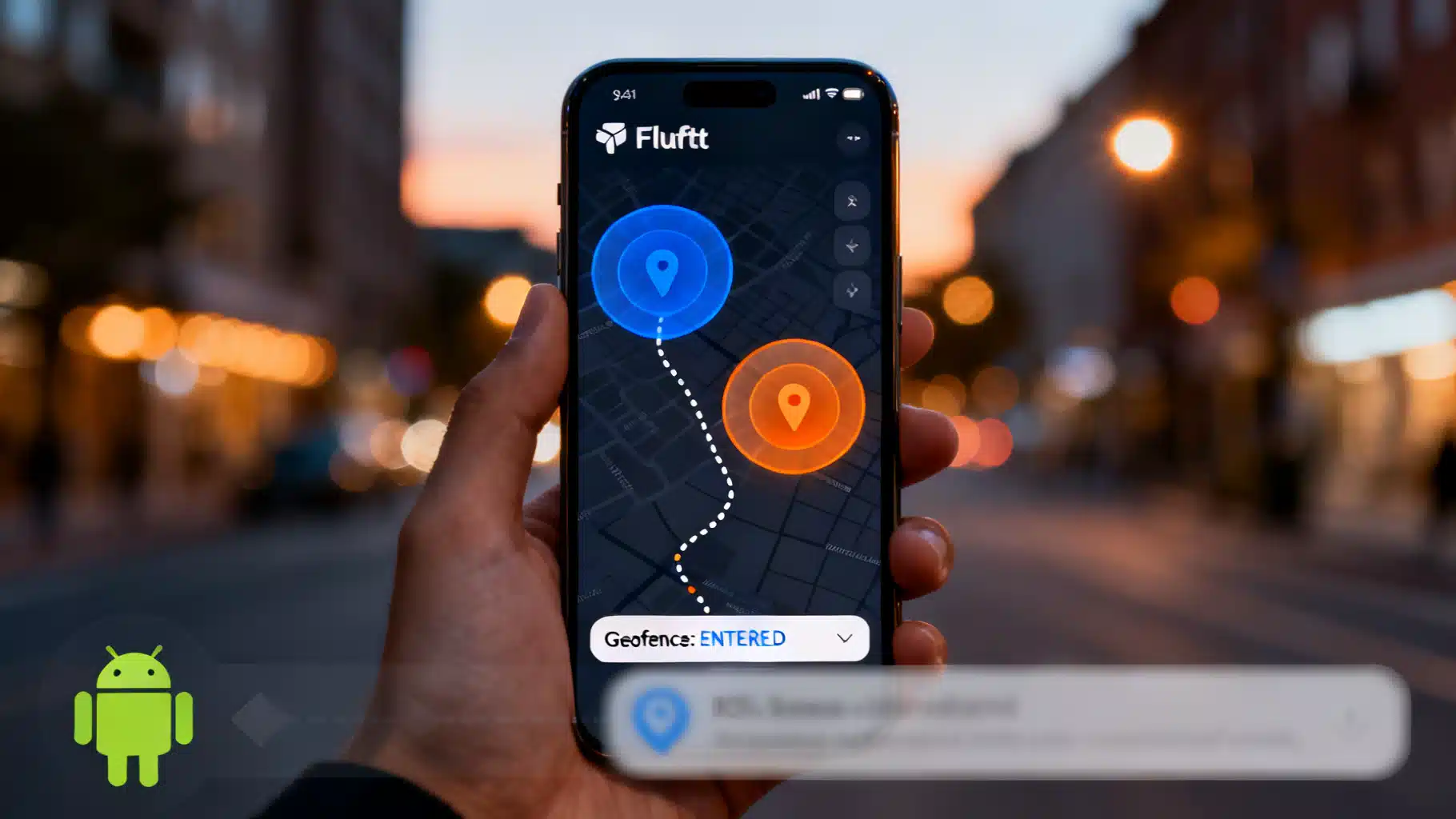
Image used for representation purposes only.
Overview
Geofencing lets your app react when a device enters, dwells in, or exits a geographic region—even if the app isn’t open. On iOS, Core Location can wake your app to deliver region events. On Android, the Geofencing API (part of Google Play services’ Fused Location Provider) does the work efficiently in the background. In this tutorial you’ll build a production‑grade background geofencing flow in Flutter that works reliably on both platforms, covering permissions, platform quirks, battery implications, and robust testing.
- iOS limits each app to monitoring a small number of regions simultaneously (commonly cited as 20). Plan for dynamic activation near the user. (developer.apple.com )
- Android requires special runtime permissions for background access when using the Geofencing API. (developer.android.com )
We’ll implement with the mature flutter_background_geolocation plugin from Transistor Software (widely used in production), and note open‑source alternatives you can evaluate. (pub.dev )
What you’ll build
- A Flutter app that:
- Requests foreground and background location permissions.
- Starts a geofences‑only background monitor.
- Adds one or more circular geofences and listens for ENTER/EXIT/DWELL.
- Persists across app termination and device reboot (configurable).
Prerequisites
- Flutter 3.22+ and Dart 3.x installed.
- Android Studio and Xcode (for simulators and signing).
- A physical iOS and Android device for realistic testing.
Choosing a plugin
Reliable background geofencing requires native integrations and careful handling of each OS’s rules. You have a few options:
- flutter_background_geolocation (Transistorsoft, commercial license; robust features, frequent updates). We’ll use this for the tutorial. (pub.dev )
- geofence_service (open source; simpler API; fewer batteries‑included features). (pub.dev )
- flutter_background_geofencing (newer, unverified uploader; evaluate carefully for production). (pub.dev )
Project setup
Create a fresh Flutter app:
flutter create geo_bg_tutorial
cd geo_bg_tutorial
Add the dependency (use the latest stable version on pub.dev):
flutter pub add flutter_background_geolocation
At the time of writing, the package is actively maintained with recent releases; always check pub.dev for the newest version before you start. (pub.dev )
Platform configuration
Android
- Add permissions in android/app/src/main/AndroidManifest.xml:
<uses-permission android:name="android.permission.ACCESS_FINE_LOCATION"/>
<uses-permission android:name="android.permission.ACCESS_COARSE_LOCATION"/>
<uses-permission android:name="android.permission.ACCESS_BACKGROUND_LOCATION"/>
<uses-permission android:name="android.permission.FOREGROUND_SERVICE"/>
<uses-permission android:name="android.permission.FOREGROUND_SERVICE_LOCATION"/>
-
For Android 10+ (API 29+), request background access separately from foreground access at runtime. For Android 12+ (API 31+), ensure any foreground service declares type=“location”. (developer.android.com )
-
Phones throttle background processing. The Geofencing API batches and wakes your app periodically; on Android 8.0+ the device may only process geofence transitions every few minutes when fully backgrounded—this is expected and battery‑friendly. (developer.android.com )
iOS
- Add the following keys to ios/Runner/Info.plist (use copy you own text):
<key>NSLocationWhenInUseUsageDescription</key>
<string>This app uses your location to detect geofence entry/exit.</string>
<key>NSLocationAlwaysAndWhenInUseUsageDescription</key>
<string>This app needs background location to trigger geofences when closed.</string>
-
Enable Background Modes > Location updates in Xcode (Signing & Capabilities).
-
Core Location can wake your app for region enter/exit even if it’s terminated, subject to user authorization and system heuristics. iOS enforces a small cap on active regions; design your app to activate only the nearest ones. (developer.apple.com )
Initialize background geofencing
Create a simple service class to configure the SDK in geofences‑only mode. Geofences‑only avoids constant GPS tracking and relies on hardware‑assisted, low‑power region monitoring.
import 'package:flutter_background_geolocation/flutter_background_geolocation.dart' as bg;

class GeoService {
  Future<void> init() async {
    // Subscribe to geofence events first, so you don't miss early callbacks.
    bg.BackgroundGeolocation.onGeofence((bg.GeofenceEvent e) {
      // e.action: ENTER, EXIT, DWELL
      // e.identifier: your geofence id
      // e.location: triggering location
      // TODO: trigger local notification, call API, update state, etc.
      // print('[onGeofence] ${e.identifier} ${e.action}');
    });

    // Optionally observe changes to the actively monitored set of geofences.
    bg.BackgroundGeolocation.onGeofencesChange((bg.GeofencesChangeEvent e) {
      // e.on: newly activated geofences; e.off: deactivated identifiers
      // print('[geofencesChange] on=${e.on.length} off=${e.off.length}');
    });

    // Prepare configuration. Geofences-only mode avoids continuous tracking.
    await bg.BackgroundGeolocation.ready(bg.Config(
      reset: true,
      debug: false, // set true to see system notifications during development
      logLevel: bg.Logger.VERBOSE,
      startOnBoot: true,
      stopOnTerminate: false,
      geolocation: bg.GeoConfig(
        geofenceModeHighAccuracy: true, // trades a bit more power for snappier triggers
      ),
    ));

    // Start geofences-only background monitoring.
    await bg.BackgroundGeolocation.startGeofences();
  }
}
The plugin supports switching between full location tracking and geofences‑only, and exposes helpers such as onGeofence/onGeofencesChange. (docs.transistorsoft.com )
Request permissions at runtime
You must follow each platform’s UX rules.
- Android 10+ requires a two‑step flow: first foreground (Fine/Coarse), then a separate prompt for background (“Allow all the time”). Don’t ask for background until you’ve explained the need. (developer.android.com )
- Android’s Geofencing API counts as background location use; declare and request ACCESS_BACKGROUND_LOCATION. (developer.android.com )
- iOS: request When‑In‑Use, then escalate to Always if you need true background geofencing. Region monitoring can deliver events while your app is suspended or not running, provided the user has granted the correct authorization. (developer.apple.com )
A minimal permission flow (pseudo‑code; mix with your preferred permissions helper):
import 'dart:io' show Platform;
import 'package:permission_handler/permission_handler.dart';

Future<void> requestLocationPermissions() async {
  // Step 1: Foreground
  final fg = await Permission.locationWhenInUse.request();
  if (!fg.isGranted) return;

  if (Platform.isAndroid) {
    // Step 2: Background (Android 10+)
    final bg = await Permission.locationAlways.request();
    // On some OEMs, you may need to guide the user to Settings for "Allow all the time".
  } else if (Platform.isIOS) {
    // iOS: ask for "Always" if you truly need background geofences.
    await Permission.locationAlways.request();
  }
}
Add geofences
Add one or more circular regions. For robust triggers, prefer radii of 150–300 meters. Apple’s guidance and years of field experience point to ~200 m as a pragmatic minimum for dependable results. (developer.apple.com )
Future<void> addDemoGeofences() async {
  await bg.BackgroundGeolocation.addGeofences([
    bg.Geofence(
      identifier: 'office',
      latitude: 37.7749,
      longitude: -122.4194,
      radius: 200.0,
      notifyOnEntry: true,
      notifyOnExit: true,
      loiteringDelay: 300000, // 5 minutes before DWELL
      notifyOnDwell: true,
      extras: {'label': 'HQ'},
    ),
    bg.Geofence(
      identifier: 'home',
      latitude: 37.7599,
      longitude: -122.4148,
      radius: 200.0,
      notifyOnEntry: true,
      notifyOnExit: true,
    ),
  ]);
}
The SDK persists geofences, can keep monitoring after termination (stopOnTerminate=false) and across reboots (startOnBoot=true). It can also maintain a large database of geofences and activate only the nearest set to stay under OS limits. (docs.transistorsoft.com )
Optional: polygon geofences
If you need complex shapes, the plugin supports polygon geofences (add‑on). Provide vertices and the SDK handles an efficient enclosing‑circle strategy with high‑frequency polygon hit‑testing when nearby. (docs.transistorsoft.com )
await bg.BackgroundGeolocation.addGeofence(bg.Geofence(
  identifier: 'park',
  notifyOnEntry: true,
  notifyOnExit: true,
  vertices: const [
    [37.77001, -122.46868],
    [37.76806, -122.46612],
    [37.76672, -122.46842],
    [37.76853, -122.47035],
  ],
));
Wire it into your app
Call the service from main() and a basic UI.
void main() async {
  WidgetsFlutterBinding.ensureInitialized();
  final geo = GeoService();
  await requestLocationPermissions();
  await geo.init();
  runApp(const MyApp());
}

class MyApp extends StatelessWidget {
  const MyApp({super.key});
  @override
  Widget build(BuildContext context) => MaterialApp(
        title: 'Geofencing Demo',
        home: Scaffold(
          appBar: AppBar(title: const Text('Background Geofencing')),
          body: Center(
            child: ElevatedButton(
              onPressed: addDemoGeofences,
              child: const Text('Add demo geofences'),
            ),
          ),
        ),
      );
}
Testing geofences the right way
- Use real devices. Emulators and simulators can fake GPS but not all geofencing heuristics.
- Drive or walk across the boundary; don’t just stand on it. A 200–300 m radius gives the system headroom to trigger reliably. (developer.apple.com )
- Android expectations: the OS may delay background delivery to conserve power; don’t expect immediate callbacks in Doze/idle. (developer.android.com )
- Disable battery optimizations for your app when comparing devices; OEMs vary.
Useful simulator tricks:
- iOS: Xcode > Debug > Simulate Location can mimic routes, though real‑world trips are more conclusive for geofencing.
- Android:
adb emu geo fix <lon> <lat>updates GPS, but region transitions still depend on the OS geofencing engine.
Production hardening checklist
- Respect platform limits:
- iOS: monitor only a handful of nearby regions concurrently; keep a larger list server‑side and rotate. (developer.apple.com )
- Android: use the Geofencing API rather than manual background location polling—it’s optimized for battery life. (developer.android.com )
- Nail the permission story:
- Android 10+: separate “foreground” and “background” requests; show an in‑app rationale before the second prompt. (developer.android.com )
- iOS: educate users why “Always” is required for geofences to work when the app is closed. (developer.apple.com )
- Tune notifications and cold starts:
- Keep a persistent notification on Android when required by your configuration; it improves survivability.
- Handle app cold‑start in your geofence callback: initialize any DI, logging, and storage before processing the event.
- Server sync: the SDK can post events directly if you configure an HTTP endpoint; otherwise enqueue and sync when online. (docs.transistorsoft.com )
Common pitfalls and fixes
- “Nothing fires on iOS.” Check authorization level (Always), Background Modes > Location updates, and use ≥200 m radius. (developer.apple.com )
- “It worked yesterday on Android but stopped today.” Some OEMs add aggressive battery policies. Educate users on disabling optimizations and keep a foreground service as needed; expect delayed deliveries in deep idle. (developer.android.com )
- “I need 1,000 geofences.” Use a proximity strategy: maintain a big list in your database, but only register the 10–20 closest (iOS cap), refreshing as the device moves. The tutorial plugin supports this pattern out of the box. (developer.apple.com )
Alternatives and further reading
- flutter_background_geolocation (docs: geofences‑only mode, geofence events, proximity radius). (docs.transistorsoft.com )
- Android geofencing overview and required permissions. (developer.android.com )
- iOS region monitoring concepts and background delivery. (developer.apple.com )
Wrap‑up
You’ve configured a cross‑platform Flutter app that monitors geofences in the background with minimal battery impact. The keys to reliability are (1) asking for the right permissions at the right time, (2) choosing pragmatic radii (≈200 m) and a small active set, and (3) embracing OS behavior—background delivery is optimized for power, not immediacy. With those constraints respected, your app will deliver stable, user‑friendly location automation across iOS and Android.
Related Posts
Flutter Geolocation Tracking App Tutorial: Maps, Routes, and Background Updates
Build a production-ready Flutter geolocation tracker with maps, live routes, distance, and background updates. Permissions, battery, and privacy included.

Build a Flutter QR Code Scanner and Generator in Flutter
Build a Flutter app that scans and generates QR codes with mobile_scanner and qr_flutter. Includes setup, code, exporting, UX, and tips.

Flutter + Google Maps: A Complete Integration Guide
Integrate Google Maps in Flutter: setup keys, Android/iOS config, markers, directions, clustering, styling, and best practices.