
Flutter Text-to-Speech (TTS) Integration: A Complete Guide with Code
Integrate Flutter text-to-speech with flutter_tts: setup, voices, events, mixing audio, long text chunking, and production-ready patterns with code.
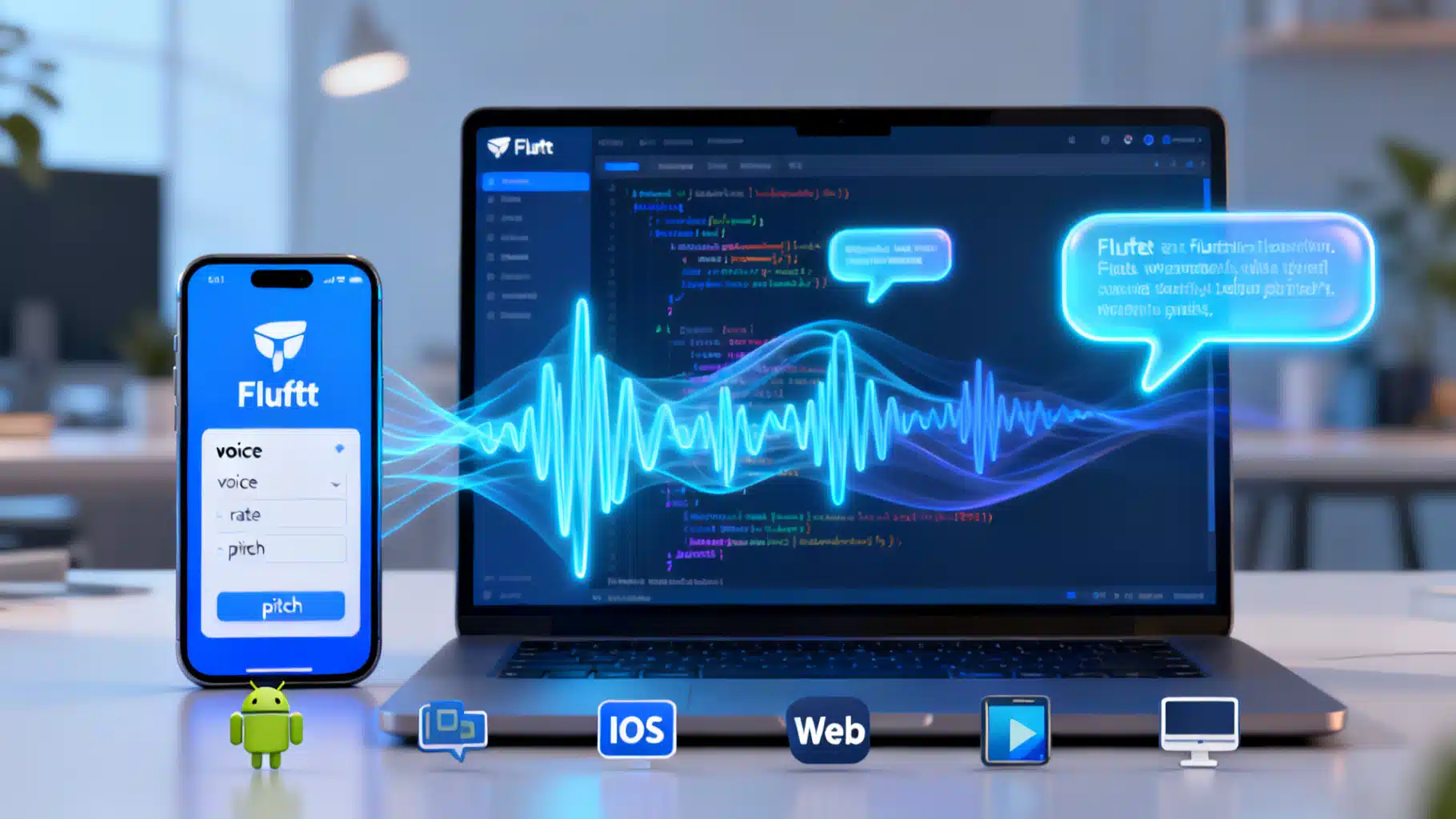
Image used for representation purposes only.
Overview
Text-to-speech (TTS) turns written text into natural-sounding audio. In Flutter, the flutter_tts plugin provides a straightforward, cross‑platform API that works on Android, iOS, web, macOS, and Windows. This guide walks you through setup, core APIs, production‑grade patterns, and common pitfalls—so you can ship accessible, voice‑enabled features with confidence.
When to use TTS
- Accessibility: Read content aloud for users with low vision or reading difficulties.
- Hands‑free UX: Voice prompts for navigation, fitness, or driving scenarios.
- Education and learning: Pronunciation guides, vocabulary apps, and audio flashcards.
- Productivity: Read long articles, summaries, or notifications.
How the flutter_tts plugin works
flutter_tts is a thin wrapper over each platform’s native speech synthesizer:
- Android: System TTS engines (e.g., Google Text‑to‑Speech). Users can install multiple voices/languages.
- iOS/macOS: AVSpeechSynthesizer.
- Windows: SAPI.
- Web: Browser’s Web Speech API (speechSynthesis), when available.
Because synthesis quality and available voices come from the device, expect variations across platforms and user setups.
Install and configure
Add the dependency in pubspec.yaml:
dependencies:
  flutter:
    sdk: flutter
  flutter_tts: ^<latest>
Then run:
flutter pub get
Platform notes:
- Android: No special permissions. Some languages require a one‑time download in the device’s TTS settings.
- iOS/macOS: No microphone permission is needed (TTS is output‑only). For mixing with other audio, configure the iOS audio category (shown later).
- Web: Works only in browsers that implement speechSynthesis; voice lists may populate after a user gesture.
First speak in 30 seconds
import 'package:flutter_tts/flutter_tts.dart';

class TtsQuickStart {
  final FlutterTts _tts = FlutterTts();

  Future<void> sayHello() async {
    await _tts.setLanguage('en-US');
    await _tts.setSpeechRate(0.5); // 0.0–1.0 (platform-dependent)
    await _tts.setPitch(1.0);      // 0.5–2.0 typical range
    await _tts.speak('Hello, world! This is Flutter text to speech.');
  }
}
Tips:
- Keep a single FlutterTts instance per feature/screen to avoid overlapping audio.
- Call stop() when leaving a screen.
Controlling language, voice, rate, pitch, and volume
List languages and voices, then apply the user’s choice.
final tts = FlutterTts();

Future<List<String>> loadLanguages() async {
  final langs = await tts.getLanguages; // e.g., ['en-US','en-GB','es-ES']
  return langs?.cast<String>() ?? [];
}

Future<List<Map>> loadVoices() async {
  final voices = await tts.getVoices; // [{ 'name': 'en-us-x-sfg#male_1-local', 'locale': 'en-US' }, ...]
  return voices?.cast<Map>() ?? [];
}

Future<void> applyVoice(Map voice) async {
  // Voice maps often require both name and locale
  await tts.setVoice({
    'name': voice['name'],
    'locale': voice['locale'],
  });
}

Future<void> tuneParameters() async {
  await tts.setVolume(1.0);   // 0.0–1.0
  await tts.setSpeechRate(0.45);
  await tts.setPitch(1.05);
}
Android‑specific engine selection:
final engines = await tts.getEngines; // ['com.google.android.tts', ...]
await tts.setEngine('com.google.android.tts');
Handling lifecycle and events
You can track speaking state, progress, and errors via handlers.
enum TtsState { playing, paused, stopped }

class TtsController {
  final FlutterTts tts = FlutterTts();
  TtsState state = TtsState.stopped;

  TtsController() {
    tts.setStartHandler(() => state = TtsState.playing);
    tts.setCompletionHandler(() => state = TtsState.stopped);
    tts.setCancelHandler(() => state = TtsState.stopped);
    tts.setErrorHandler((msg) {
      state = TtsState.stopped;
      // Log or show a snackbar
    });
    tts.setProgressHandler((text, start, end, word) {
      // Optional: highlight currently spoken word in UI
    });
  }

  Future<void> speak(String text) async {
    await tts.awaitSpeakCompletion(true); // await completion before next speak
    await tts.speak(text);
  }

  Future<void> pause() async => tts.pause(); // iOS/macOS support
  Future<void> stop() async => tts.stop();
  Future<void> dispose() async => tts.stop();
}
Notes:
- awaitSpeakCompletion(true) queues your Dart future until the utterance completes; great for sequential prompts.
- pause() is supported on iOS/macOS; prefer stop() for cross‑platform behavior.
Building a production‑ready TTS service
A small service class helps you share one TTS instance, centralize settings, and avoid race conditions.
import 'dart:async';
import 'package:flutter_tts/flutter_tts.dart';

class TtsService {
  TtsService._internal();
  static final TtsService I = TtsService._internal();

  final FlutterTts _tts = FlutterTts();
  bool _initialized = false;

  Future<void> init({
    String locale = 'en-US',
    double rate = 0.45,
    double pitch = 1.0,
    double volume = 1.0,
    bool awaitCompletion = true,
  }) async {
    if (_initialized) return;
    await _tts.setLanguage(locale);
    await _tts.setSpeechRate(rate);
    await _tts.setPitch(pitch);
    await _tts.setVolume(volume);
    await _tts.awaitSpeakCompletion(awaitCompletion);
    _initialized = true;
  }

  Future<void> speak(String text) async {
    if (!_initialized) await init();
    if (text.trim().isEmpty) return;
    await _tts.speak(text);
  }

  Future<void> stop() => _tts.stop();
  Future<void> pause() => _tts.pause(); // iOS/macOS

  Future<void> dispose() async {
    await _tts.stop();
  }
}
Use it anywhere:
await TtsService.I.init(locale: 'en-GB');
await TtsService.I.speak('Welcome! Tap next to continue.');
Simple UI: pick language and voice
class TtsSettingsSheet extends StatefulWidget {
  const TtsSettingsSheet({super.key});
  @override
  State<TtsSettingsSheet> createState() => _TtsSettingsSheetState();
}

class _TtsSettingsSheetState extends State<TtsSettingsSheet> {
  final FlutterTts _tts = FlutterTts();
  List<String> _langs = [];
  List<Map> _voices = [];
  String? _selectedLang;
  Map? _selectedVoice;
  double _rate = 0.45;
  double _pitch = 1.0;

  @override
  void initState() {
    super.initState();
    _load();
  }

  Future<void> _load() async {
    final langs = (await _tts.getLanguages)?.cast<String>() ?? [];
    final voices = (await _tts.getVoices)?.cast<Map>() ?? [];
    setState(() {
      _langs = langs..sort();
      _voices = voices;
      _selectedLang = _langs.contains('en-US') ? 'en-US' : (_langs.isNotEmpty ? _langs.first : null);
    });
  }

  @override
  Widget build(BuildContext context) {
    return SingleChildScrollView(
      padding: const EdgeInsets.all(16),
      child: Column(
        crossAxisAlignment: CrossAxisAlignment.start,
        children: [
          DropdownButton<String>(
            isExpanded: true,
            value: _selectedLang,
            hint: const Text('Language'),
            items: _langs.map((l) => DropdownMenuItem(value: l, child: Text(l))).toList(),
            onChanged: (v) async {
              setState(() => _selectedLang = v);
              if (v != null) await _tts.setLanguage(v);
            },
          ),
          const SizedBox(height: 12),
          DropdownButton<Map>(
            isExpanded: true,
            value: _selectedVoice,
            hint: const Text('Voice'),
            items: _voices.map((v) {
              final label = '${v['name']} • ${v['locale']}';
              return DropdownMenuItem(value: v, child: Text(label));
            }).toList(),
            onChanged: (v) async {
              setState(() => _selectedVoice = v);
              if (v != null) await _tts.setVoice({'name': v['name'], 'locale': v['locale']});
            },
          ),
          const SizedBox(height: 12),
          Text('Rate: ${_rate.toStringAsFixed(2)}'),
          Slider(
            value: _rate,
            min: 0.0,
            max: 1.0,
            onChanged: (v) async {
              setState(() => _rate = v);
              await _tts.setSpeechRate(v);
            },
          ),
          const SizedBox(height: 12),
          Text('Pitch: ${_pitch.toStringAsFixed(2)}'),
          Slider(
            value: _pitch,
            min: 0.5,
            max: 2.0,
            onChanged: (v) async {
              setState(() => _pitch = v);
              await _tts.setPitch(v);
            },
          ),
          const SizedBox(height: 16),
          FilledButton.icon(
            icon: const Icon(Icons.volume_up),
            label: const Text('Test voice'),
            onPressed: () async {
              await _tts.awaitSpeakCompletion(true);
              await _tts.speak('This is a test of your selected voice settings.');
            },
          )
        ],
      ),
    );
  }
}
Chunking long text safely
Very long strings can be truncated or interrupted on some engines. A safe approach is to split by sentence boundaries and queue the parts.
Future<void> speakLongText(FlutterTts tts, String text) async {
  final sentences = RegExp(r'(?<=[.!?])\s+')
      .split(text)
      .map((s) => s.trim())
      .where((s) => s.isNotEmpty);

  await tts.awaitSpeakCompletion(true);
  for (final s in sentences) {
    await tts.speak(s);
  }
}
Tips:
- Insert short pauses by speaking a period or an em dash where SSML is unavailable.
- Keep each utterance under a few hundred characters for reliability.
Mixing with other audio (iOS/macOS)
If your app plays music or other audio, configure the audio category so TTS mixes or ducks appropriately.
import 'package:flutter_tts/flutter_tts.dart';

Future<void> configureIosAudio(FlutterTts tts) async {
  await tts.setIosAudioCategory(
    IosTextToSpeechAudioCategory.playback,
    [
      IosTextToSpeechAudioCategoryOptions.defaultToSpeaker,
      IosTextToSpeechAudioCategoryOptions.mixWithOthers,
    ],
  );
}
Generating audio files
- Android: Some engines support synthesizing to a file via synthesizeToFile on flutter_tts. Useful for offline reuse or sharing.
- iOS/macOS/Windows/Web: Direct file synthesis may be limited or unsupported in flutter_tts; consider platform‑specific solutions if you must persist audio.
Always verify availability at runtime and provide fallbacks.
Accessibility and UX best practices
- Provide visible Play/Pause/Stop controls and announce them with semantic labels.
- Remember user preferences (language, rate, pitch, voice).
- Offer presets like Slow, Normal, Fast rather than granular sliders only.
- Avoid starting speech automatically at app launch; let users opt in.
- Respect the system mute/vibrate settings where appropriate.
Testing checklist
- Try multiple languages and right‑to‑left scripts.
- Verify behavior when switching apps, locking the screen, or connecting Bluetooth devices.
- Test with no network (some engines can still speak offline).
- On web, test Chrome, Edge, and Safari; voice availability differs.
- On Android, test with at least two engines if possible.
Common pitfalls and fixes
- Nothing speaks on Android: Ensure a TTS engine is installed/enabled in system settings; try setEngine with a known engine.
- Voice not applied: Some engines ignore custom voices for certain locales; fall back to setLanguage only.
- Speech cuts off early: Split long text into smaller utterances and await completion between them.
- Web voices list is empty: Call getVoices after a user interaction (e.g., a button tap), or wait briefly before reading.
- Concurrent speak calls overlap: Enable awaitSpeakCompletion(true) and queue utterances.
Performance tips
- Reuse the same FlutterTts instance to avoid reinitialization overhead.
- Precompute chunks for long passages off the main isolate if you’re also doing heavy work.
- Use modest speech rates (0.4–0.6) for clearer diction.
Putting it all together
With a small service, event handlers, and a simple settings UI, you can add reliable, accessible narration to your Flutter app. Start with defaults that sound natural, expose a few user controls, and be mindful of platform differences. TTS is one of the highest‑impact features for inclusivity—and one of the easiest to add with Flutter.
Related Posts
Flutter WorkManager Scheduled Tasks: The Complete, Practical Guide (2026)
A practical guide to scheduling background tasks in Flutter with WorkManager on Android and iOS, with setup, periodic jobs, constraints, and debugging.

Flutter Device Info Detection Tutorial: A Web‑Safe, Production Pattern
Build a robust, web-safe Flutter device info layer using device_info_plus, platform checks, screen metrics, caching, and privacy best practices.
Flutter WorkManager: Reliable Background Tasks on Android and iOS
A practical guide to Flutter WorkManager for background tasks: setup, scheduling, constraints, iOS limits, testing, and best practices.