
Flutter Screenshot Capture and Sharing: From RepaintBoundary to share_plus
Capture any Flutter widget as an image and share it cross‑platform. Learn RepaintBoundary, screenshot, and share_plus with production tips.
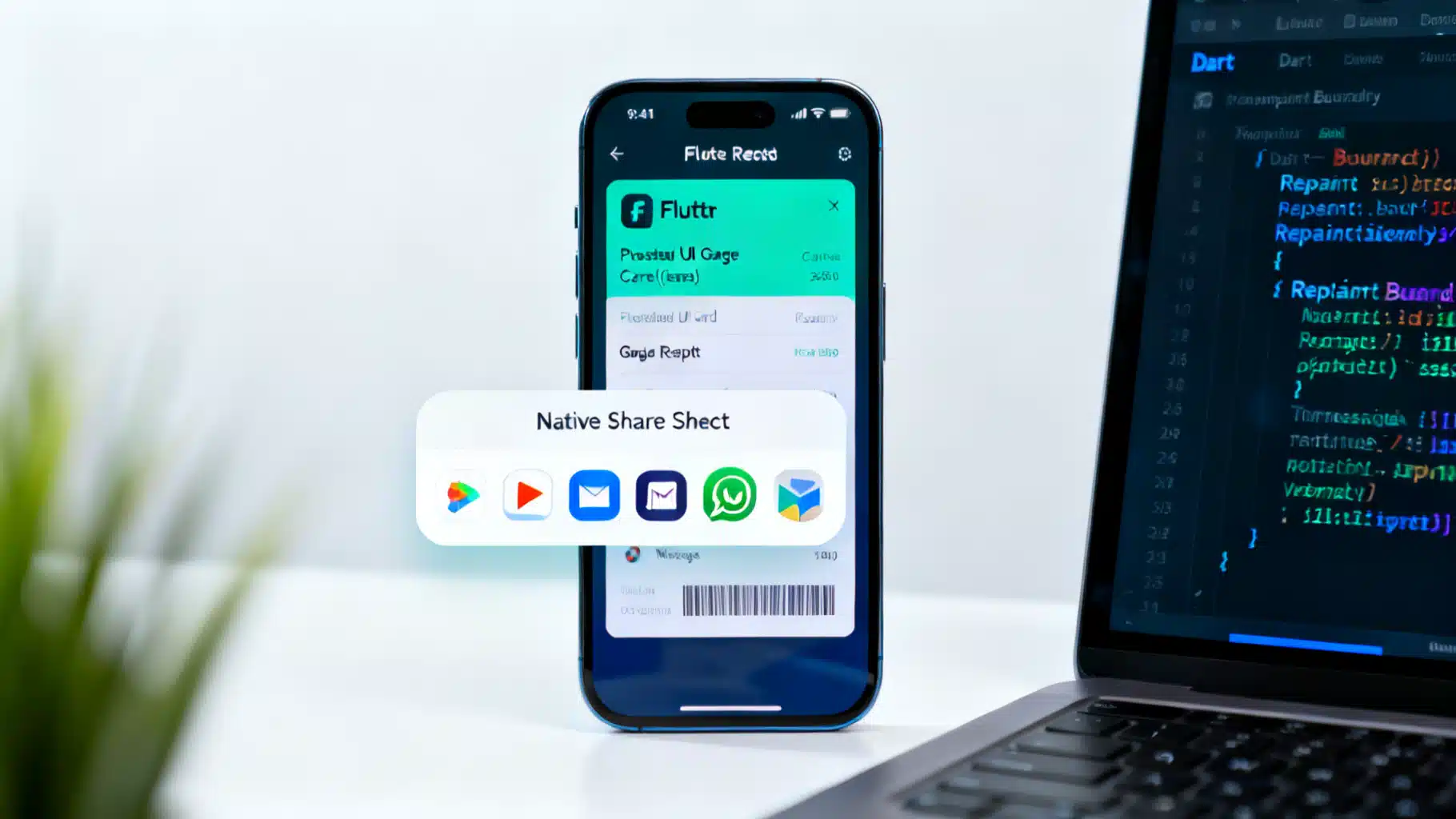
Image used for representation purposes only.
Overview
Capturing a widget as an image and sharing it is a common request in Flutter apps: receipts, certificates, profile cards, charts, or achievement badges. In this guide you’ll learn production-ready patterns to capture screenshots of any Flutter widget and share them across platforms using Share Sheets. We’ll cover the low-level RepaintBoundary API, the screenshot package for convenience, quality tuning, long/scrollable content, and platform gotchas.
When to use which approach
- RepaintBoundary + RenderRepaintBoundary: Most flexible. Ideal when the widget is already on screen and you want full control over quality and timing.
- screenshot package (ScreenshotController): Fastest to integrate. Great for on-screen capture or rendering a widget off-screen purely for export.
- Sharing: Use share_plus for a single, cross‑platform API to share files and bytes.
Dependencies
Add the packages you need in pubspec.yaml. Versions are omitted here so you can pick the latest compatible ones.
dependencies:
  flutter:
    sdk: flutter
  share_plus: ^
  path_provider: ^
  # Optional but highly recommended for convenience
  screenshot: ^
Notes:
- share_plus supports Android, iOS, macOS, Windows, Linux, and Web (using the Web Share API when available).
- path_provider is used to create a temporary file before sharing (many share targets expect a file URI).
Approach 1: Pure Flutter with RepaintBoundary
RepaintBoundary lets you isolate a widget’s render tree and convert it to a ui.Image that you then encode to PNG. This is the most robust approach and doesn’t require third‑party packages (other than share_plus and path_provider for sharing convenience).
1) Wrap the widget you want to capture
import 'dart:io';
import 'dart:typed_data';
import 'dart:ui' as ui;

import 'package:flutter/material.dart';
import 'package:path_provider/path_provider.dart';
import 'package:share_plus/share_plus.dart';

class CaptureDemo extends StatefulWidget {
  const CaptureDemo({super.key});

  @override
  State<CaptureDemo> createState() => _CaptureDemoState();
}

class _CaptureDemoState extends State<CaptureDemo> {
  final GlobalKey _repaintKey = GlobalKey();

  Future<Uint8List> _capturePng() async {
    // Ensure the frame is fully painted
    await WidgetsBinding.instance.endOfFrame;

    final boundary = _repaintKey.currentContext!.findRenderObject() as RenderRepaintBoundary;

    // Use device pixel ratio for crisp output
    final pixelRatio = MediaQuery.of(_repaintKey.currentContext!).devicePixelRatio;

    final ui.Image image = await boundary.toImage(pixelRatio: pixelRatio);
    final byteData = await image.toByteData(format: ui.ImageByteFormat.png);
    return byteData!.buffer.asUint8List();
  }

  Future<void> _shareScreenshot() async {
    final bytes = await _capturePng();

    // Persist to a temp file (widely supported by share targets)
    final dir = await getTemporaryDirectory();
    final file = File('${dir.path}/capture_${DateTime.now().millisecondsSinceEpoch}.png');
    await file.writeAsBytes(bytes, flush: true);

    await Share.shareXFiles(
      [XFile(file.path)],
      text: 'Shared from my Flutter app',
      subject: 'Check this out',
    );
  }

  @override
  Widget build(BuildContext context) {
    return Scaffold(
      appBar: AppBar(title: const Text('RepaintBoundary Capture')),
      floatingActionButton: FloatingActionButton(
        onPressed: _shareScreenshot,
        child: const Icon(Icons.share),
      ),
      body: Center(
        child: RepaintBoundary(
          key: _repaintKey,
          child: Container(
            padding: const EdgeInsets.all(24),
            color: Colors.white, // Solid background avoids transparency artifacts
            child: Column(
              mainAxisSize: MainAxisSize.min,
              children: [
                const Text('Achievement Badge', style: TextStyle(fontSize: 24, fontWeight: FontWeight.bold)),
                const SizedBox(height: 8),
                const FlutterLogo(size: 96),
                const SizedBox(height: 8),
                Text('User: Jane Doe\nScore: 9821', textAlign: TextAlign.center),
              ],
            ),
          ),
        ),
      ),
    );
  }
}
Why this works
- RepaintBoundary creates a separate layer for your widget.
- RenderRepaintBoundary.toImage rasterizes that layer to a bitmap.
- Using MediaQuery.of(context).devicePixelRatio yields a crisp export on high‑DPI screens.
Common pitfalls and fixes
- Blank/low‑quality output: Wait for paint using WidgetsBinding.instance.endOfFrame before calling toImage.
- Transparent backgrounds look odd in some share targets: Give the root a solid color (e.g., Colors.white).
- Large widgets can be memory‑heavy: Consider a lower pixelRatio or reduce offscreen effects like shadows/blur.
Approach 2: Using the screenshot package
The screenshot package wraps the RepaintBoundary flow and adds captureFromWidget, which renders a widget off-screen solely for export. This is excellent for sharing content that isn’t currently visible (e.g., a long invoice or a high‑resolution poster).
1) Wrap on-screen content for quick capture
import 'package:flutter/material.dart';
import 'package:screenshot/screenshot.dart';
import 'package:share_plus/share_plus.dart';

class ScreenshotQuickDemo extends StatefulWidget {
  const ScreenshotQuickDemo({super.key});

  @override
  State<ScreenshotQuickDemo> createState() => _ScreenshotQuickDemoState();
}

class _ScreenshotQuickDemoState extends State<ScreenshotQuickDemo> {
  final controller = ScreenshotController();

  Future<void> _share() async {
    final bytes = await controller.capture(delay: const Duration(milliseconds: 10), pixelRatio: 2.0);
    if (bytes == null) return;
    final xfile = XFile.fromData(bytes, name: 'capture.png', mimeType: 'image/png');
    await Share.shareXFiles([xfile], text: 'My on-screen capture');
  }

  @override
  Widget build(BuildContext context) {
    return Scaffold(
      appBar: AppBar(title: const Text('screenshot package')),
      floatingActionButton: FloatingActionButton(onPressed: _share, child: const Icon(Icons.share)),
      body: Center(
        child: Screenshot(
          controller: controller,
          child: Card(
            elevation: 2,
            child: Padding(
              padding: const EdgeInsets.all(24),
              child: Column(
                mainAxisSize: MainAxisSize.min,
                children: const [
                  Text('Receipt #A-1024', style: TextStyle(fontSize: 20, fontWeight: FontWeight.bold)),
                  SizedBox(height: 12),
                  Text('Subtotal: $42.00\nTax: $3.15\nTotal: $45.15'),
                ],
              ),
            ),
          ),
        ),
      ),
    );
  }
}
2) Capture an off-screen widget at export quality
Future<void> exportHighRes(BuildContext context) async {
  final controller = ScreenshotController();

  // Build an off-screen widget with a fixed export width
  final widgetToExport = InheritedTheme.captureAll(
    context,
    Material(
      color: Colors.white,
      child: ConstrainedBox(
        constraints: const BoxConstraints.tightFor(width: 1080), // px target width
        child: Padding(
          padding: const EdgeInsets.all(24),
          child: Column(
            crossAxisAlignment: CrossAxisAlignment.start,
            children: List.generate(
              30,
              (i) => Padding(
                padding: const EdgeInsets.symmetric(vertical: 8),
                child: Text('Line ${i + 1} — item description goes here'),
              ),
            ),
          ),
        ),
      ),
    ),
  );

  final bytes = await controller.captureFromWidget(
    widgetToExport,
    pixelRatio: 3.0, // adjust for desired sharpness
    delay: const Duration(milliseconds: 20),
  );

  if (bytes == null) return;
  await Share.shareXFiles([
    XFile.fromData(bytes, name: 'export.png', mimeType: 'image/png')
  ], text: 'High-res export');
}
Why captureFromWidget? It removes dependence on what’s currently on screen. You can render arbitrarily tall/complex layouts just for export without impacting your visible UI.
Sharing strategies with share_plus
Most share targets prefer a file URI, but many will also accept in‑memory bytes. share_plus supports both:
- File path:
await Share.shareXFiles([XFile('/tmp/capture.png')], text: 'Look!');
- In-memory bytes:
await Share.shareXFiles([
  XFile.fromData(bytes, name: 'capture.png', mimeType: 'image/png')
]);
Tips:
- Include a name with .png so targets detect the MIME type.
- Provide optional subject and text for richer share sheets.
Quality, sizing, and backgrounds
- Pixel ratio: Higher ratios yield sharper images but consume more memory. 2.0–3.0 is a sweet spot for social sharing.
- Fixed export width: For predictable results, constrain the export layout to a known width (e.g., 1080 px for social posts) and scale pixelRatio accordingly.
- Backgrounds: Transparent PNGs can look black in preview on some platforms. Wrap content with a solid Container(color: Colors.white) if needed.
- Fonts and theme: When capturing off-screen, wrap with Material and InheritedTheme.captureAll(context, child) so the widget inherits the current Theme, DefaultTextStyle, and other inherited data.
Capturing long or scrollable content
Capturing the full length of a ListView/ScrollView that’s on screen usually returns only the visible viewport. Consider these patterns:
- Build an “export” version of your content as a Column (or sliver list materialized into a Column) without scrolling, and render it off-screen via captureFromWidget.
- For paginated data, prefetch all pages, then build the export widget from the combined data set.
- Use ConstrainedBox.tightFor(width: targetWidth) to produce a consistent width; let height be natural based on content.
This approach avoids fragile attempts to stitch multiple viewport captures, and it produces a single sharp image.
Timing: capturing after paint and animations
- Always wait for a completed frame before calling toImage. WidgetsBinding.instance.endOfFrame is reliable.
- If the widget is mid‑animation, either await the animation’s completion or add a small delay before capture.
- If boundary.debugNeedsPaint is true, add a short delay and try again.
Example retry loop:
Future<Uint8List> captureWithRetry(GlobalKey key) async {
  for (int i = 0; i < 3; i++) {
    await WidgetsBinding.instance.endOfFrame;
    final boundary = key.currentContext!.findRenderObject() as RenderRepaintBoundary;
    if (!boundary.debugNeedsPaint) {
      final pixelRatio = MediaQuery.of(key.currentContext!).devicePixelRatio;
      final image = await boundary.toImage(pixelRatio: pixelRatio);
      final data = await image.toByteData(format: ui.ImageByteFormat.png);
      return data!.buffer.asUint8List();
    }
    await Future.delayed(const Duration(milliseconds: 16));
  }
  throw Exception('Capture failed after retries');
}
Platform notes and gotchas
- Android FLAG_SECURE: If a route uses setFlagSecure (or a plugin enforces it), screenshots of that content are blocked by design.
- Web: RepaintBoundary.toImage works on modern Flutter web backends but can have limitations in some browsers or when using certain shaders. Test across browsers.
- Desktop: share_plus opens the native share mechanism where available; on Linux it may fall back to a chooser depending on the desktop environment.
- Permissions: Sharing a file from your app’s temporary directory typically requires no runtime permissions. Saving to the user’s Photos or external storage is a separate concern and may require additional steps.
Performance tips
- Keep your export widget minimal: avoid heavy shadows, large blurs, or huge images.
- Prefer vector assets (e.g., icons, custom painting) for crisp results at any pixelRatio.
- For very large exports, consider chunking your UI into sections and sharing multiple images.
Testing checklist
- Verify crispness on low‑ and high‑DPI devices (emulators and physical devices).
- Test the share sheet with multiple targets (Messages, Mail, WhatsApp, Slack, Drive, AirDrop, etc.).
- Try both file-based sharing and in‑memory bytes.
- Ensure theme and fonts look correct in off‑screen renders.
- Confirm that long content is fully included and not clipped.
Putting it all together
For many apps, a hybrid approach works best:
- Wrap on-screen widgets you frequently share with RepaintBoundary for quick captures.
- For “printable” or very long content, build a dedicated export layout and render it off-screen using screenshot’s captureFromWidget at a fixed width and higher pixelRatio.
- Share with share_plus using Share.shareXFiles, preferring a real file for maximum compatibility.
With these patterns, you’ll deliver crisp, reliable screenshots and a frictionless sharing experience across mobile, web, and desktop—without leaving the Flutter ecosystem.
Related Posts
Flutter NFC: Read and Write NDEF Tags on Android and iOS
Learn to read and write NFC tags in Flutter with nfc_manager: setup, NDEF records, code, UX, capacity, and cross‑platform pitfalls.
Build a Flutter QR Code Scanner and Generator in Flutter
Build a Flutter app that scans and generates QR codes with mobile_scanner and qr_flutter. Includes setup, code, exporting, UX, and tips.

Flutter + Google Maps: A Complete Integration Guide
Integrate Google Maps in Flutter: setup keys, Android/iOS config, markers, directions, clustering, styling, and best practices.