
Flutter Typography Guide: Custom Fonts, TextThemes, and Best Practices
Learn how to add and manage custom fonts in Flutter—assets, Google Fonts, text themes, scaling, fallbacks, and best practices for readable apps.
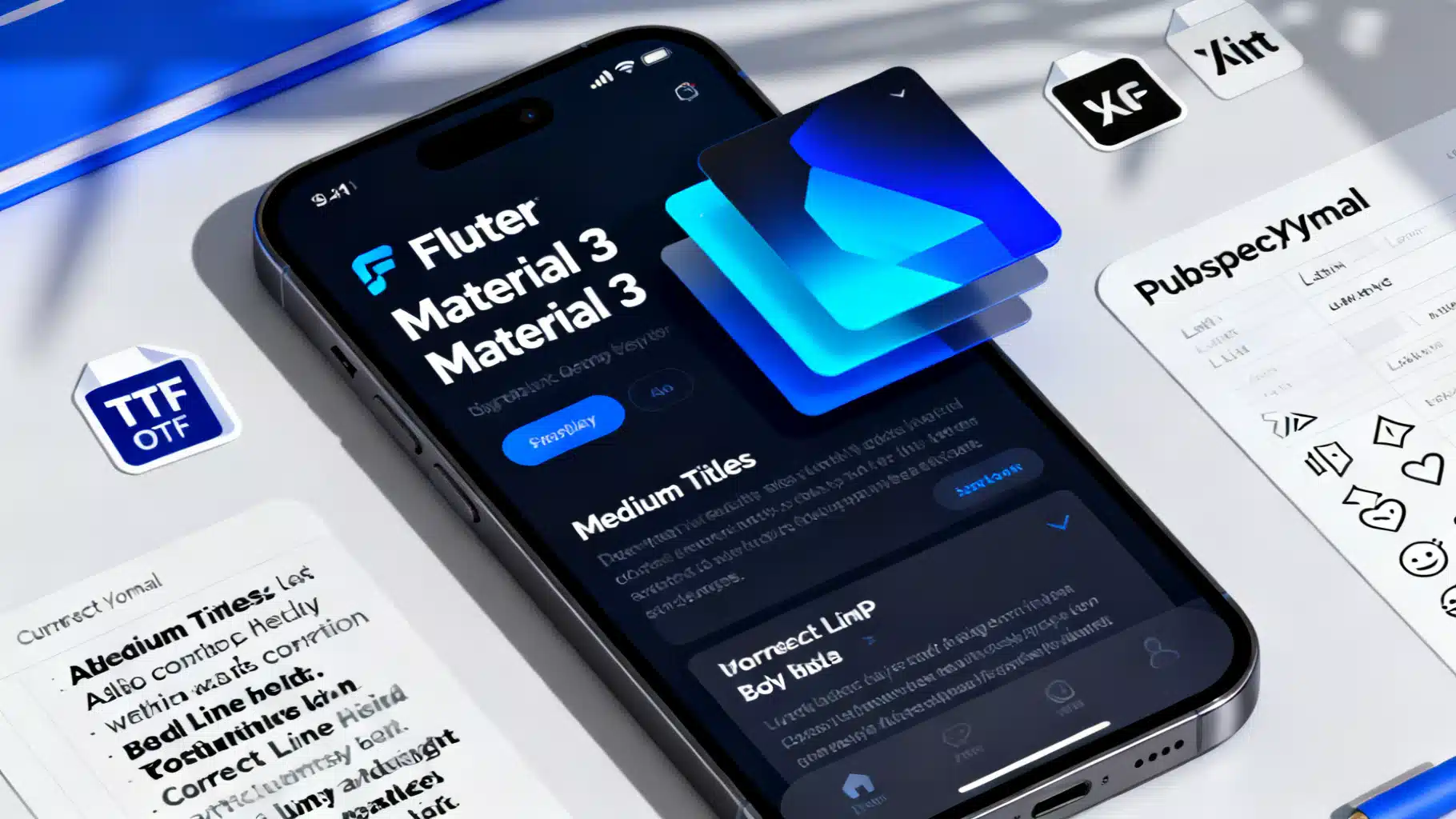
Image used for representation purposes only.
Overview
Typography is one of the most visible aspects of your Flutter app’s brand. Custom fonts can elevate readability, reinforce identity, and improve accessibility—when implemented correctly. This guide walks you through adding custom font assets, using Google Fonts, building consistent TextThemes (Material 3), handling fallbacks and internationalization, and tuning performance and testing.
How Flutter Handles Fonts
- Material apps default to Roboto on Android and San Francisco on iOS; Cupertino widgets use the system San Francisco family.
- When you register a custom family, Flutter bundles and rasterizes it on each platform (including the web).
- TextStyle merges from most local to most global: explicit Text.style → DefaultTextStyle → Theme.textTheme → Material baseline.
Adding Custom Font Assets
- Place font files in your project, typically under assets/fonts/.
- Declare them in pubspec.yaml with weights and styles.
flutter:
  uses-material-design: true
  assets:
    - assets/
  fonts:
    - family: AcmeSans
      fonts:
        - asset: assets/fonts/AcmeSans-Regular.ttf
          weight: 400
        - asset: assets/fonts/AcmeSans-Medium.ttf
          weight: 500
        - asset: assets/fonts/AcmeSans-SemiBold.ttf
          weight: 600
        - asset: assets/fonts/AcmeSans-Bold.ttf
          weight: 700
        - asset: assets/fonts/AcmeSans-Italic.ttf
          style: italic
          weight: 400
Tips:
- Map the correct weight numbers (100–900). If you reference FontWeight.w600 but did not declare a 600 face, Flutter will synthesize it—often with poorer quality.
- Include italics explicitly; they are not auto-generated.
- Keep file names readable and consistent.
Setting the Global Typeface
Update your ThemeData to use the custom family everywhere and provide sensible fallbacks.
final base = ThemeData(useMaterial3: true, colorScheme: ColorScheme.fromSeed(seedColor: const Color(0xFF2F6FED)));

final theme = base.copyWith(
  fontFamily: 'AcmeSans',
  textTheme: base.textTheme.apply(
    // Optional: platform-specific fallbacks for emoji and CJK
    fontFamilyFallback: const ['Noto Sans', 'Apple Color Emoji', 'Noto Color Emoji'],
    bodyColor: base.colorScheme.onBackground,
    displayColor: base.colorScheme.onBackground,
  ),
);

MaterialApp(theme: theme, home: const HomePage());
Notes:
- fontFamily at ThemeData level sets the default for textTheme.
- Use fontFamilyFallback to avoid missing-glyph boxes (tofu) and ensure emoji render correctly.
Working With Material 3 Text Themes
Material 3 organizes type into display, headline, title, body, and label scales. Customize them to match your brand but keep hierarchy and contrast.
TextTheme buildTextTheme(BuildContext context, ColorScheme scheme) {
  final t = Theme.of(context).textTheme;
  return t.copyWith(
    displayLarge: t.displayLarge?.copyWith(fontWeight: FontWeight.w700, letterSpacing: -0.5),
    headlineMedium: t.headlineMedium?.copyWith(fontWeight: FontWeight.w600),
    titleLarge: t.titleLarge?.copyWith(fontWeight: FontWeight.w600),
    bodyLarge: t.bodyLarge?.copyWith(height: 1.5),
    labelLarge: t.labelLarge?.copyWith(letterSpacing: 0.2, fontWeight: FontWeight.w600),
  ).apply(
    bodyColor: scheme.onBackground,
    displayColor: scheme.onBackground,
  );
}
Best practices:
- Maintain a consistent vertical rhythm (line height/height property) across related styles.
- Use negative letter-spacing sparingly on large display styles; positive spacing aids small labels and captions.
Using Google Fonts (Quick Start)
The google_fonts package is a fast way to experiment or standardize on a popular family. It can either fetch fonts dynamically (web) or bundle them at build time.
dependencies:
  flutter:
    sdk: flutter
  google_fonts: ^6.0.0
import 'package:google_fonts/google_fonts.dart';

final base = ThemeData(useMaterial3: true);
final theme = base.copyWith(
  textTheme: GoogleFonts.interTextTheme(base.textTheme).copyWith(
    titleLarge: GoogleFonts.inter(fontWeight: FontWeight.w600),
  ),
);
Tips:
- For production builds, prefer the bundled (offline) approach to avoid runtime fetches.
- Limit weights to what you actually use to reduce bundle size.
Advanced TextStyle Controls
- Font features: Enable OpenType features such as small caps or tabular numbers.
const priceStyle = TextStyle(
  fontSize: 18,
  fontWeight: FontWeight.w600,
  fontFeatures: [
    FontFeature.enable('tnum'), // tabular lining numbers
  ],
);
- Letter and word spacing: Use letterSpacing for branding polish; wordSpacing rarely needs changes.
- Height: Use height (line-height multiplier) to control readability; 1.4–1.6 works well for body text.
Variable Fonts (Practical Notes)
- Many modern families ship as variable fonts (e.g., a single .ttf covering wght 300–700). Flutter lets you reference weights via FontWeight as usual; ensure the asset is registered and that the weight range includes the values you use.
- For design consistency, pick a subset of weights (e.g., 400, 600, 700) even if more are available.
Fallbacks, Internationalization, and Emoji
- Latin-plus coverage is not enough for global apps. Provide fallbacks covering your target locales (e.g., Noto families for CJK, Arabic, Devanagari, Cyrillic).
- You can swap families per locale at runtime.
ThemeData themedForLocale(Locale locale, ThemeData base) {
  final isJa = locale.languageCode == 'ja';
  final family = isJa ? 'NotoSansJP' : 'AcmeSans';
  return base.copyWith(
    fontFamily: family,
    textTheme: base.textTheme.apply(fontFamilyFallback: const ['Noto Sans', 'Noto Color Emoji']),
  );
}
- Always include an emoji-capable fallback to prevent missing glyphs.
Responsive Type and Accessibility
- Respect user text scaling: Flutter applies MediaQuery.textScaleFactor automatically to Text. Avoid hard-coding font sizes that break at large scales.
class ScalableTitle extends StatelessWidget {
  const ScalableTitle({super.key});
  @override
  Widget build(BuildContext context) {
    final style = Theme.of(context).textTheme.titleLarge;
    return Text('Settings', style: style, maxLines: 1, overflow: TextOverflow.ellipsis);
  }
}
Guidelines:
- Ensure critical layouts survive textScaleFactor ≥ 1.3 (Android default accessibility steps go higher—test 1.5 and 2.0 too).
- Maintain contrast: AA minimum 4.5:1 for normal text, 3:1 for large text.
- Prefer relative sizing via your TextTheme over raw numbers sprinkled across widgets.
Building a Design System With Type Tokens
Define a small set of semantic tokens and reuse them. This keeps your typography consistent across modules.
class AppText {
  AppText._();
  static const display = TextStyle(fontSize: 48, fontWeight: FontWeight.w700, letterSpacing: -0.5);
  static const headline = TextStyle(fontSize: 28, fontWeight: FontWeight.w600);
  static const title = TextStyle(fontSize: 20, fontWeight: FontWeight.w600);
  static const body = TextStyle(fontSize: 16, height: 1.5);
  static const label = TextStyle(fontSize: 12, letterSpacing: 0.2, fontWeight: FontWeight.w600);
}
Use tokens through your app, and bridge them to Theme.textTheme so Material widgets inherit them naturally.
Performance and Bundle Size
- Don’t over-embed: every weight/style adds kilobytes. Aim for 3–4 weights total.
- Prefer TTF/OTF from reputable sources. Consider subsetting to the scripts you need when fonts are large.
- Reuse styles: computing many distinct TextStyles can add layout cost; centralize in Theme or tokens.
- For long lists, wrap text-heavy rows with const where possible and ensure softWrap/maxLines/overflow are set to avoid expensive re-layout.
Testing Your Typography
- Golden tests: capture screens at multiple text scales.
// Pseudocode for a golden test
await tester.pumpWidget(MediaQuery(
  data: const MediaQueryData(textScaleFactor: 1.8),
  child: MaterialApp(theme: theme, home: const HomePage()),
));
await expectLater(find.byType(HomePage), matchesGoldenFile('home_1.8x.png'));
- Widget tests: assert that a specific widget receives the correct TextStyle.
- Manual audits: toggle system font size (Android/iOS) and check truncation, wrapping, and contrast.
Troubleshooting
- Missing glyphs (tofu): add a fallback with the needed script or emoji coverage.
- Wrong weight rendering: ensure the weight number in pubspec.yaml matches the actual file and your TextStyle weight.
- Italic not showing: declare a separate italic face; style: italic is required.
- Web: when using dynamic Google Fonts loading, verify CSP and network access; consider bundling fonts for reliability.
Putting It All Together
Below is a minimal, production-friendly setup that:
- Bundles a custom family with fallbacks
- Applies a refined Material 3 TextTheme
- Leaves room for locale-based overrides later
class AppTheme {
  static ThemeData light() {
    final base = ThemeData(useMaterial3: true, colorScheme: ColorScheme.fromSeed(seedColor: const Color(0xFF2F6FED)));
    final text = base.textTheme.apply(
      fontFamily: 'AcmeSans',
      fontFamilyFallback: const ['Noto Sans', 'Noto Color Emoji'],
      bodyColor: base.colorScheme.onBackground,
      displayColor: base.colorScheme.onBackground,
    );

    return base.copyWith(
      textTheme: text.copyWith(
        displayLarge: text.displayLarge?.copyWith(fontWeight: FontWeight.w700, letterSpacing: -0.5),
        headlineMedium: text.headlineMedium?.copyWith(fontWeight: FontWeight.w600),
        titleLarge: text.titleLarge?.copyWith(fontWeight: FontWeight.w600),
        bodyLarge: text.bodyLarge?.copyWith(height: 1.5),
        labelLarge: text.labelLarge?.copyWith(letterSpacing: 0.2, fontWeight: FontWeight.w600),
      ),
    );
  }
}
Checklist Before You Ship
- Fonts declared with exact weights and italics in pubspec.yaml
- ThemeData.fontFamily set; textTheme customized for hierarchy
- Fallbacks cover target locales and emoji
- Text scales validated at 1.3, 1.5, and 2.0
- Limited number of weights to control size and performance
- Golden and widget tests added for critical screens
Conclusion
A thoughtful typography system turns good UI into great UX. By bundling the right weights, using a coherent TextTheme, planning fallbacks for global coverage, and testing for accessibility, your Flutter app will read beautifully—on every device, language, and scale factor.
Related Posts

Building a Flutter Barcode Inventory Management App: Architecture, Scanning, and Offline Sync
Build a fast, offline-first Flutter barcode inventory app: architecture, scanning, data model, sync, UI/UX, printing, testing, and deployment.
Flutter Foreground Service Notifications: A Complete Guide
How to implement a robust Flutter foreground service notification: Android setup, Dart code, permissions, iOS realities, testing, and best practices.
Flutter WorkManager Scheduled Tasks: The Complete, Practical Guide (2026)
A practical guide to scheduling background tasks in Flutter with WorkManager on Android and iOS, with setup, periodic jobs, constraints, and debugging.