
Flutter BLE Integration: A Production-Ready Guide
A practical, production-ready guide to integrating Bluetooth Low Energy (BLE) in Flutter apps on Android and iOS, with code, setup, and best practices.
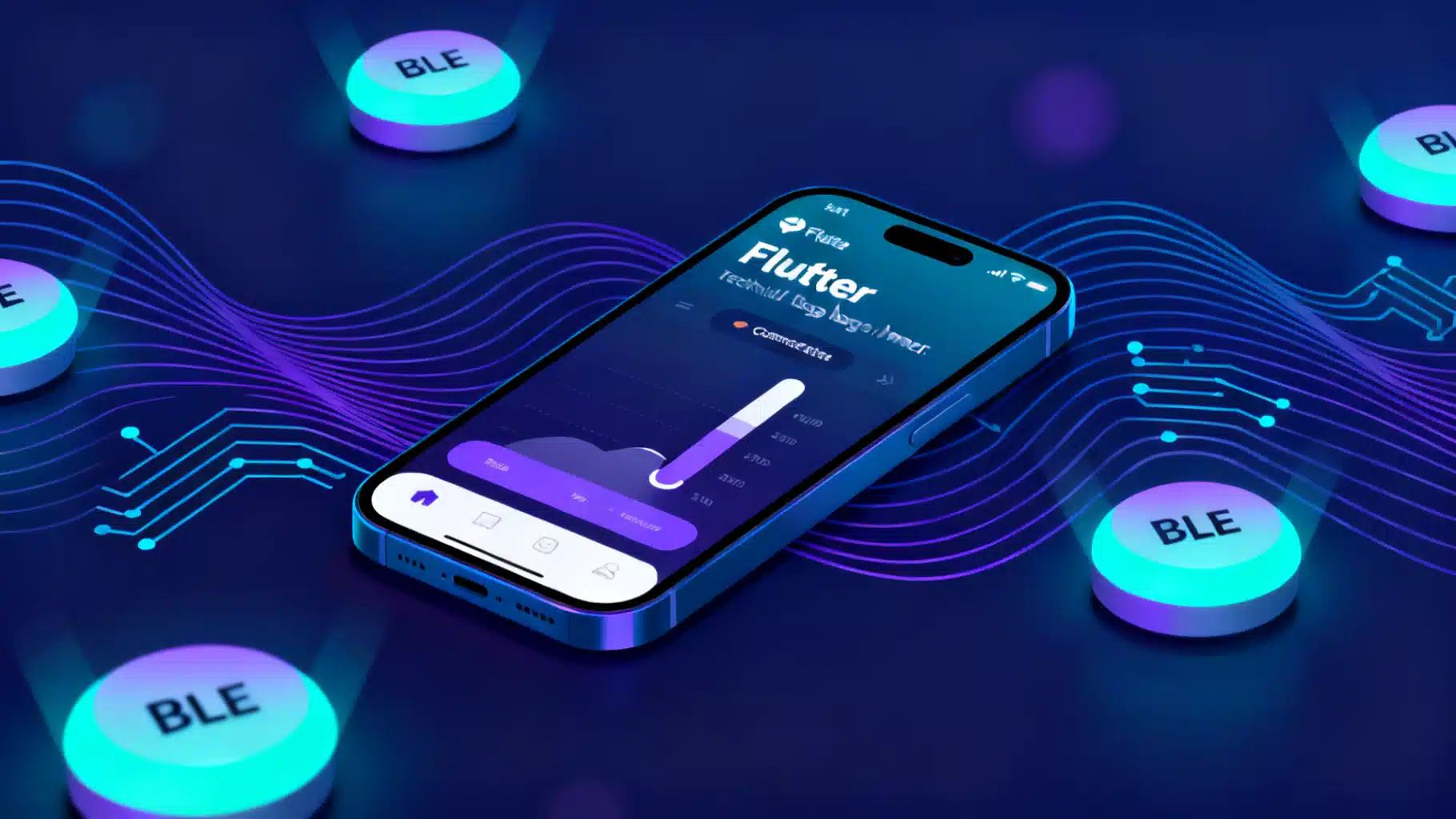
Image used for representation purposes only.
Overview
Bluetooth Low Energy (BLE) lets Flutter apps discover, connect to, and exchange data with nearby peripherals such as sensors, wearables, and smart home devices. This guide walks you through a production‑ready integration: concepts, setup for Android and iOS, scanning and connecting, reading/writing characteristics, notifications, permissions, security, performance, testing, and troubleshooting.
BLE in a nutshell
Before coding, ground your mental model in GATT (Generic Attribute Profile):
- Peripheral: the device advertising data (sensor/watch).
- Central: your Flutter app (phone/tablet) that scans and connects.
- Service: a logical grouping identified by a 16/32/128‑bit UUID.
- Characteristic: the actual data endpoint within a service (read/write/notify/indicate).
- Descriptor: metadata for a characteristic (e.g., Client Characteristic Configuration Descriptor—CCCD—to enable notifications/indications).
- MTU: maximum payload size per GATT packet. Larger MTU can improve throughput, but the OS negotiates the final value.
Key flows:
- Scan for advertisements (optionally filter by service UUID).
- Connect and discover services/characteristics.
- Read, write, and/or subscribe to notifications.
- Handle disconnects, timeouts, and permission/state changes gracefully.
Choosing a Flutter BLE plugin
Two mature, widely used packages cover most central (client) use cases:
- flutter_reactive_ble: Stream‑first, platform‑aligned API, fine‑grained control, robust connection/notification handling.
- flutter_blue_plus: Familiar, high‑level API; good community support, convenient helpers.
If you need peripheral mode (your phone advertises/acts like a BLE device), look for a dedicated peripheral package and confirm platform support. Many apps only need central mode; start there.
This article demonstrates flutter_reactive_ble for its predictable streams and explicit characteristic targeting.
Project setup
1) Add dependencies
In pubspec.yaml:
dependencies:
  flutter:
    sdk: flutter
  flutter_reactive_ble: ^5.0.0 # use the latest compatible version
  permission_handler: ^11.3.0
Run:
flutter pub get
2) Android configuration
Add permissions and Bluetooth LE feature in android/app/src/main/AndroidManifest.xml. Handle both Android 12+ (API 31+) and older devices:
<manifest ...>
    <uses-feature android:name="android.hardware.bluetooth_le" android:required="true" />

    <!-- Android 12+ runtime permissions -->
    <uses-permission android:name="android.permission.BLUETOOTH_SCAN" />
    <uses-permission android:name="android.permission.BLUETOOTH_CONNECT" />
    <!-- Needed only if your app advertises as a peripheral -->
    <uses-permission android:name="android.permission.BLUETOOTH_ADVERTISE" />

    <!-- Location is required for scanning on Android 6–11 -->
    <uses-permission android:name="android.permission.ACCESS_FINE_LOCATION" android:maxSdkVersion="30" />

    <!-- Optional: foreground service if you scan/connect long‑running in background -->
    <uses-permission android:name="android.permission.FOREGROUND_SERVICE" />
    <!-- On newer Android versions, also declare the foreground service type in your service if used. -->

    <application ...>
        <!-- If you run a foreground service for long scans, declare service + type here. -->
    </application>
</manifest>
Notes:
- On Android 12+, you must request BLUETOOTH_SCAN and BLUETOOTH_CONNECT at runtime.
- The SCAN permission can be flagged as neverForLocation to clarify you do not infer location from BLE.
- For background scanning/connection, consider a foreground service with an ongoing notification and the correct service type.
3) iOS configuration
Edit ios/Runner/Info.plist:
<key>NSBluetoothAlwaysUsageDescription</key>
<string>Bluetooth access is needed to connect to nearby devices.</string>

<!-- If you interact with BLE while app is in background as a central -->
<key>UIBackgroundModes</key>
<array>
  <string>bluetooth-central</string>
  <!-- Add bluetooth-peripheral only if your app advertises/acts as a peripheral -->
</array>
Notes:
- iOS will show the system pairing dialog automatically when accessing secured characteristics.
- Background BLE on iOS is constrained; scan with specific service UUIDs and avoid indefinite scans.
4) Request runtime permissions
On Android, request the appropriate Bluetooth (and, for <12, Location) permissions before scanning. On iOS, CoreBluetooth does its own authorization flow, but you should handle app states.
Example using permission_handler:
import 'package:permission_handler/permission_handler.dart';

Future<void> ensureBlePermissions() async {
  // Android 12+
  final scan = await Permission.bluetoothScan.request();
  final connect = await Permission.bluetoothConnect.request();

  // Android 6–11
  final location = await Permission.locationWhenInUse.request();

  if (scan.isDenied || connect.isDenied || location.isDenied) {
    throw Exception('Bluetooth permissions not granted');
  }
}
Bootstrapping a BLE client
Create a singleton to manage BLE state and subscriptions across your app lifecycle.
import 'dart:async';
import 'package:flutter_reactive_ble/flutter_reactive_ble.dart';

class BleClient {
  BleClient._();
  static final BleClient I = BleClient._();

  final FlutterReactiveBle _ble = FlutterReactiveBle();
  DiscoveredDevice? _device;
  StreamSubscription<DiscoveredDevice>? _scanSub;
  StreamSubscription<ConnectionStateUpdate>? _connSub;

  // Expose key streams for UI
  final _connection = StreamController<DeviceConnectionState>.broadcast();
  Stream<DeviceConnectionState> get connection => _connection.stream;

  Future<void> startScan({required Uuid service}) async {
    await _scanSub?.cancel();
    _scanSub = _ble
        .scanForDevices(withServices: [service], scanMode: ScanMode.lowLatency)
        .listen((d) {
      // Filter by your own criteria (name, manufacturer data, RSSI threshold, etc.)
      if (d.name.isNotEmpty && d.rssi > -85) {
        _device = d;
      }
    });
  }

  Future<void> stopScan() async => _scanSub?.cancel();

  Future<void> connect({required String deviceId, Duration timeout = const Duration(seconds: 10)}) async {
    await _connSub?.cancel();
    _connSub = _ble
        .connectToDevice(
          id: deviceId,
          connectionTimeout: timeout,
          servicesWithCharacteristicsToDiscover: const {}, // discover on demand
        )
        .listen((update) {
          _connection.add(update.connectionState);
        }, onError: (e) {
          _connection.add(DeviceConnectionState.disconnected);
        });
  }

  Future<void> disconnect() async {
    await _connSub?.cancel();
    _connection.add(DeviceConnectionState.disconnected);
  }
}
Scanning best practices
- Prefer filtered scans by known service UUIDs to reduce power and noise.
- Use lowLatency only while the scan UI is visible; fall back to balanced scans otherwise.
- Apply RSSI thresholds to ignore distant devices.
- Stop scanning as soon as you have what you need.
Example scan + connect flow:
const Uuid myService = Uuid.parse('0000181A-0000-1000-8000-00805F9B34FB'); // Environmental Sensing

Future<void> findAndConnect() async {
  await ensureBlePermissions();
  await BleClient.I.startScan(service: myService);
  await Future.delayed(const Duration(seconds: 3));
  await BleClient.I.stopScan();

  final device = BleClient.I._device; // expose via getter in real code
  if (device == null) throw Exception('No suitable device found');

  await BleClient.I.connect(deviceId: device.id);
}
Read, write, and notifications
After connecting, target a characteristic using its deviceId, service UUID, and characteristic UUID.
final deviceId = 'AA:BB:CC:DD:EE:FF';
final tempChar = QualifiedCharacteristic(
  serviceId: Uuid.parse('0000181A-0000-1000-8000-00805F9B34FB'),
  characteristicId: Uuid.parse('00002A6E-0000-1000-8000-00805F9B34FB'), // Temperature
  deviceId: deviceId,
);

// Read once
Future<double> readTemperatureC() async {
  final bytes = await BleClient.I._ble.readCharacteristic(tempChar);
  // Example: decode 16‑bit signed little‑endian with a scale factor
  final value = (bytes[0] | (bytes[1] << 8));
  final signed = value > 0x7FFF ? value - 0x10000 : value;
  return signed / 100.0; // depends on your firmware spec
}

// Subscribe to notifications
Stream<double> temperatureStream() {
  return BleClient.I._ble.subscribeToCharacteristic(tempChar).map((bytes) {
    final v = (bytes[0] | (bytes[1] << 8));
    final s = v > 0x7FFF ? v - 0x10000 : v;
    return s / 100.0;
  });
}

// Write configuration value
final configChar = QualifiedCharacteristic(
  serviceId: Uuid.parse('12345678-1234-5678-1234-56789ABCDEF0'),
  characteristicId: Uuid.parse('12345678-1234-5678-1234-56789ABCDEF1'),
  deviceId: deviceId,
);

Future<void> setSampleRateHz(int hz) async {
  final payload = [hz & 0xFF, (hz >> 8) & 0xFF];
  // If reliability matters, use write with response.
  await BleClient.I._ble.writeCharacteristicWithResponse(configChar, value: payload);
}
Notes:
- Notifications vs indications: indications include an ACK from the central and are slower but reliable. Choose what your firmware exposes.
- If your device supports it and you need speed, use writeWithoutResponse and implement your own flow control.
MTU and throughput
- Android: you can request a higher MTU; the peripheral may accept or negotiate a lower value.
- iOS: the OS manages MTU internally; your effective payload might differ from Android.
- Throughput tips:
- Bundle data efficiently; avoid many small writes.
- Prefer notifications for streaming rather than polling reads.
- Keep radio time clear: stop scanning while connected/streaming when possible.
Example MTU request on Android (no‑op on iOS):
Future<int> negotiateMtu(String deviceId) async {
  try {
    final mtu = await BleClient.I._ble.requestMtu(deviceId: deviceId, mtu: 247);
    return mtu; // actual granted MTU
  } catch (_) {
    return 23; // default minimum
  }
}
Connection management and lifecycle
- Maintain a single BLE client per app and reuse it.
- Always listen to connection state updates. Attempt bounded, jittered retries on transient failures.
- Timebox operations (scan, connect, read/write) with explicit timeouts.
- Cancel subscriptions on dispose to prevent leaks.
- On Android, users can toggle Bluetooth or Location mid‑session—react to adapter state changes.
- On iOS, consider state preservation/restoration if you need background delivery.
Example bounded reconnect:
Future<void> connectWithRetry(String deviceId) async {
  const attempts = 3;
  for (var i = 0; i < attempts; i++) {
    try {
      await BleClient.I.connect(deviceId: deviceId, timeout: const Duration(seconds: 8));
      return;
    } catch (_) {
      await Future.delayed(Duration(milliseconds: 500 * (i + 1)));
    }
  }
  throw Exception('Unable to connect after $attempts attempts');
}
Security and privacy
- Pairing/bonding: secure characteristics on the peripheral trigger the OS pairing dialog on first access. Bonding stores keys for future encrypted sessions.
- Use encrypted characteristics for sensitive data and commands; prefer authenticated pairing with MITM protection where feasible.
- Avoid embedding secrets in advertisements; use short‑lived tokens or challenge‑response on connect.
- Respect platform policies: declare only required permissions, explain usage clearly in consent screens, and minimize background BLE.
Testing and debugging
- Use a known‑good BLE app (e.g., nRF Connect or LightBlue) to validate your device’s GATT and behavior independent of your app.
- Firmware logs: coordinate with device engineers to correlate app timestamps with peripheral events.
- Android debugging:
- Enable Bluetooth HCI snoop log in Developer Options; inspect with Wireshark.
- Check Logcat for permissions and adapter state errors.
- iOS debugging:
- Use Console.app for CoreBluetooth logs.
- Test on physical devices; the simulator does not emulate BLE.
Performance checklist
- Filtered scans with known service UUIDs; stop scans promptly.
- Avoid running scans during high‑rate notifications.
- Request higher MTU on Android if your payload benefits.
- Batch or pack data; prefer write without response only with back‑pressure.
- Throttle UI redraws for high‑frequency streams.
Troubleshooting guide
- Scan returns nothing:
- Is Bluetooth ON and permissions granted? On Android <12, is Location ON?
- Is the peripheral advertising the expected service UUID?
- Proximity and RSSI: move closer; reduce interference.
- Connection drops:
- Power saving modes can suspend BLE; disable aggressive battery optimizers while testing.
- Radio contention: stop scans and Wi‑Fi heavy tasks during streams.
- Firmware timeouts: coordinate connection intervals and supervision timeouts.
- Reads/writes fail:
- Check properties: you can only read a readable characteristic and write to a writable one.
- Secure characteristic without bonding? The OS will prompt; don’t suppress it.
- Notifications not delivered:
- Ensure CCCD is set by the app (the plugin handles this when you subscribe) and that the firmware is sending updates.
- Confirm you are not unsubscribing inadvertently on rebuild/dispose.
Example UI snippet
A minimal widget that scans, connects, and streams temperature.
class TemperaturePage extends StatefulWidget {
  const TemperaturePage({super.key});
  @override
  State<TemperaturePage> createState() => _TemperaturePageState();
}

class _TemperaturePageState extends State<TemperaturePage> {
  Stream<double>? _temp$;
  String? _deviceId;

  @override
  void initState() {
    super.initState();
    _init();
  }

  Future<void> _init() async {
    await ensureBlePermissions();
    await BleClient.I.startScan(service: Uuid.parse('0000181A-0000-1000-8000-00805F9B34FB'));
    await Future.delayed(const Duration(seconds: 3));
    await BleClient.I.stopScan();
    final d = BleClient.I._device; // expose via getter in real code
    if (d == null) return;
    _deviceId = d.id;
    await BleClient.I.connect(deviceId: d.id);
    setState(() {
      _temp$ = temperatureStream();
    });
  }

  @override
  void dispose() {
    BleClient.I.disconnect();
    super.dispose();
  }

  @override
  Widget build(BuildContext context) {
    return Scaffold(
      appBar: AppBar(title: const Text('BLE Temperature')),
      body: Padding(
        padding: const EdgeInsets.all(16),
        child: Column(
          crossAxisAlignment: CrossAxisAlignment.start,
          children: [
            Text('Device: ${_deviceId ?? '—'}'),
            const SizedBox(height: 12),
            if (_temp$ == null)
              const Text('Scanning/connecting...')
            else
              StreamBuilder<double>(
                stream: _temp$,
                builder: (ctx, snap) {
                  if (!snap.hasData) return const Text('Waiting for data...');
                  return Text('${snap.data!.toStringAsFixed(2)} °C', style: Theme.of(context).textTheme.displaySmall);
                },
              ),
          ],
        ),
      ),
    );
  }
}
Folder structure suggestion
- lib/ble/
- ble_client.dart (singleton and core ops)
- ble_repository.dart (use‑case orchestration)
- models.dart (UUIDs, DTOs, coders)
- widgets/ (BLE‑aware UI components)
- test/ble/ (unit tests for codecs and repos)
Production tips
- Pin UUIDs and protocol in shared config; never hardcode magic numbers deep in code.
- Version your GATT with a characteristic so the app can adapt to firmware changes.
- Implement a safe‑mode: on repeated failures, fall back to simpler flows (e.g., reduced sample rate).
- Telemetry: log BLE states, operation timings, and error codes (without sensitive payloads).
Conclusion
Flutter makes BLE integration practical across Android and iOS with a single codebase. Start with a clear GATT contract, set up permissions and platform settings correctly, build a resilient connection layer, and test with real peripherals and sniffers. With the patterns here—filtered scanning, explicit characteristic targeting, notification‑first streaming, bounded retries, and careful permissions—you can ship a robust, battery‑friendly BLE experience.
Related Posts
Flutter Geolocation Tracking App Tutorial: Maps, Routes, and Background Updates
Build a production-ready Flutter geolocation tracker with maps, live routes, distance, and background updates. Permissions, battery, and privacy included.
Flutter Home Widget Creation Guide: Cross‑Platform Widgets for Android and iOS
Step-by-step Flutter guide to build home screen widgets for Android and iOS using native WidgetKit/AppWidget with Dart-driven updates.
Flutter + TensorFlow Lite: Local AI Integration Guide
A practical guide to integrating TensorFlow Lite models into Flutter for fast, private, offline on-device AI with performance tuning and code examples.